¶ Approvals
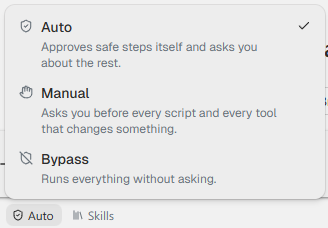
The Agent asks you before steps that write files, run actions or change a model. The approval mode decides how often it asks. You find it under the message box, on the left.
¶ The three modes
| Mode | What happens |
|---|---|
| Auto | Each Revit, AutoCAD, Navisworks or Tekla script is checked before it runs, in two steps. First a set of fixed rules picks out what always needs you, listed under What always asks. Then an AI model compares the script with what you asked for. A script that matches your request runs. Otherwise you get a card. Saving, running actions and reaching new folders ask as in Manual. |
| Manual | The Agent asks before every script in a design app and every step that changes something. A script that only reads and writes in folders you have already allowed runs without asking. |
| Bypass | Nothing asks. Use it for work you can take back. See Undo. |
The AI review in Auto lowers the number of cards you answer. It is not a guarantee that a script is right. In Manual you see every script before it runs.
New chats start in Auto. The mode you pick becomes the mode for your next new chats too. Your organization can limit which modes you can choose. Then the menu says "Managed by your organisation".
Some folders are closed to the Agent in every mode, also in Bypass: Windows, Program Files, the Assistant's own data, other chats' folders and folders with keys.
¶ The approval card
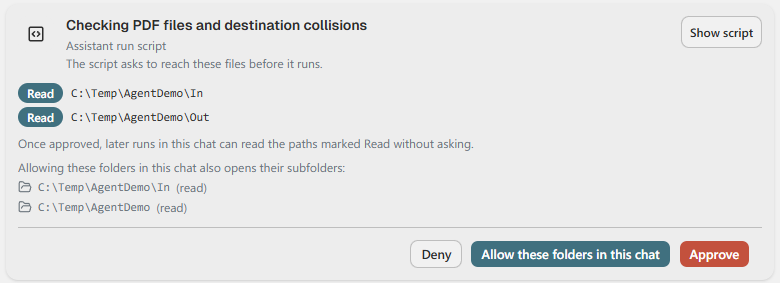
- Approve lets this one step run.
- Allow these folders in this chat lets this step run and also opens the listed folders, and their subfolders, for the rest of the chat. For other kinds of steps the button says Approve this session: the same kind of step then runs without asking for the rest of the chat.
- Deny stops the step. The Agent is told, and usually asks you what to do instead.
- Show script shows the full script before you decide.
Read means the script may read there. Write means it may create or change files there.
When the Agent wants to start an action, the card says which action and what happens during the run.

Tick "Don't ask again to re-run these actions in this chat" when you will run the same actions several times. The Agent asks again as soon as it changes the file.
¶ What always asks
In Auto and Manual, these always show a card:
- Saving the action file.
- Starting a run.
- Reaching a folder that this chat has not been allowed.
In Auto, a design-app script also always asks when it would:
- Synchronize with central or save a central model in Revit.
- Export or print files.
- Run a command by its name.
¶ When Auto says no
If the review finds a problem, the step is not run, and the card gives the reason: "Auto mode denied this step: ...". Click Run once if you still want it. Only that step is let through. The Agent's next steps are still checked.
If the review cannot be done, for example because the AI service does not answer, the step is not run and the Agent stops. Try again, or switch to Manual for that chat.
¶ Undo
Revit and AutoCAD put the Agent's changes in their own undo list. Navisworks and Tekla Structures have no undo that works the same way, so changes there are harder to reverse. Be extra careful in those two apps, and save a copy of the model before you ask for changes.
| App | Can the change be taken back? |
|---|---|
| Revit | Yes, with Undo in Revit, until the model is saved. Saving and synchronizing cannot be undone. |
| AutoCAD | Yes, with Undo in AutoCAD. |
| Navisworks | Not by the Assistant. If a script stops partway, the changes it made so far stay. |
| Tekla Structures | No. Changes stay in the model, so save a copy first. |
| Files on disk | Deleted or overwritten files cannot be brought back by the Agent. |