¶ Open Revit model from a double click
¶ Introduction
In this guide, you'll learn how to set up a process in Assistant that will allow you to open a Revit model with just a few clicks, without having to go through the time-consuming process of starting Revit, browsing for the model, and waiting for it to load. By following this guide, you'll be able to save time and focus on more important tasks. Let's get started!
¶ Setting it up
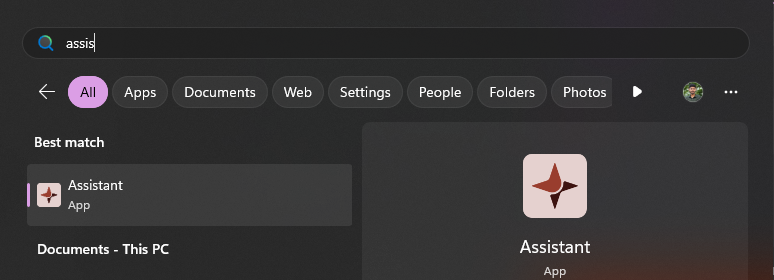
- Open Assistant by searching for it in the Start Menu in Windows or from the Assistant toolbar in Revit. For this tutorial, its recommended to set this up when starting from Revit, as this will allow you to set up worksets later in the process.

-
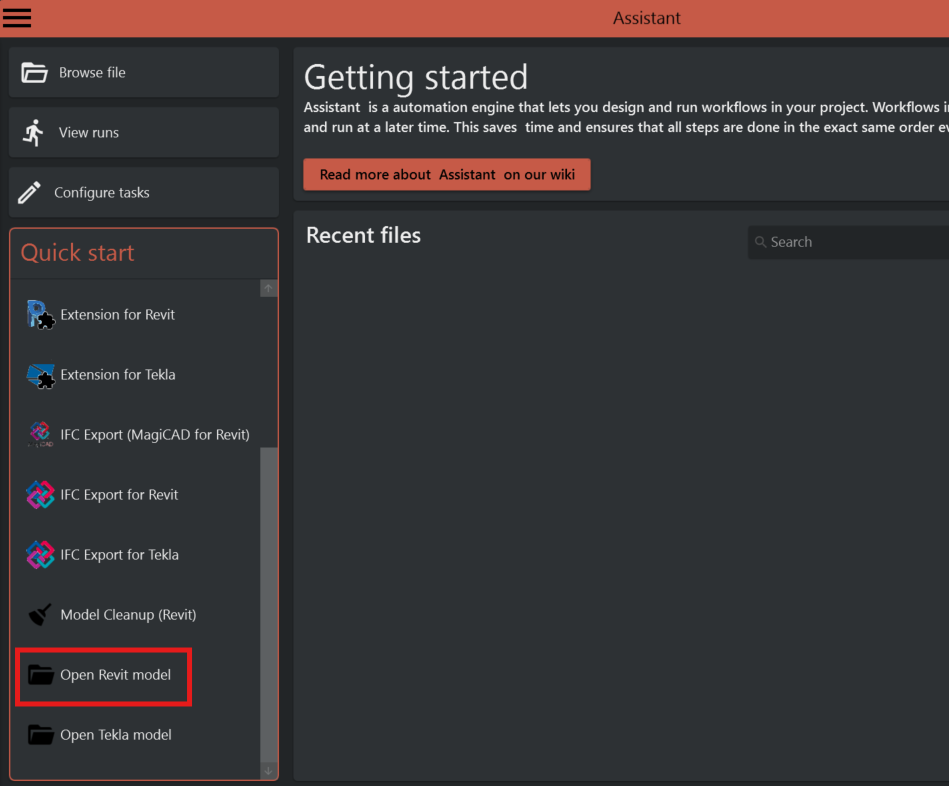
Select the "Open Revit model" template from the list of available templates
-
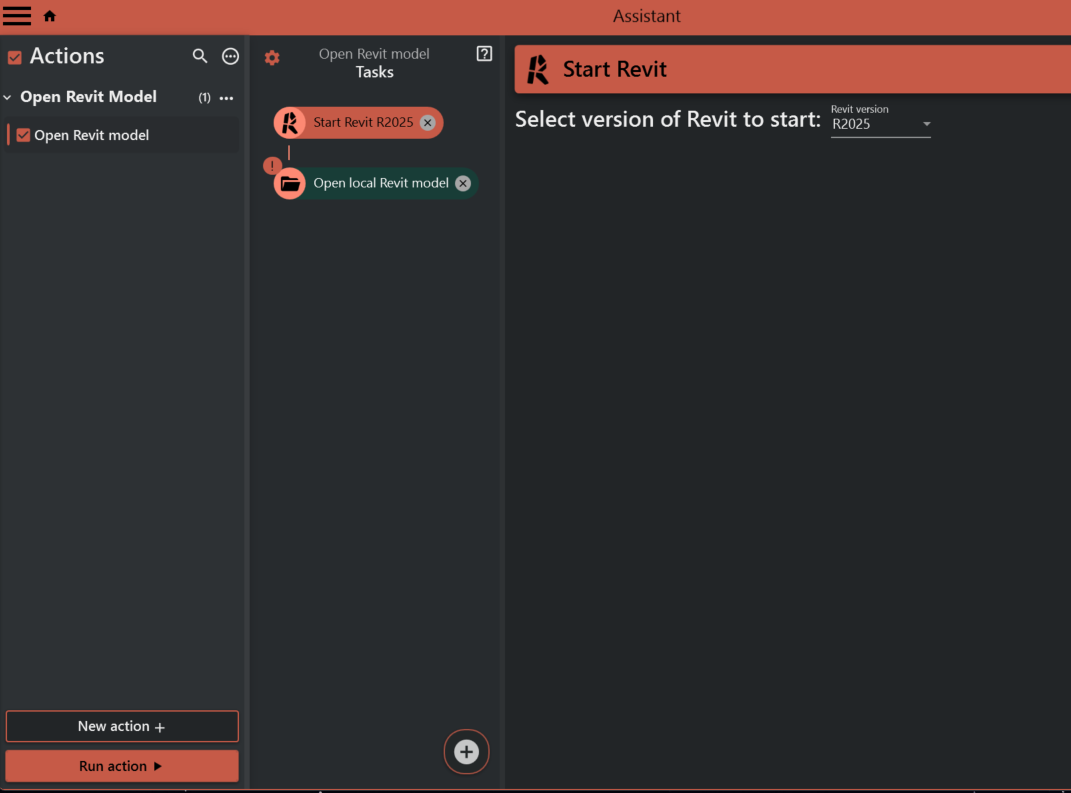
Select the "Open Revit model" action
-
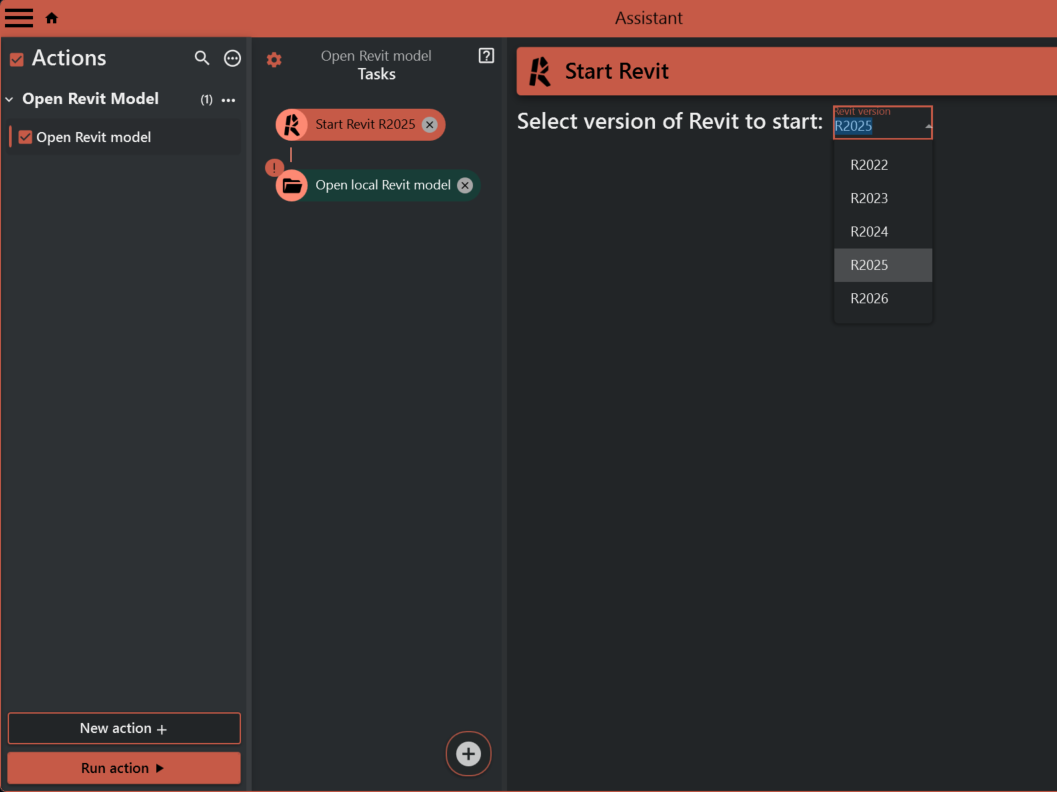
Open the "Start Revit" task and select the desired Revit version
-
Open the "Open model" task and select the desired Revit model file
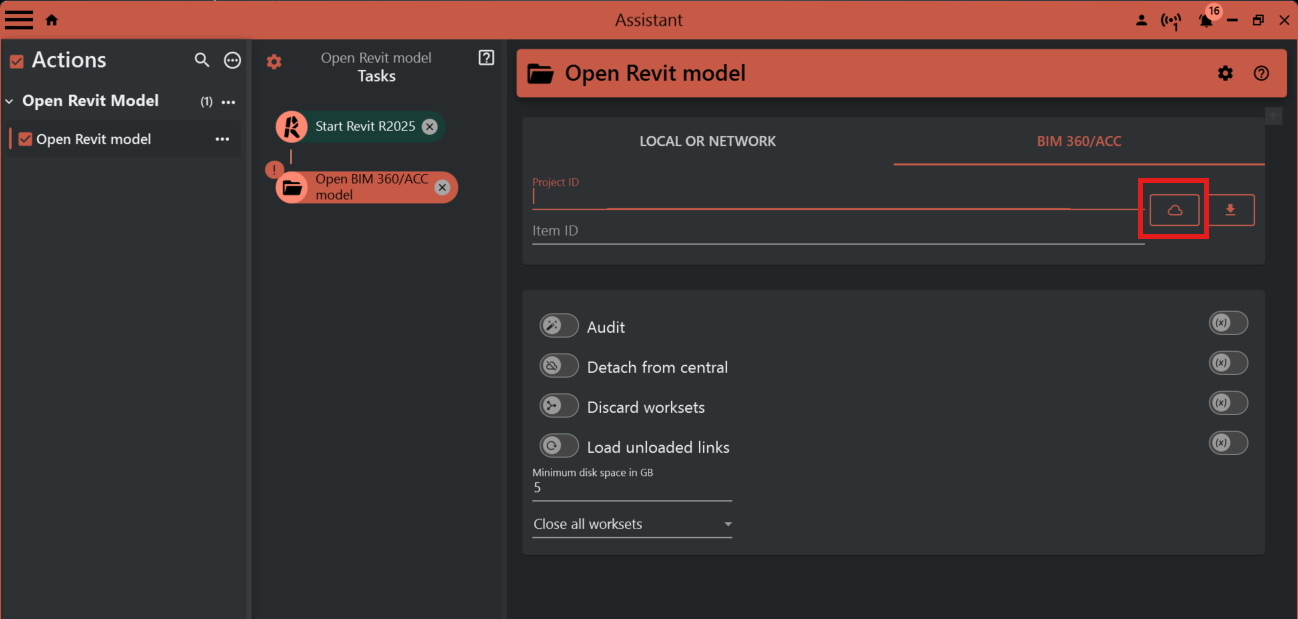
-
Select the worksets that you want to open. Note: This will only work if you started Assistant from Revit.
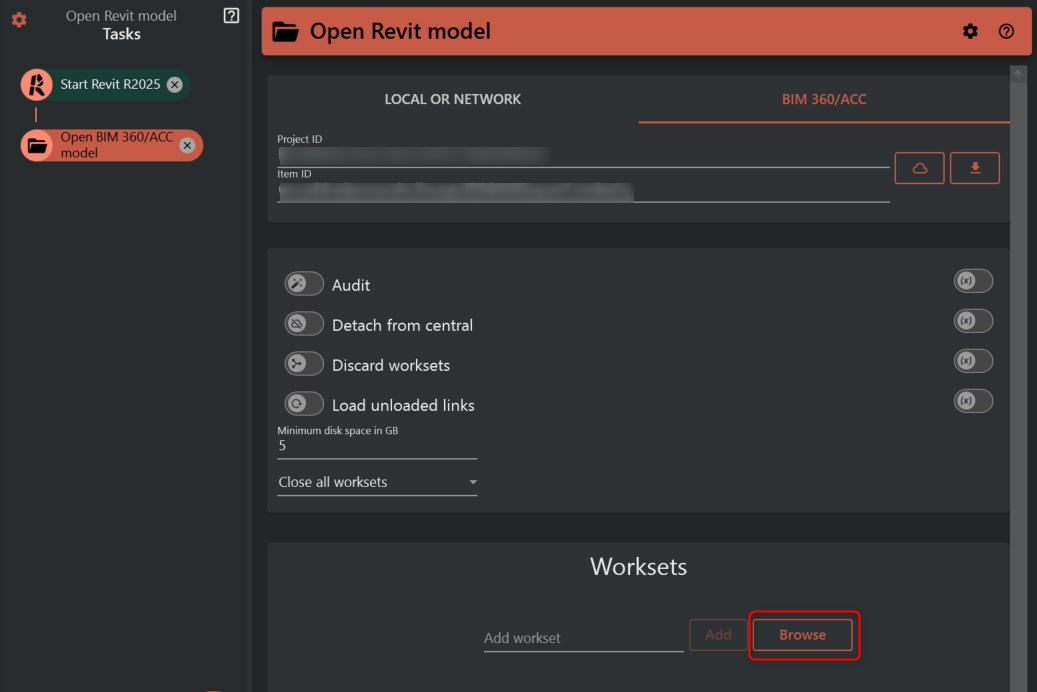
-
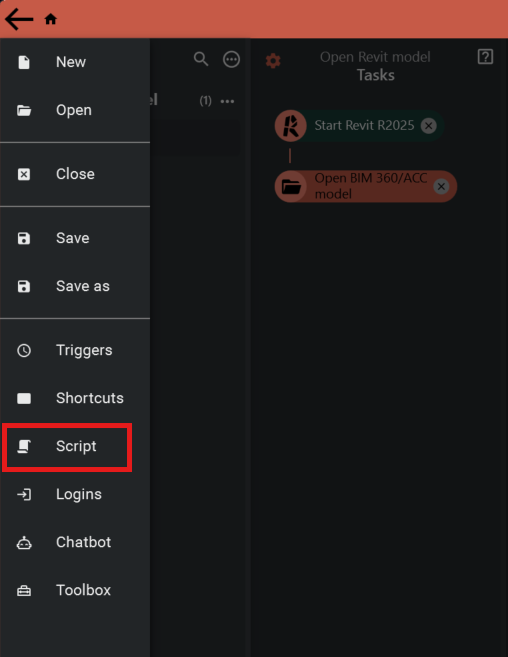
Open the hamburger menu in the top left corner
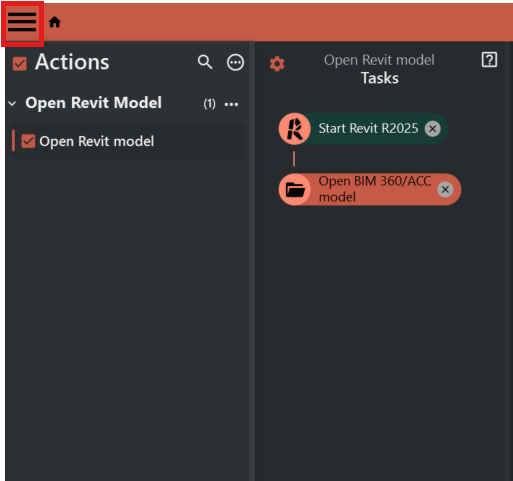
-
Save the file by clicking "Save" or "Save as" in the File menu
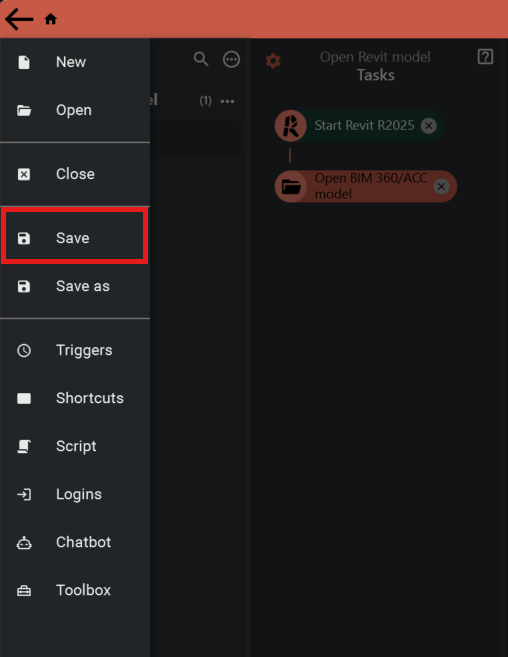
-
Click the "Script" button
-
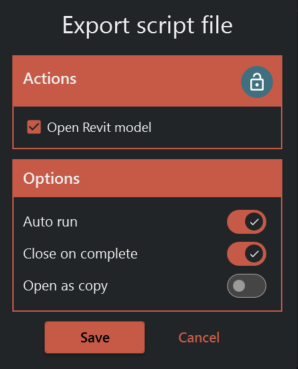
Enable "Auto run" and "Close on complete" and then click the save button. Choose the location to save the .bat script file and give it a descriptive name
-
Close Assistant
-
Double-click the .bat script to run the process and open the Revit model using the specified settings. Assistant will now start, run the configured tasks and close when the Revit model is open.
Note: Once the .bat script is created, you can use it to open the Revit model with just a double-click, saving time and streamlining your workflow.