¶ Link Adder
¶ Overview
The LinkAdder extension for the Assistant provides Revit users with a convenient method to add links to local or cloud-based Revit models. This user manual details how to configure and utilize the LinkAdder extension through the Assistant's user interface.
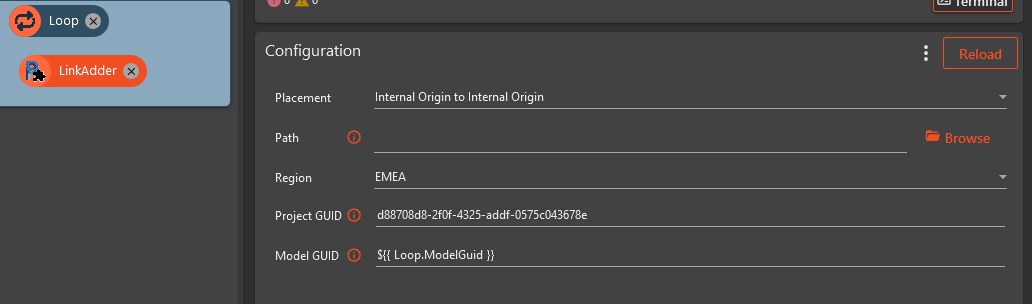
In the image above we can se the task configured to link a model in BIM 360 / ACC, where the Model GUID is provided by the Loop Task. The loop task is configured to get all the Revit cloud models in a BIM 360 project.
¶ Prerequisites
- An active session of Revit with the desired model open.
- For cloud-based models: Retrieve Project GUID using the Open Model task
¶ Input Fields
Upon accessing the LinkAdder task, you will be prompted to fill out the following fields:
- Placement: Choose how the link will be placed. For more info, check out this link: https://help.autodesk.com/view/RVT/2024/ENU/?guid=GUID-C922A152-0A30-4E27-BED2-BCE9FF2E5E30
Only the "Auto" options mentioned in the link are available
-
Path: Enter or browse to the full path of the local Revit model you wish to link. This field is only required when linking local files. The browse button will help locate the file.
-
Region: Select the region where your cloud model is stored. Options are "US" or "EMEA". This is only relevant when linking cloud-based models stored in BIM 360 or ACC.
-
Project GUID: Enter the Project GUID from BIM 360 or ACC. This uniquely identifies the project in which the model is located.
-
Model GUID: Enter the Model GUID from BIM 360 or ACC. When linking multiple files, it's reccomended to set this up with the Loop task to avoid having to manualy retrieve the Model GUIDs.
¶ Operation
- Fill in the required fields based on the model's location type (local or cloud).
- Run the task.
- A message will indicate whether the link was added successfully or if the link already exists.
¶ Tips
For optimal efficiency, utilize this extension with a Loop task that supplies the Model GUID as a variable, or the file path as a variable, to automate the linking process across multiple models.
The Project GUID can be retrieved by using the "Open model" task in Assistant. Simply select a model within your project to obtain the associated Project GUID.
¶ Troubleshooting
If you encounter an error message indicating that no model is found at the provided path, verify that the path is correctly entered for local models, and double-check the Project GUID and Model GUID for cloud-based models.
For any further assistance or questions, please reach out to the Assistant team.