¶ Print PDF
PrintPDF exports Revit sheets to PDF files. You choose where to save, what to export, how to name the files, and how the PDF should look.
¶ Step-by-step (typical workflow)
-
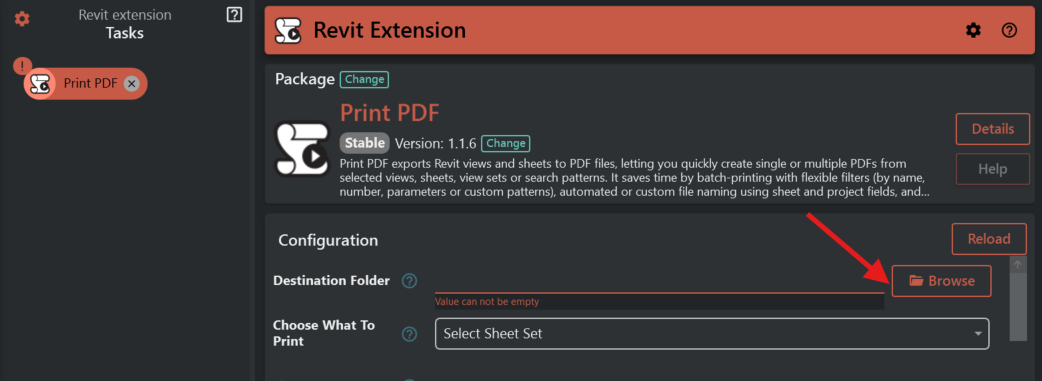
Destination Folder
- Click Destination Folder and choose where the PDF file(s) should be saved.
- If the folder does not exist, the tool will try to create it.
 # PrintPDF Extension (User Guide)
-
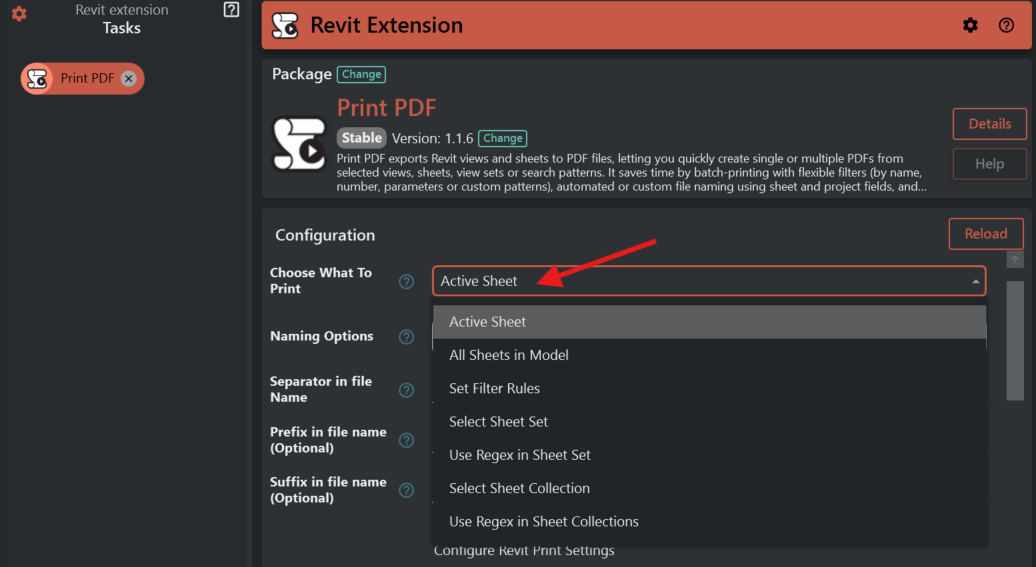
Choose What To Print
- Pick one of the options below.
- Depending on what you choose, extra fields will appear.
-
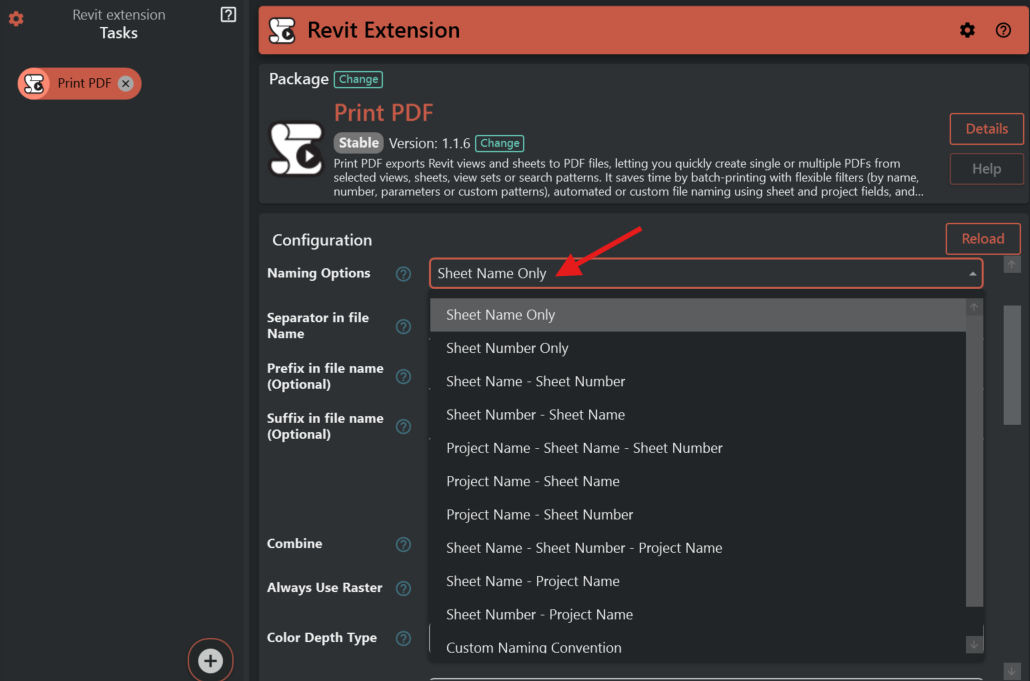
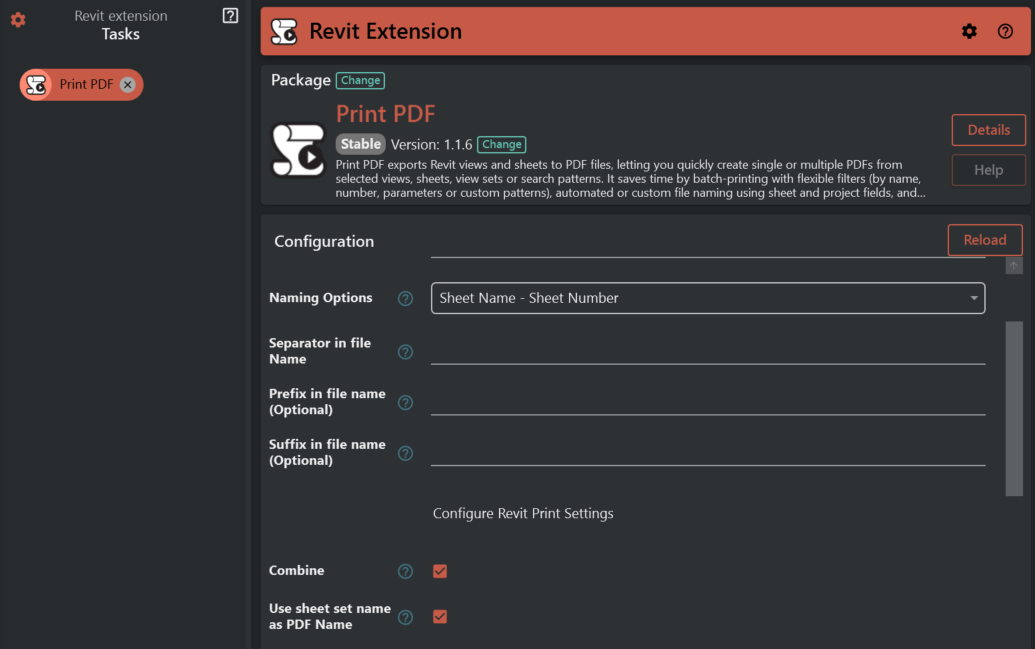
Naming Options
- Decide how the PDF files should be named.
- Decide how the PDF files should be named.
-
(Optional) Combine
- Decide whether you want one PDF per sheet or one combined PDF.
-
Configure Revit Print Settings
- Adjust quality, color, orientation, zoom, etc.
-
Run the tool
- The selected sheets are exported as PDF(s) to the destination folder.
If the tool cannot find any sheets for your selection, it will finish with a message like “No sheets found …”.
¶ Choose What To Print (explained)
¶ 1) Active View
Use this if you want to export the sheet you are currently looking at.
- Requirement: Your current view must be a sheet.
- If your current view is not a sheet (for example a floor plan/3D view), the tool will stop and tell you.
¶ 2) All Sheets
Use this to export every sheet in the model.
- No extra fields are shown.
¶ 3) Set Filter Rules
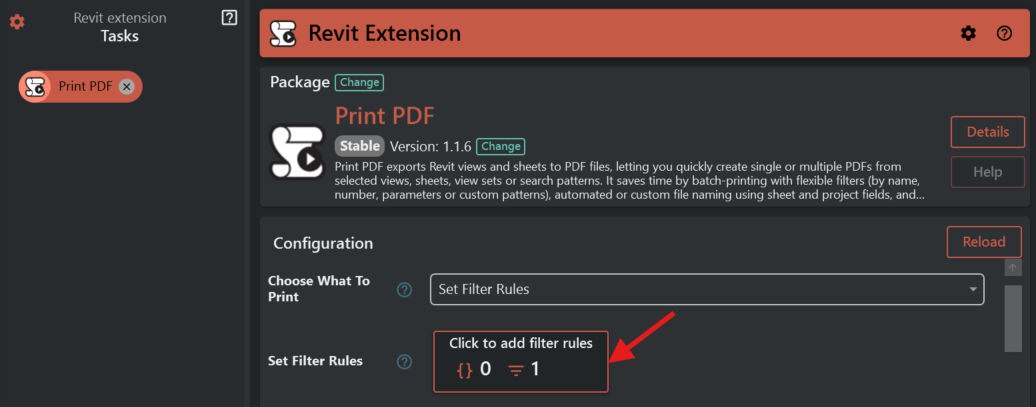
Use this to export only the sheets that match rules you define.
When you choose this option, you will see:
- Set Filter Rules
- Click to add rules for selecting sheets.
- The tool only targets the Sheets category.
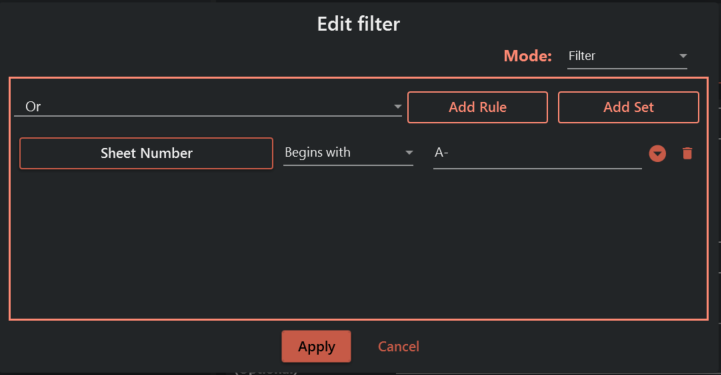
Examples of common rules:
- Sheet Name equals
A101 - Sheet Number begins with
A- - A parameter (e.g. Discipline) equals
Architectural
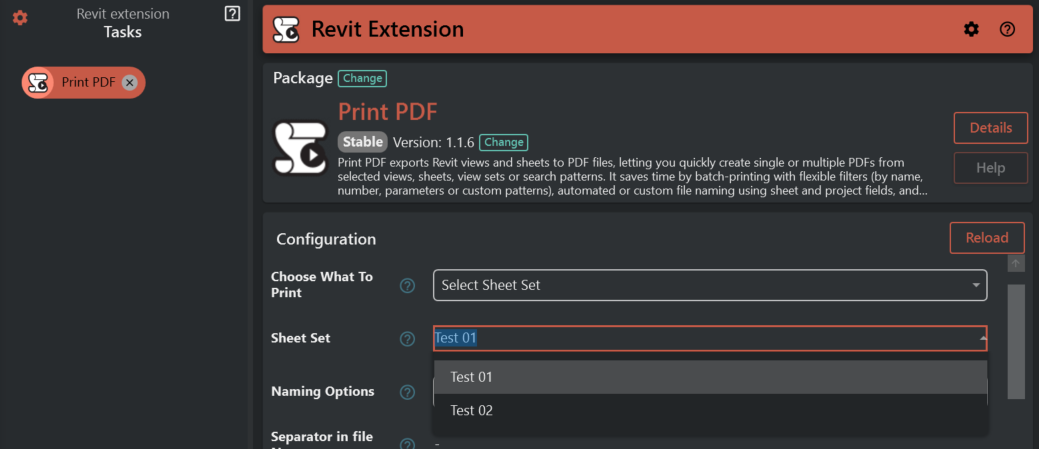
¶ 4) Sheet Set
Use this if you already maintain a View/Sheet Set in Revit and want to export it.
When you choose this option, you will see:
- Sheet Set
- Select a set from the list, or type the name of the set.
¶ 5) Regex Pattern (Sheet Sets)
Use this if you want to export multiple sheet sets at once by searching their names using a pattern.
When you choose this option, you will see:
- Regex Pattern
- Enter a pattern that matches sheet set names.
- If the pattern is invalid, the tool stops.
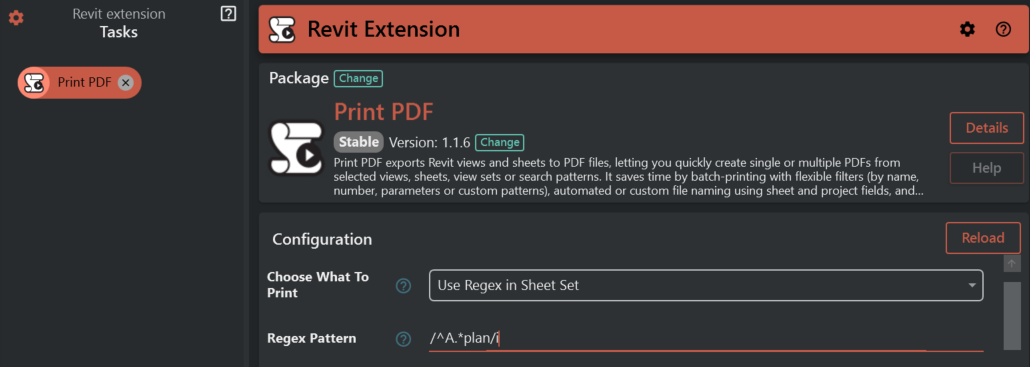
This is intended for advanced users. If you don’t know what “regex” is, use Sheet Set instead.
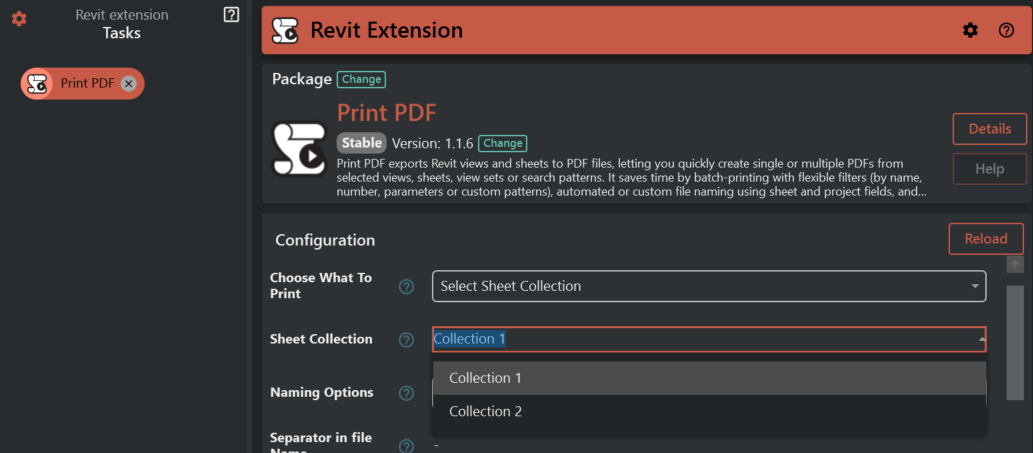
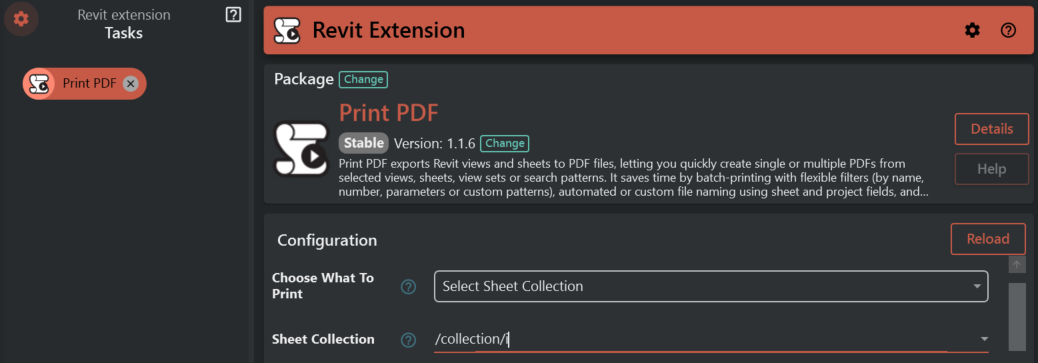
¶ 6) Sheet Collection (Revit 2025+ only)
Use this if you maintain Sheet Collections (Revit 2025+).
When you choose this option, you will see:
- Sheet Collection
- Select a collection from the list, or type the name.
¶ 7) Regex Pattern (Sheet Collections) (Revit 2025+ only)
Like “Regex Pattern (Sheet Sets)”, but it matches Sheet Collection names.
When you choose this option, you will see:
- Regex Pattern
¶ Naming Options (how PDF files are named)
¶ Naming Options
Choose a naming style for the exported PDFs.
Depending on what you choose, you will either configure simple parts (separator/prefix/suffix) or define a fully custom name.
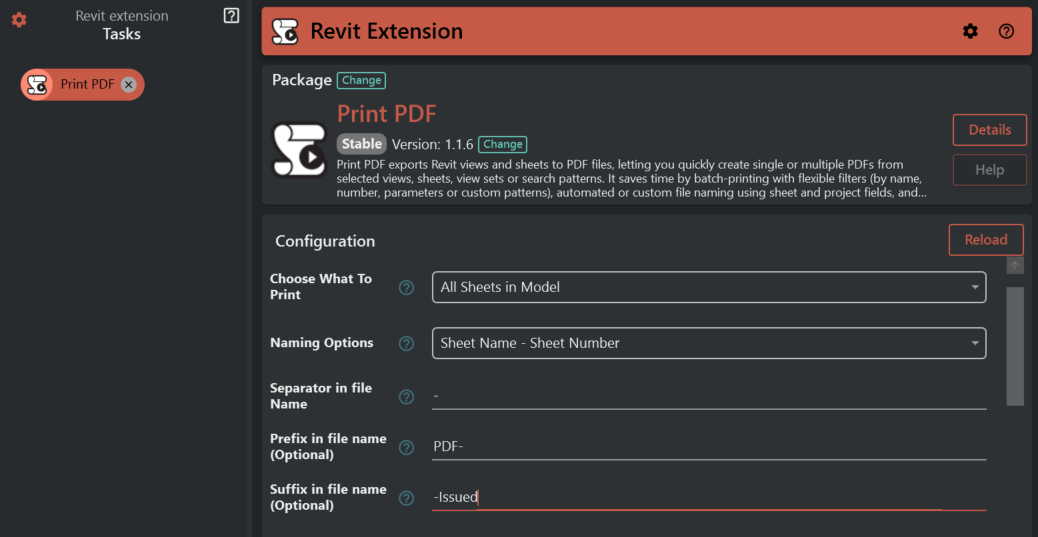
¶ Separator in file Name
Shown when you are not using a fully custom naming convention.
- This is the text placed between parts of the name.
- Common examples:
-or_.
¶ Prefix in file name (Optional)
Shown when you are not using a fully custom naming convention.
- Adds text at the start of the filename.
- Example:
PDF-→PDF-A101.pdf
¶ Suffix in file name (Optional)
Shown when you are not using a fully custom naming convention.
- Adds text at the end of the filename.
- Example:
-Issued→A101-Issued.pdf
¶ Custom Naming Convention
Shown only when Naming Options is set to a custom convention.
Write the filename pattern using placeholders in {braces}.
- You can use:
{SheetName}{ModelName}- Parameter names that exist on the sheet (for example
{Discipline},{Phase},{Status}if your project uses them)
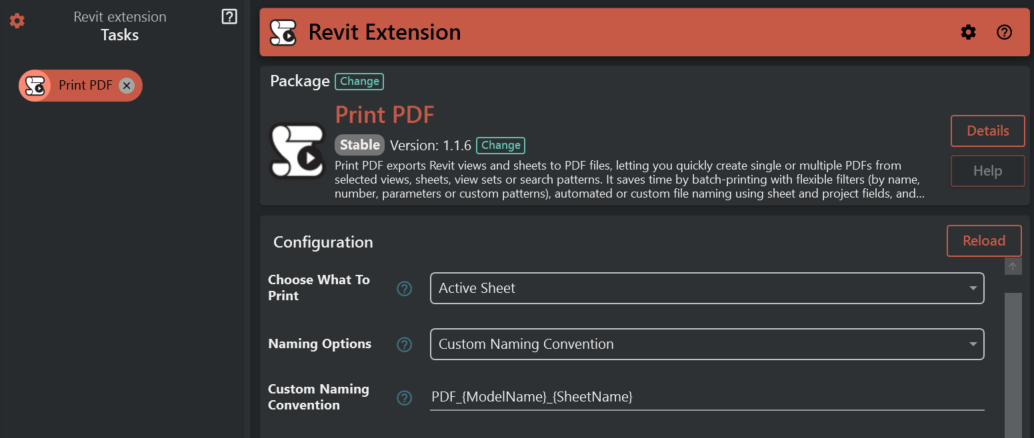
Examples:
{SheetName}_{Phase}PDF_{ModelName}_{Discipline}Custom-{SheetName}-v1
Tip: If a placeholder refers to a parameter that does not exist or is empty, the resulting filename may be incomplete.
¶ Single PDF vs Combined PDF
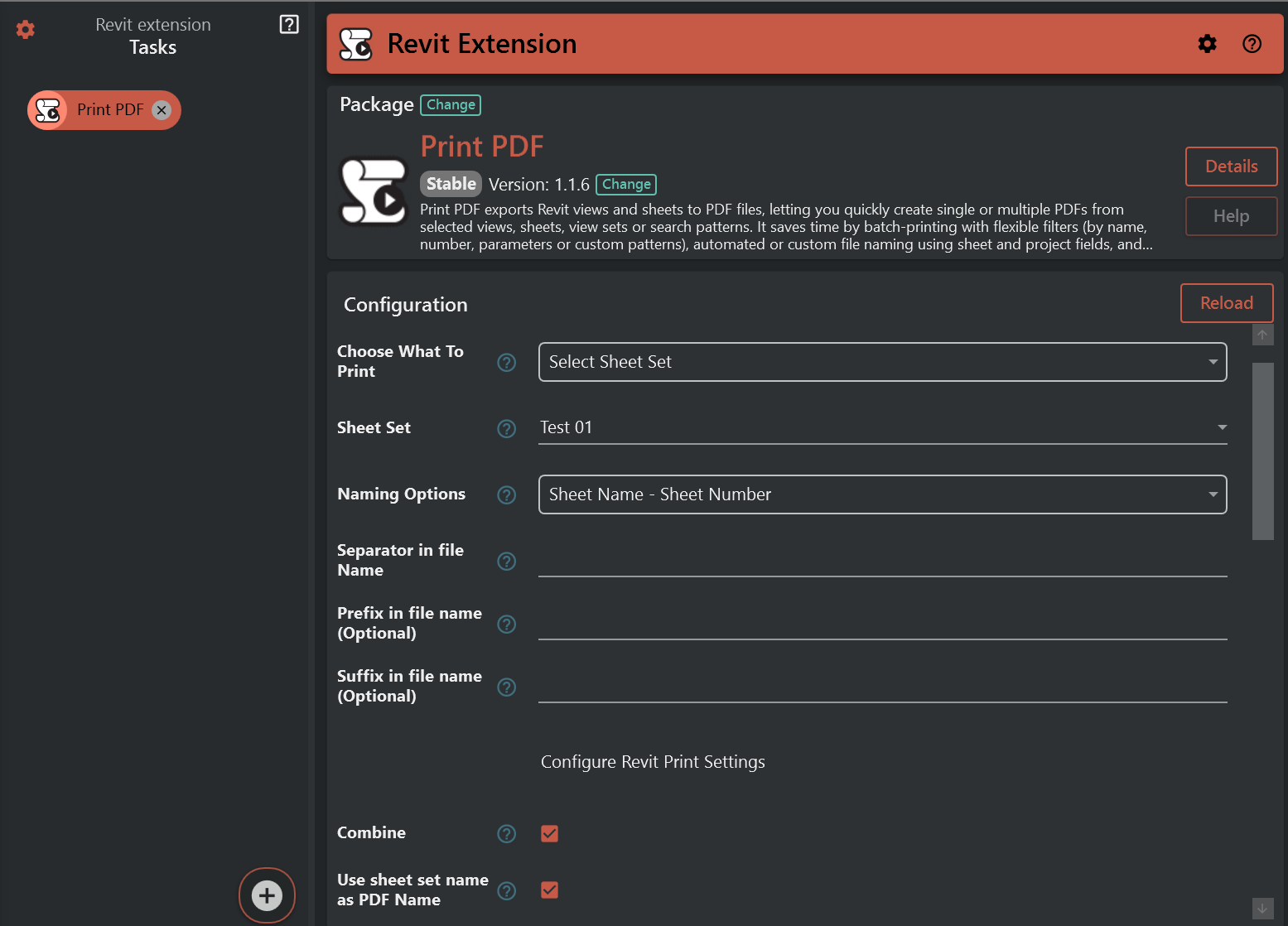
¶ Combine
- Off: exports one PDF per sheet.
- On: exports one PDF containing all selected sheets.
When Combine is enabled, additional fields may appear:
¶ Use sheet set name as PDF Name
Shown only when:
- Combine is enabled, and
- Choose What To Print is Sheet Set
If enabled, the combined PDF will be named after the selected sheet set.
¶ Combined File Name (Optional)
Shown only when:
- Combine is enabled, and
- Use sheet set name as PDF Name is not enabled
If you leave this empty, the tool may fall back to a default name.
Note:
- If you export multiple sheet sets/collections via a regex pattern, the tool exports one combined PDF per matched set/collection.
¶ Configure Revit Print Settings
These options affect PDF appearance and export behavior.
- Always Use Raster: forces raster processing (can help with some graphics but may reduce text crispness).
- Color Depth Type: black/white, grayscale, or color.
- PDF Export Quality Type: PDF DPI/quality.
- Hide Crop Boundaries: hides crop boundary lines.
- Hide Reference Plane: hides reference planes.
- Hide Scope Boxes: hides scope boxes.
- Hide Unreferenced View Tags: hides unreferenced tags.
- Mask Coincident Lines: improves readability when lines overlap.
- Replace Halftone With Thin Lines: makes halftone elements draw as thin lines.
- View Links In Blue: shows view links in blue.
- Origin Offset X / Origin Offset Y: shifts content position on the paper.
- Zoom Percentage: used when zoom is set to a percentage.
- Paper Format: paper size.
- Page Orientation Type: portrait/landscape/auto.
- Paper Placement Type: centered or offset.
- Raster Quality Type: raster DPI.
- Zoom Type: fit to page or zoom by percentage.
- Open View On Export: opens each view during export.
¶ Troubleshooting
-
“No active document found”
- Open a Revit model and try again.
-
“Please select a destination directory”
- Set Destination Folder.
-
“Active view is not a sheet”
- Switch to a sheet view and rerun (or choose All Sheets / Sheet Set).
-
“Invalid Regex pattern”
- Your pattern is not valid. If you’re not familiar with regex, use Sheet Set or Sheet Collection instead.
-
“No sheets found …”
- Your selection/filter/set name did not match any sheets.