¶ Autodesk Construction Cloud (ACC) / BIM 360
Assistant integrates with BIM 360 using Autodesk Forge
When selecting a BIM 360 task you will be asked to select your project.

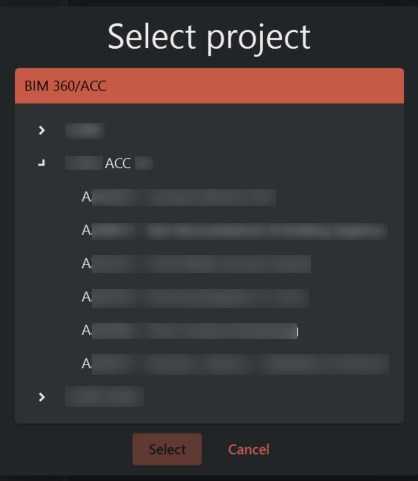
Clicking on the select project dialog button shows a dialog displaying all the hubs you have access to. Note that each hub needs to grand Assistant access for it do be displayed. If your hub is not in the list, please follow the "Grant Assistant hub access" section below.
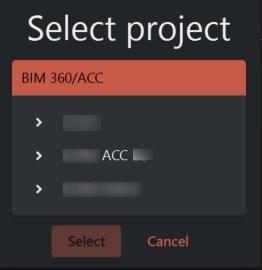
Expand your hub and select your project
¶ Grant Assistant hub access
Assistant needs to be granted access to a hub for any of the BIM 360 tasks to operate on it. It is the hub admin that can grant Assistant this access by following the steps in this link.
https://get-started.aps.autodesk.com#provision-access-in-other-products
There are two ways described here, "Invite a Developer to Set Up Integration" and "Set Up Integration". Here we are going to use the latter. Note, these steps must be done by the hub administrator.
- Sign in to ACC / BIM 360 Account Administration.
- Click Settings.
- Click the Custom Integrations tab.
- In the Add Custom Integration dialog, give your app access to BIM 360 Docs (BIM 360 Account Administration is not required). Then click Next.
- Select I'm The Developer and click Next.
- Add the following application:
- Assistant Desktop
Forge client id: zx4jC5Rnj9or7sFpdYzlW7GoiUTdLoIvP4AlkWpE8Qeoynux
App name: Assistant Desktop
Description: Assistant is an automation platform that support upload, download and publishing of ACC / BIM 360 files.
- Review your information and click Save.
- You receive a message saying the app is connected to your BIM 360 account.