¶ Export script file
Create a script that can execute your assistant action file with a double-click.
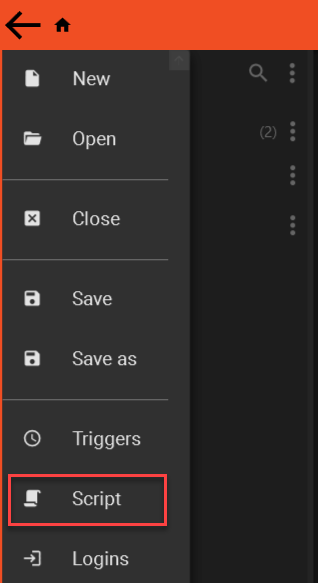
The script creator can be found in the hamburger menu.
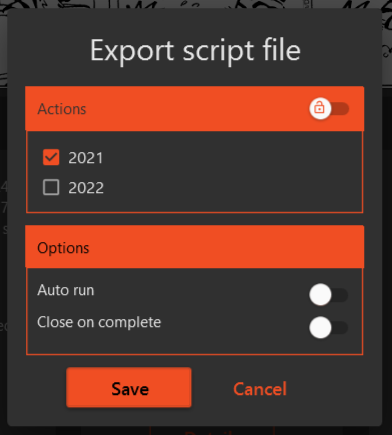
- Enable/disable the toggle button in the top right corner to run all/selected actions.
- Enable Auto run to automatically run the selected actions when Assistant starts.
- Enable Close on complete to close Assistant after the run is completed.
- Click Save and give the file a name.
This will produce a .bat file that can be executed by double-clicking it. Assistant will then start, execute the selected actions, and close when they are finished.
¶ Bat script content explanation
chcp 65001
start "" "%LOCALAPPDATA%\Assistant\apps\Assistant\CW.Assistant.Viewer.exe" "C:\Users\mnli\Downloads\MyActionFile.actions" AutoRun CloseOnComplete cde1e211-d63e-4c2c-972f-585a3a1c44e1
- chcp 65001: sets both InputEncoding and OutputEncoding to UTF8.
- "%LOCALAPPDATA%\Assistant\apps\Assistant\CW.Assistant.Viewer.exe": Path to the Assistant executable file.
- "C:\Users\mnli\Downloads\MyActionFile.actions" : Path to the action file that is going to be opened.
- AutoRun: If present, the selected actions will run automatically
- CloseOnComplete: If present, Assistant will close when the run is completed
- cde1e211-d63e-4c2c-972f-585a3a1c44e1: The id(s) of the action(s) that is going to be run. Can be multiple GUIDs separated by a space.