¶ Excel
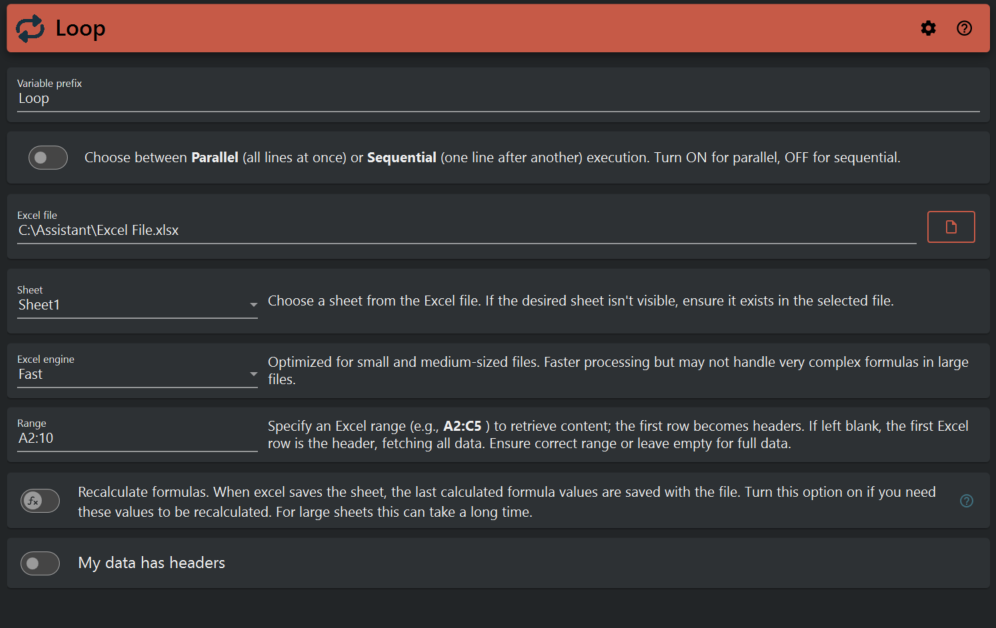
This looping task allows you to select a excel file and sheet to iterate through every row in the
excel file.
¶ Excel File Selection
Start by selecting the Excel file you wish to export. Provide the path to the Excel file on your local system.
¶ Excel Sheet Selection
Choose the specific sheet from the Excel file that you want to export. This allows you to target a specific dataset within the Excel file.
¶ Excel Engine Selection
Choose the Excel engine that best suits your needs: "Fast" or "Standard."
-
Fast Engine: This engine is optimized for small and medium-sized files. It offers faster processing but may not handle very complex formulas in large files.
-
Standard Engine: This engine is designed for larger files or those with complex formulas. While it might be slower, it ensures accurate handling of all formulas.
¶ Range Specification
Specify the Excel range you want to export. For example, entering "A2:C5" will retrieve content from cells A2 to C5, with the first row becoming headers in the CSV. Leaving this blank will fetch all data from the Excel file.
¶ Recalculate Formulas
Select whether you want to recalculate formulas during the export. When Excel saves the sheet, the last calculated formula values are saved with the file. Turn this option on if you need these values to be recalculated. Please note that for large sheets, this can take a significant amount of time.
¶ My table has headers
When enabled, Assistant will use the first row in the specified range, or the first row in the sheet is no range is specified, as variable names. Otherwise, variables will be named after the column (eg. A, B, C, ..)
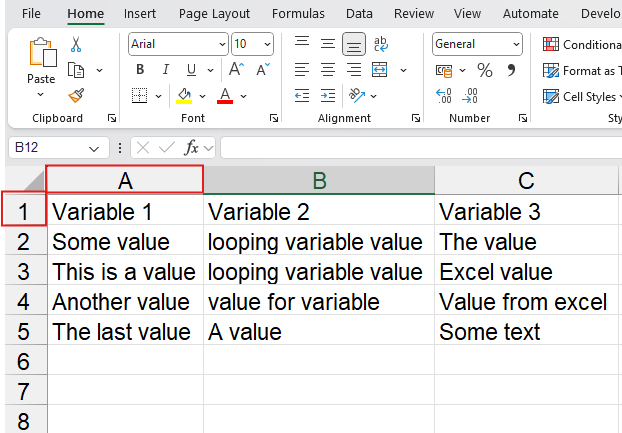
Given an excel file like this and with "My table has headers" turn on, the values on the first row will be used as variable names, the Loop task will then iterate over the next 4 rows (2, 3, 4 ,5) and set the corresponding variables.
Click Preview to display what your variables will look like for each iteration in the loop.

You will now be able to use these 3 variables in your assistant file: ${{ Loop.Variable1 }}, ${{ Loop.Variable2 }} and ${{ Loop.Variable3 }}.
Iteration 1
${{ Loop.Variable1 }} will have the value "Some value"
${{ Loop.Variable2 }} will have the value "looping variable value"
${{ Loop.Variable3 }} will have the value "The value"
Iteration 2
${{ Loop.Variable1 }} will have the value "This is a value"
${{ Loop.Variable2 }} will have the value "loop"
${{ Loop.Variable3 }} will have the value "Excel value"
Iteration 3
etc...