¶ ArcGIS Delete Task
¶ Overview
The ArcGIS Delete Task allows you to delete files from ArcGIS Online. This feature provides a streamlined way to manage your ArcGIS content by removing unwanted files or cleaning up entire groups.
¶ Prerequisites
- An active ArcGIS account
- Proper authentication credentials
- Appropriate permissions to delete content in the target ArcGIS groups
¶ Getting Started
¶ Authentication
Before using the ArcGIS Delete Task, you need to be logged in to your ArcGIS account. The application will prompt you to log in if you haven't already done so.
¶ Creating a Delete Task
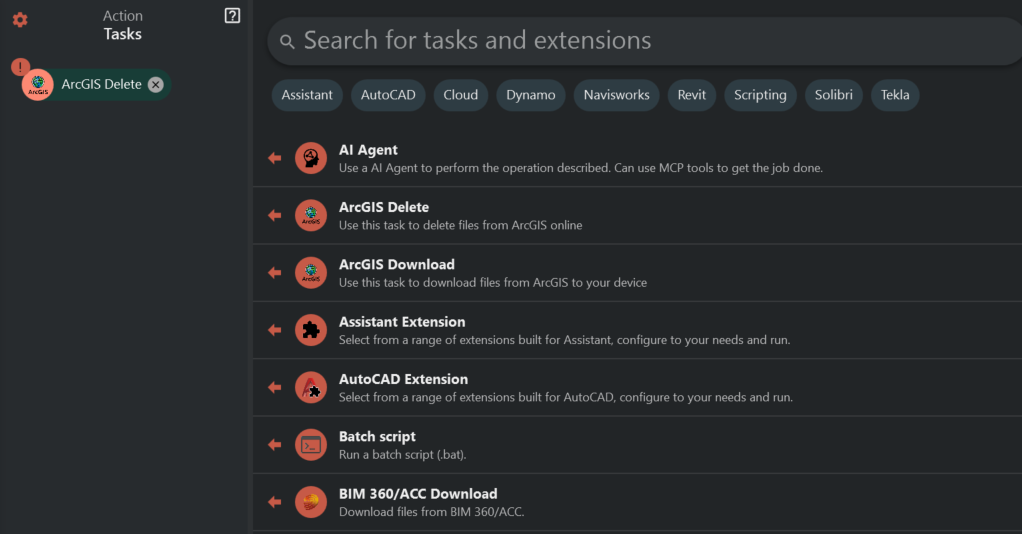
- Select "ArcGIS Delete Task" from the available task options
¶ Configuring the Task
¶ Selecting an ArcGIS Group
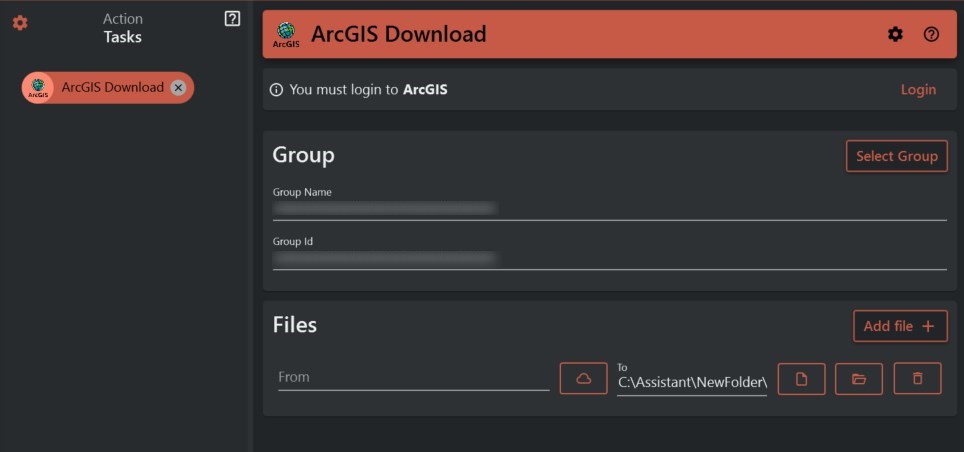
- Click the "Browse Groups" button to open the group selection dialog
- Browse and select the desired ArcGIS group from which you want to delete files
- Once selected, the Group ID and Group Name fields will be automatically populated
¶ Adding Files for Deletion
- When you create a new ArcGIS Delete Task, a file entry is automatically added
- For each file entry, you need to:
- Select the source file from ArcGIS you wish to delete
- You can leave the source path empty to delete all files in the selected group
- To add additional files for selective deletion:
- Click the "Add File" button to create a new file entry
- Configure the source path by selecting a specific file
¶ Managing File Entries
- To remove a file entry, click the "Remove File" button next to the entry
- If you remove all file entries, a new empty entry will be automatically added
¶ Additional Options
- Delete Protected: Enable this checkbox if you want to delete protected items as well. When enabled, the task will first attempt to unprotect the item before deleting it.
¶ Validation
The task will be validated automatically to ensure:
- A valid ArcGIS Group is selected (Group ID and Group Name are required)
- At least one file entry is configured
- All file entries have valid source paths (if specified)
If any validation errors occur, they will be displayed, and the task cannot be executed until all errors are resolved.
¶ Task Execution
Once configured, the ArcGIS Delete Task will:
- Connect to your ArcGIS account
- Access the specified ArcGIS group
- Delete the selected files from the group
- If all files in a group are deleted and no other groups contain those files, the task can optionally delete the empty group itself
¶ Results
After execution, the task will provide a summary of:
- Successfully deleted files count
- Failed deletions count
- Detailed messages for each file operation
- Status indicators (Success, Partial Success, or Failed)