¶ ArcGIS Download Task
¶ Overview
The ArcGIS Download Task allows you to download files from ArcGIS to your local device.
¶ Prerequisites
- An active ArcGIS account
- Proper authentication credentials
¶ Getting Started
¶ Authentication
Before using the ArcGIS Download Task, you need to be logged in to your ArcGIS account. The application will prompt you to log in if you haven't already done so.
¶ Selecting Download Task
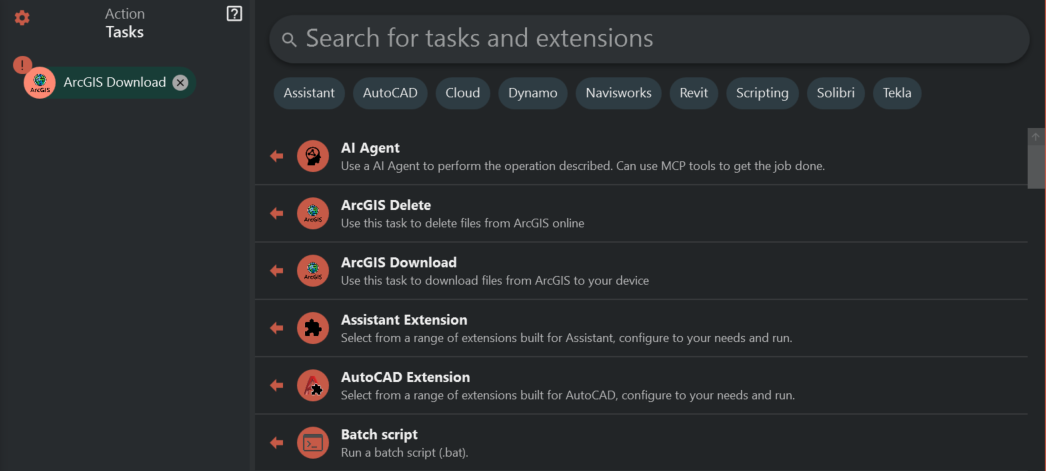
- Select "ArcGIS Download Task" from the available task options
¶ Configuring the Task
¶ Selecting an ArcGIS Group
- Click the "Browse Groups" button to open the group selection dialog
- Browse and select the desired ArcGIS group
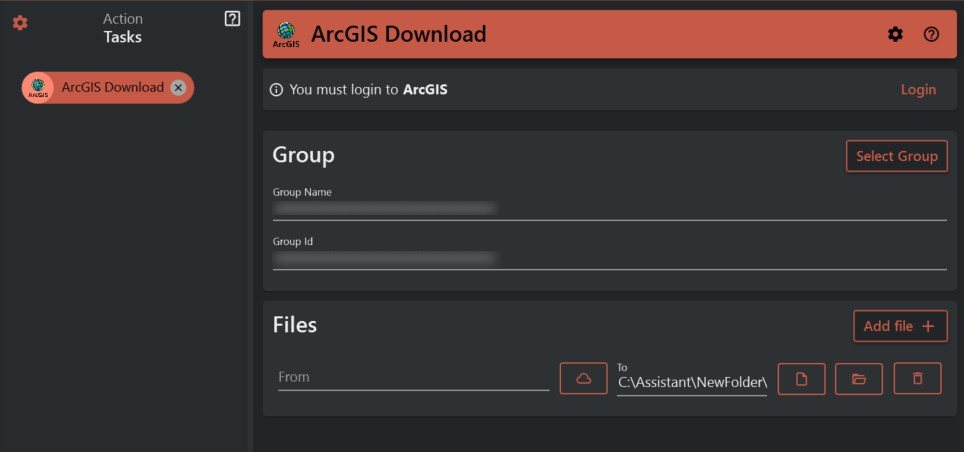
- Once selected, the Group ID and Group Name fields will be automatically populated
¶ Adding Files for Download
- When you create a new ArcGIS Download Task, a file entry is automatically added
- For each file entry, you need to:
- Select the source file from ArcGIS (If left empty it will download everything from the group)
- Specify the destination path on your local device
- To add additional files:
- Click the "Add File" button to create a new file entry
- Configure the source and destination paths
¶ Managing File Entries
- To remove a file entry, click the "Remove File" button next to the entry
- If you remove all file entries, a new empty entry will be automatically added
¶ Validation
The task will be validated automatically to ensure:
- A valid ArcGIS Group is selected (Group ID and Group Name are required)
- At least one file is added for download
- All file entries have valid source and destination paths
If any validation errors occur, they will be displayed, and the task cannot be executed until all errors are resolved.
¶ Task Execution
Once configured, the ArcGIS Download Task will:
- Connect to your ArcGIS account
- Access the specified ArcGIS group
- Download the selected files to your designated local destination paths