¶ Close Revit
¶ Overview
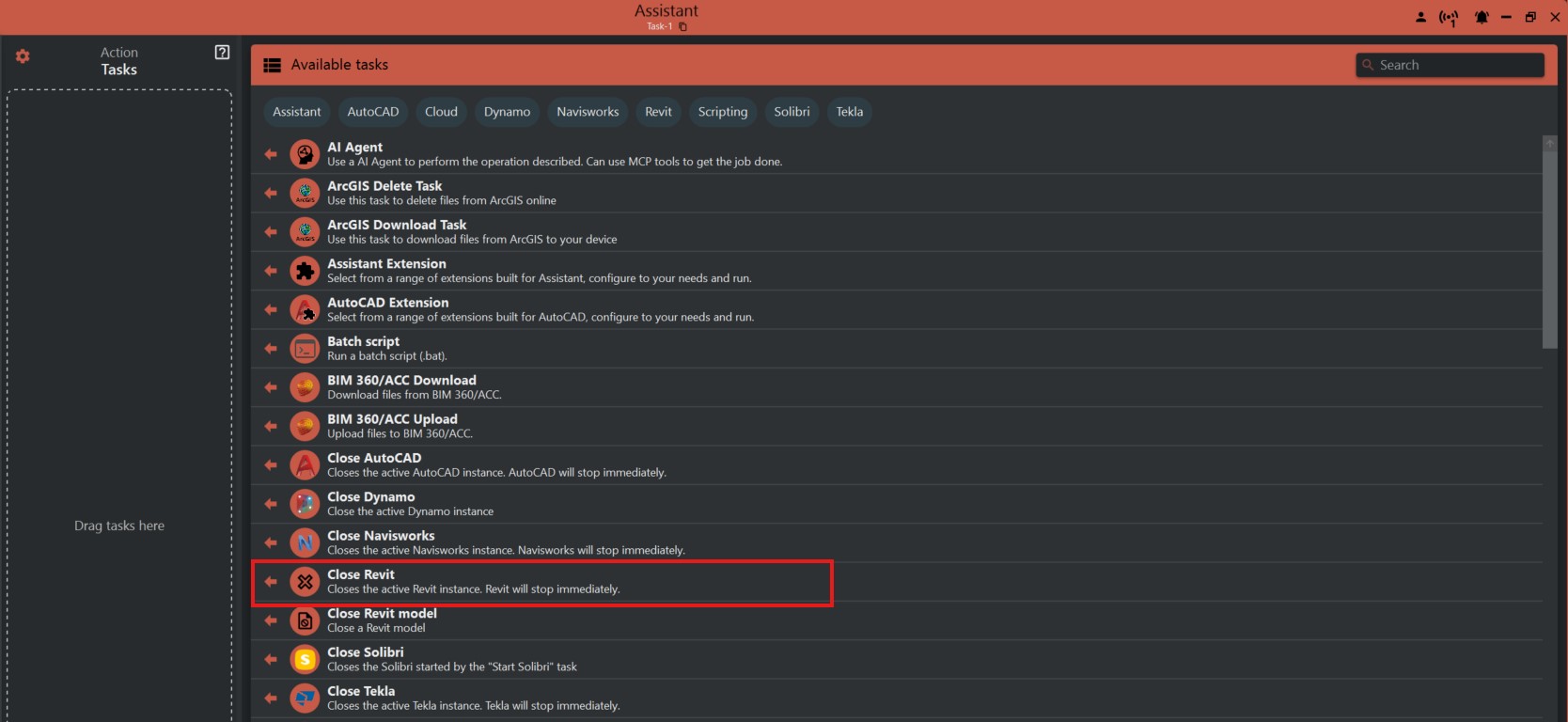
This guide explains how to close the Revit application using the 'Close Revit' task.
¶ Step 1: Accessing the Task
- Look to the right side of the screen to find the 'Available tasks' section.
- Identify and click on the ‘Close Revit’ task.
¶ Step 2: Understanding the Task's Functionality
- The 'Close Revit' task is designed to emulate the action of a user closing Revit by clicking the 'Close (X)' button found in the upper right corner of the Revit interface.
- This task has no options or settings; it is a straightforward command to close Revit.
¶ Step 3: Saving Work
- Ensure all your work in Revit is saved before executing this task. This action will close Revit without additional prompts to save.
¶ Important Notes
- This task will close Revit immediately after any preceding actions are completed.
- If there are any tasks set to follow the 'Close Revit' task, they will execute before Revit closes.
- Use this task only when you are ready to end your session in Revit as unsaved changes will be lost.