¶ Close Solibri
¶ Overview
This guide describes the process of closing the Solibri application using the 'Close Solibri' task in your workflow automation tool.
¶ Step 1: Locate the Task
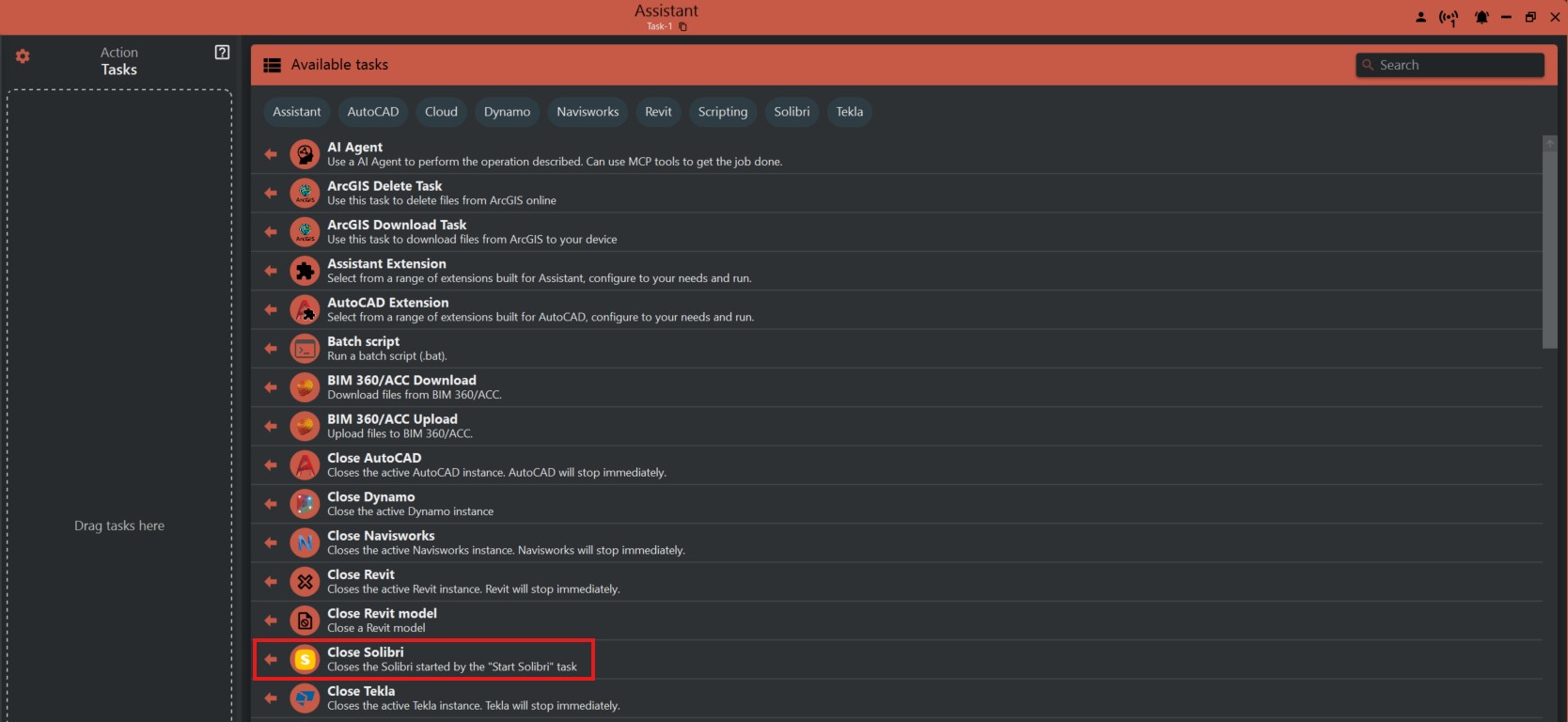
- Look to the right side of the screen to find the 'Available tasks' section.
- Identify and click on the ‘Close Solibri’ task.
¶ Step 2: Task Features
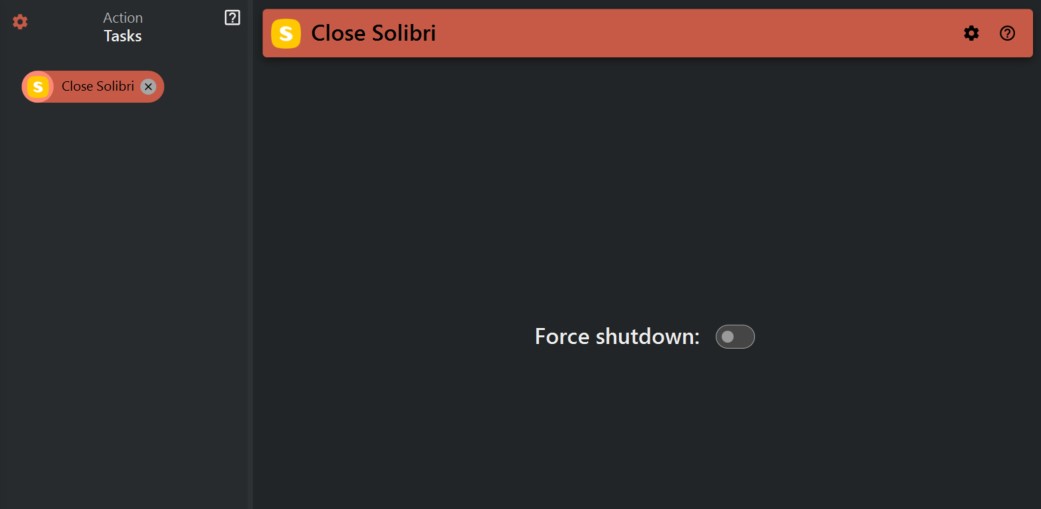
- This task offers a simple toggle switch for 'Force shutdown'. This option, when enabled, forces Solibri to close immediately.
¶ Step 3: Save Your Work
- Before executing the 'Close Solibri' task, ensure all work is saved within Solibri. This action may close the program without saving your changes.
¶ Step 4: Run the Task
- Execute the 'Close Solibri' task by toggling it on. If 'Force shutdown' is enabled, Solibri will close forcefully. Otherwise, it will close normally.
¶ Important Notes
- Use this task judiciously as unsaved data may be lost.
- The 'Force shutdown' option is useful when Solibri is unresponsive or when a normal shutdown is not successful.