¶ Copy directory
¶ Overview
This guide provides instructions for using the 'Copy directory' task.
¶ Step 1: Access the Task
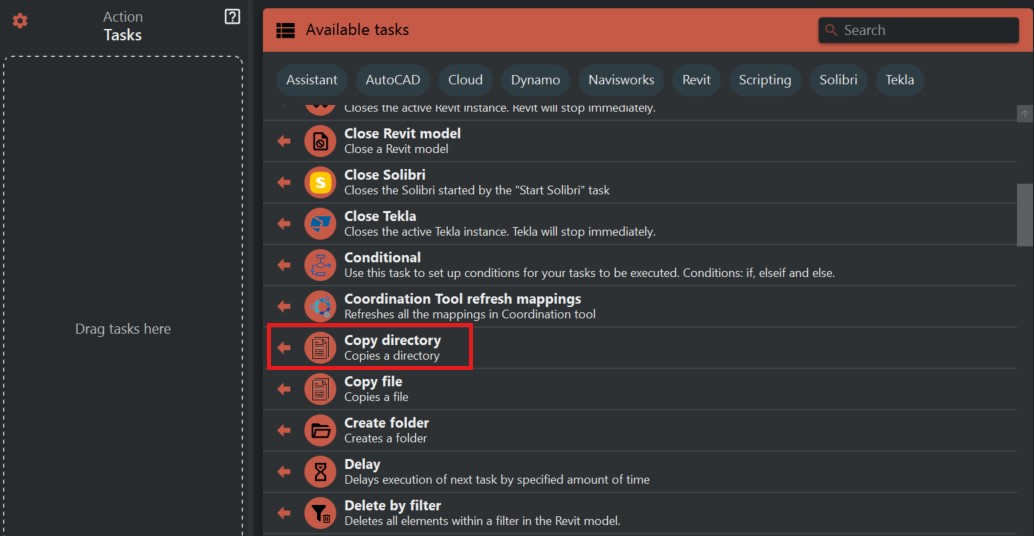
- Look to the right side of the screen to find the 'Available tasks' section.
- Identify and click on the ‘Copy directory’ task.
¶ Step 2: Configure Copy Options
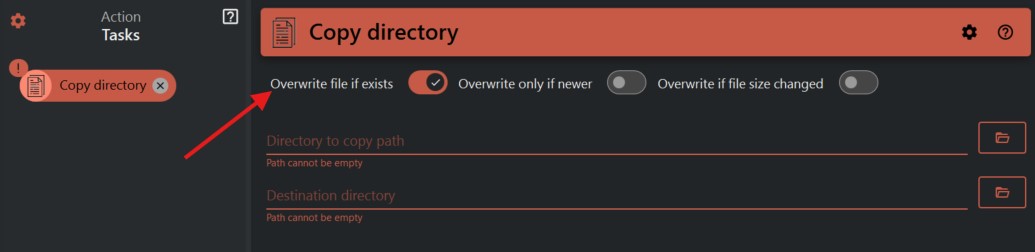
- A switch titled 'Overwrite file if exists' allows you to choose whether to overwrite files in the destination directory that have the same name.
- Enter the path of the directory you want to copy in the 'Directory to copy path' field. Use the folder icon to navigate and select the directory.
- Specify the destination directory path where the copy will be placed in the 'Destination directory' field. Again, use the folder icon to select the directory path.
¶ Step 3: Execute the Task
- Review the paths to ensure they are correct.
- Run the 'Copy directory' task. If 'Overwrite file if exists' is enabled, existing files with the same name in the destination directory will be overwritten.
¶ Important Notes
- Ensure that the destination directory has enough space to accommodate the copied files.
- Be cautious with the overwrite option to avoid unintentional loss of data.
- It's recommended to back up important files before using this task, especially if overwriting is enabled.