¶ Delete Schedules
¶ Overview
This user guide explains how to delete all schedules in a Revit model using the 'Delete schedules' task.
¶ Step 1: Starting the Deletion Task
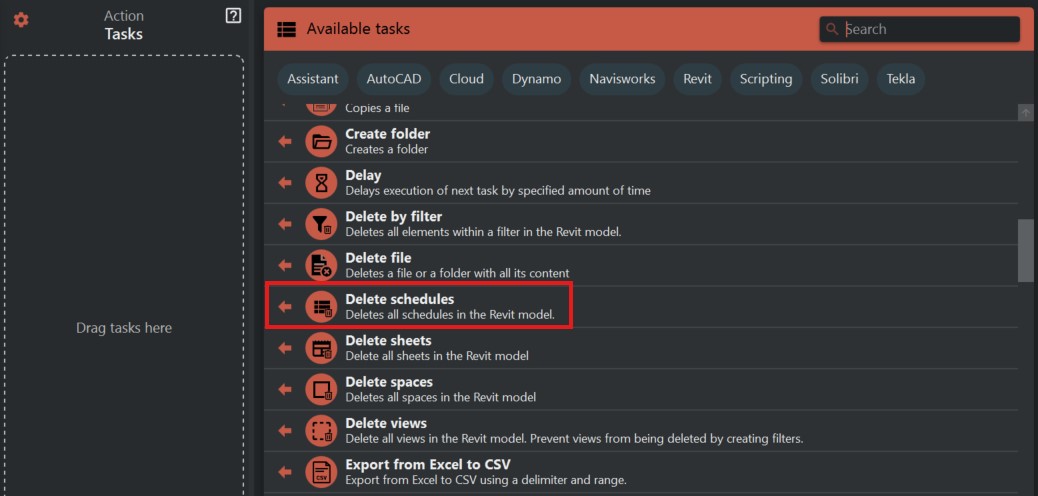
- Look to the right side of the screen to find the 'Available tasks' section.
- Identify and click on the ‘Delete Schedules’ task.
¶ Step 2: Understanding the Task
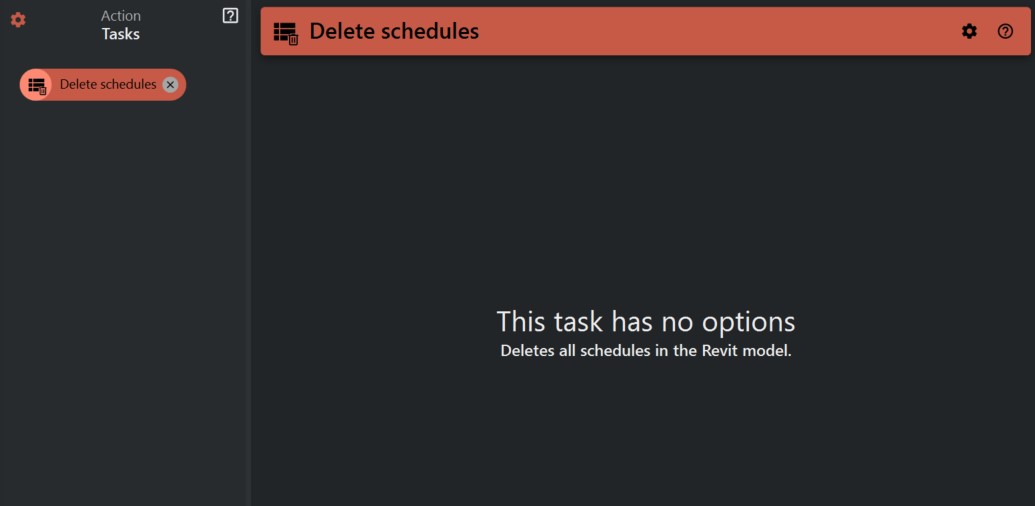
- The 'Delete schedules' task is designed to remove all schedules from your active Revit model. Use this task carefully as it will permanently delete schedules.
¶ Step 3: Executing the Task
- Before proceeding, ensure that deleting these schedules won't affect your modeling process or documentation. It's highly recommended to backup your model before using this task.
- When ready, select the 'Delete schedules' task to initiate the deletion.
¶ Important Notes
- This action is irreversible through the Revit 'Undo' command once executed and saved. Always make sure you have a saved backup of your model before performing this operation.
- Be aware that this will remove all schedules including any custom schedules that have been created. Ensure this aligns with your project requirements before proceeding.