¶ Delete Sheets
¶ Overview
This guide details how to delete all sheets from a Revit model using the 'Delete sheets' task.
¶ Step 1: Starting the Deletion Task
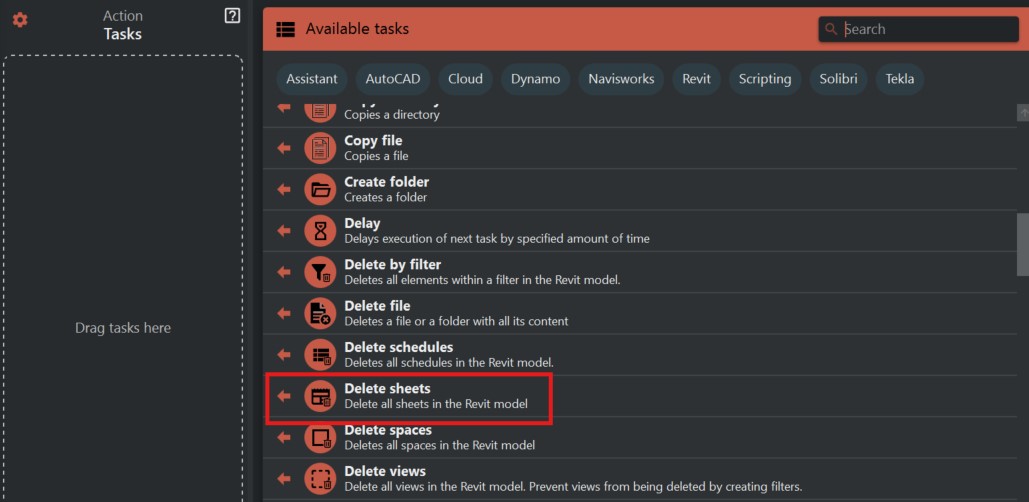
- Look to the right side of the screen to find the 'Available tasks' section.
- Identify and click on the ‘Delete sheets’ task.
¶ Step 2: Understanding the Task
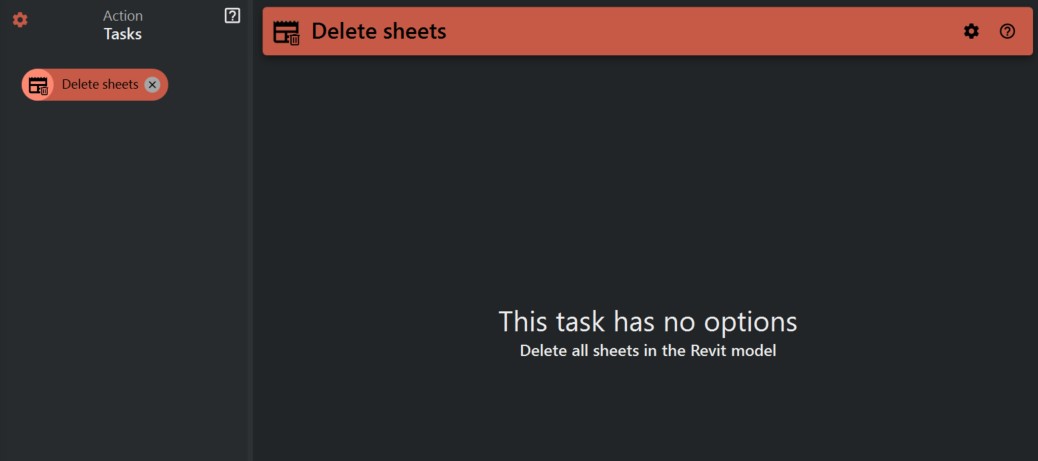
- 'Delete sheets' is a task that, when executed, will remove all sheets from the currently active Revit model.
- Caution: This action is irreversible; once the sheets are deleted, they cannot be recovered unless you have a backup or the model has not been saved post-deletion.
¶ Step 3: Executing the Task
- Ensure that you do not need the sheets or have saved a copy of the sheets elsewhere before you proceed.
- If you are certain you want to delete the sheets, execute the 'Delete sheets' task by clicking on it.
¶ Important Notes
- Be certain before running this task, as it will remove all sheets from your Revit model.
- It is strongly advised to keep backups of your Revit model before executing any bulk deletion tasks.
- Consider using 'Save As' to create a backup of your model before performing this operation.