¶ Delete Spaces
¶ Overview
This guide demonstrates how to use the 'Delete spaces' task to remove all spaces from a Revit model.
¶ Step 1:
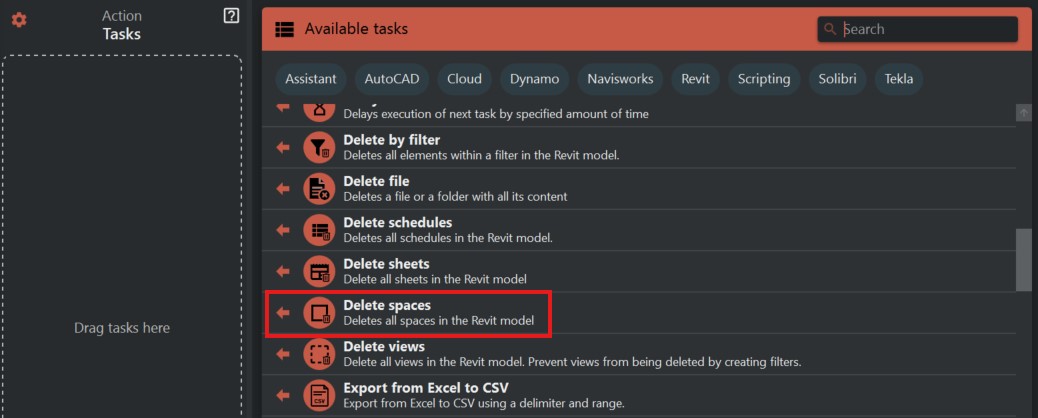
- Look to the right side of the screen to find the 'Available tasks' section.
- Identify and click on the ‘Delete Spaces’ task.
¶ Step 2: Understanding the Task
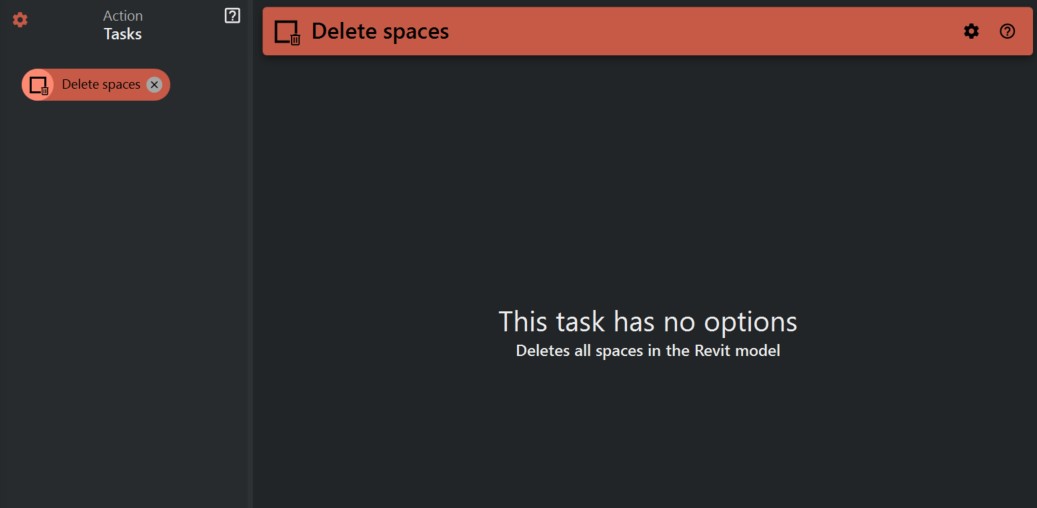
- The 'Delete spaces' task will remove all spaces within the active Revit model when executed.
- Important: This task performs a bulk deletion and the action cannot be reversed unless you have a backup or the model has not been saved after the deletion.
¶ Step 3: Executing the Task
After configuring how to handle errors:
- Confirm that you want to proceed with deleting the spaces. It's recommended to save a backup of your model before carrying out this task.
- When ready, click on the 'Delete spaces' task to start the deletion process.
¶ Important Notes:
- Ensure that the deletion of spaces is indeed the action you wish to take, as this will remove them permanently from your current working model.
- Always maintain backups of your Revit model, particularly before performing batch deletions.