¶ Open AutoCAD Drawing
¶ Overview
This guide will explain how to open a drawing in AutoCAD using the 'Open AutoCAD drawing' task.
¶ Step 1: Locating the Open Task
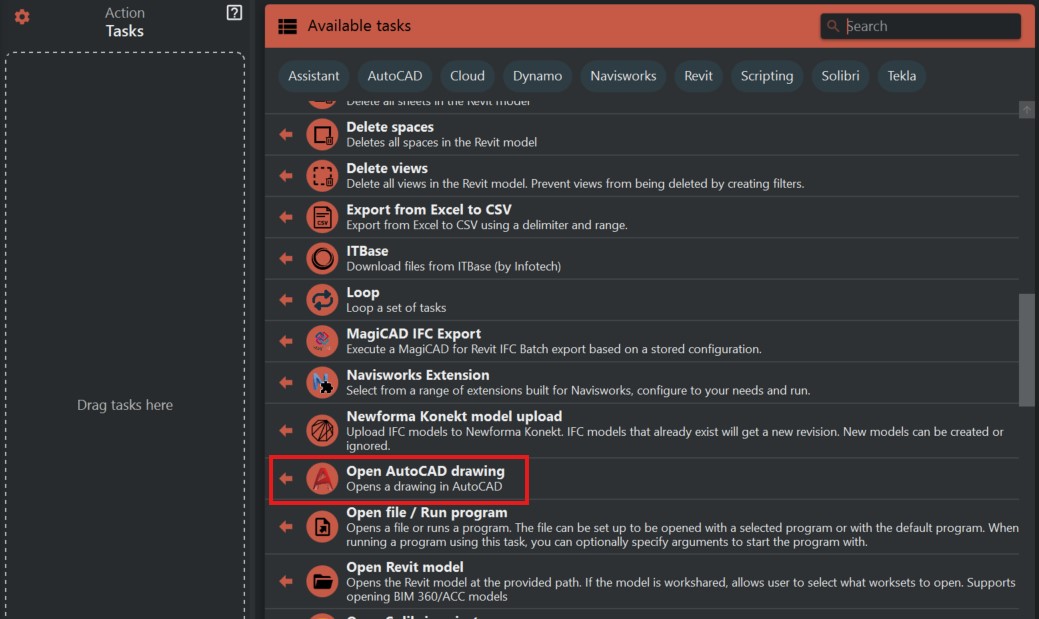
- Look to the right side of the screen to find the 'Available tasks' section.
- Identify and click on the ‘Open AutoCAD Drawing’ task.
¶ Step 2: Opening an AutoCAD Drawing
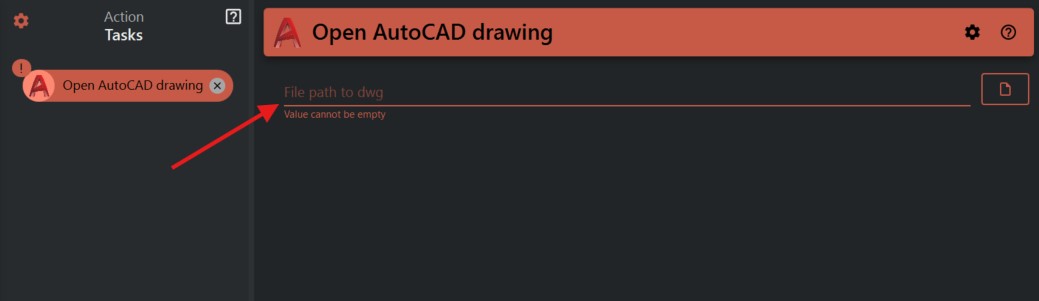
- With the task selected, a field labeled ‘File path to dwg’ will be displayed. This is where you will specify the path to the .dwg file that you want to open.
- Enter the full path to your .dwg file in the provided field.
¶ Step 3: Executing the Open Drawing Task
- Double-check the file path you have entered to ensure it is correct. The path needs to be complete and accurate for the task to work properly.
- Once confirmed, execute the ‘Open AutoCAD drawing’ task. This may involve clicking on the task again or pressing a specific command button, depending on your interface.
¶ Step 4: Verifying the Drawing Opens
- Observe AutoCAD to confirm that the drawing opens as intended.
- If the drawing does not open, recheck the provided file path for any mistakes and try again.