¶ ProjectWise Upload
ProjectWise Upload task lets you upload files from your device to ProjectWise.
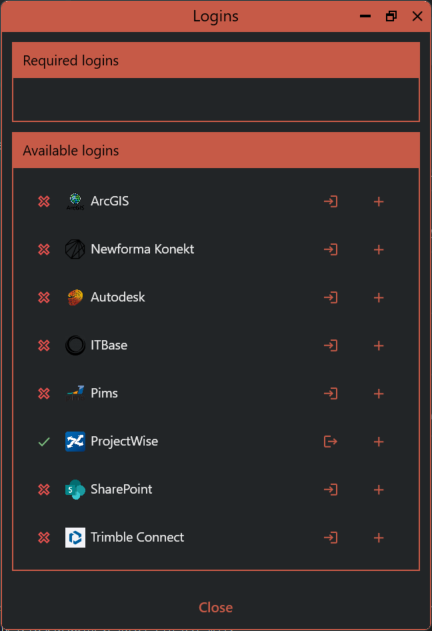
To use this task you’ll need to login to ProjectWise using the Assistant logins that are found in the hamburger menu.
All fields must be filed out.
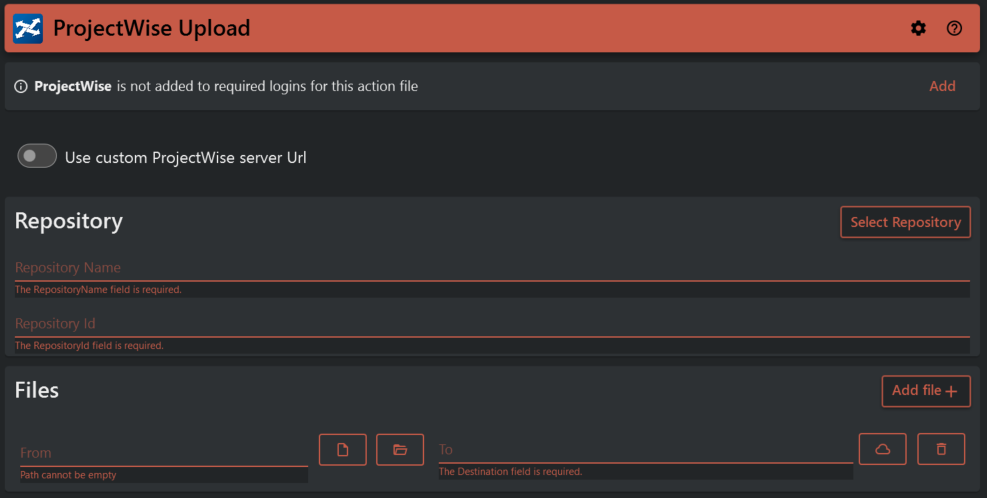
If you want to use a custom ProjectWise service URL, you can turn on the toggle switch and enter a new base URL.

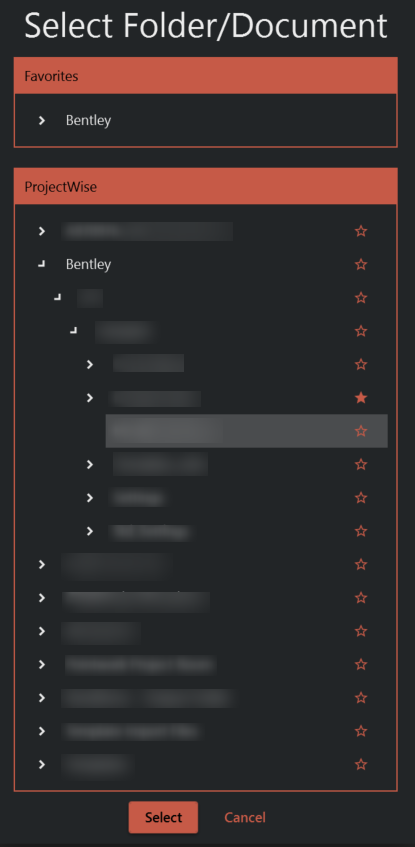
To select the repository that you need you can then browse through the repository list by pressing the Select Repository button.
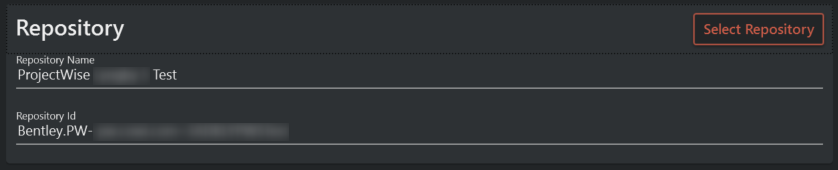
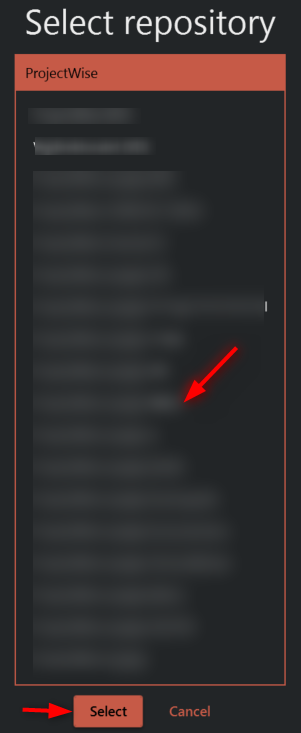
After selecting the repository, you can browse through it and choose the folder in ProjectWise to which you want to upload your file, by clicking on the cloud icon. You can upload multiple files by using the 'Add file' button. Additionally, you can upload folders or the contents of those folders by using wildcards.

In ProjectWise browser you can use cloud browser favorites.
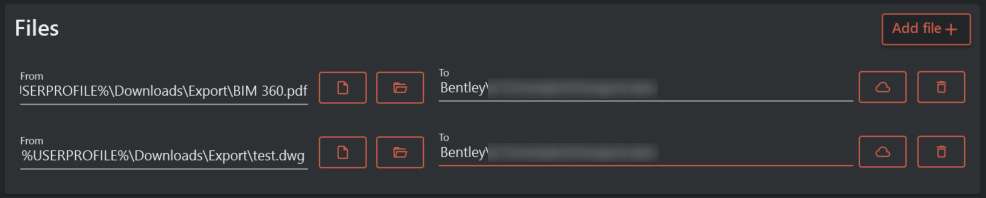
You can choose to upload all files in the selected folder without including subfolders, or upload everything with the folder structure recreated and files inside subfolders.
