¶ Select elements in active view
¶ Overview
This guide provides instructions on how to use the 'Select elements in active view' task.
¶ Step 1: Accessing the Task
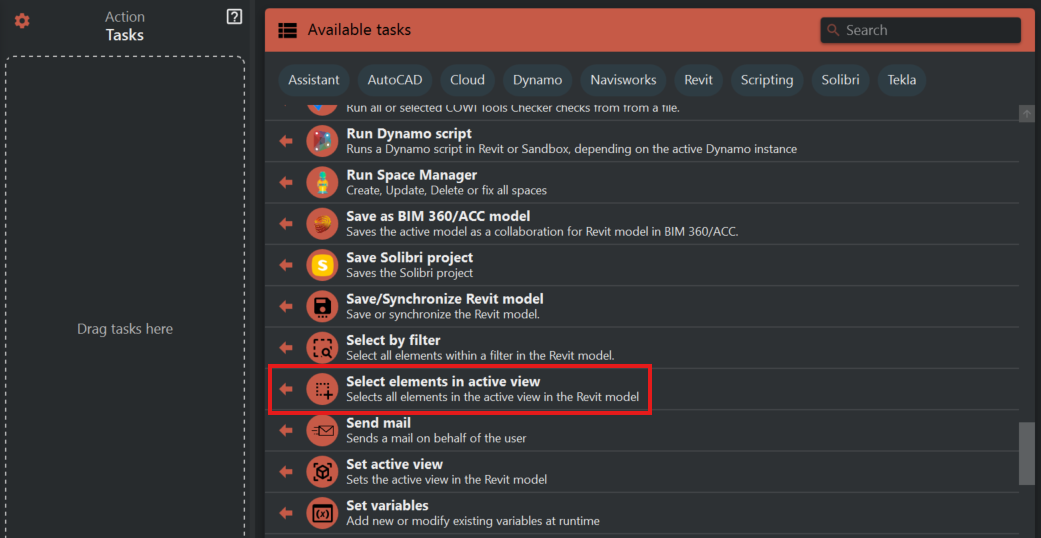
- Look to the right side of the screen to find the 'Available tasks' section.
- Identify and click on the ‘Select elements in active view’ task.
¶ Step 2: Understanding the Task
- The 'Select elements in active view' task will select all elements that are visible in the current view of your Revit project.
- It’s a quick way to highlight every item for inspection, modification, or to apply bulk properties.
¶ Step 3: Executing the Task
- Ensure that you are in the correct view in Revit where you want to select the elements.
- With the desired view active, click on the 'Select elements in active view' task to perform the selection.
¶ Important Notes
- This task selects all elements, including those that may not be immediately visible within the current view settings, like elements on hidden layers.
- Use this function carefully, especially when working in views with a large number of elements, as it may take some time to process the selection and could affect performance momentarily.
- Remember that any modifications made after this selection will affect all selected elements, so review the selection set before making changes.