¶ Start AutoCAD
¶ Overview
This guide will assist you in using the 'Start AutoCAD' task to open AutoCAD.
¶ Step 1: Locating the Task
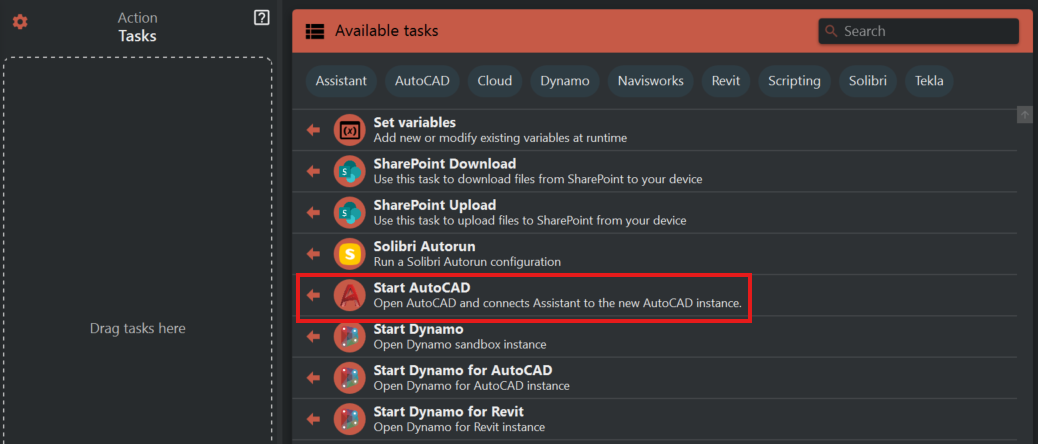
- Look to the right side of the screen to find the 'Available tasks' section.
- Identify and click on the ‘Start AutoCAD’ task.
¶ Step 2: Selecting AutoCAD Version
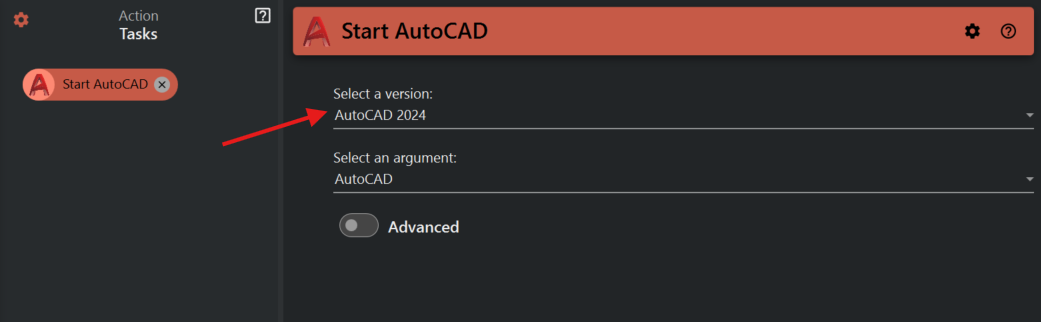
- Use the 'Select a version' dropdown to choose the AutoCAD version you want to start, such as AutoCAD 2021.
¶ Step 3: Selecting an Argument
- From the 'Select an argument' dropdown, choose an argument if necessary. This is typically used to define certain startup conditions or open specific files.
¶ Step 4: Advanced Options
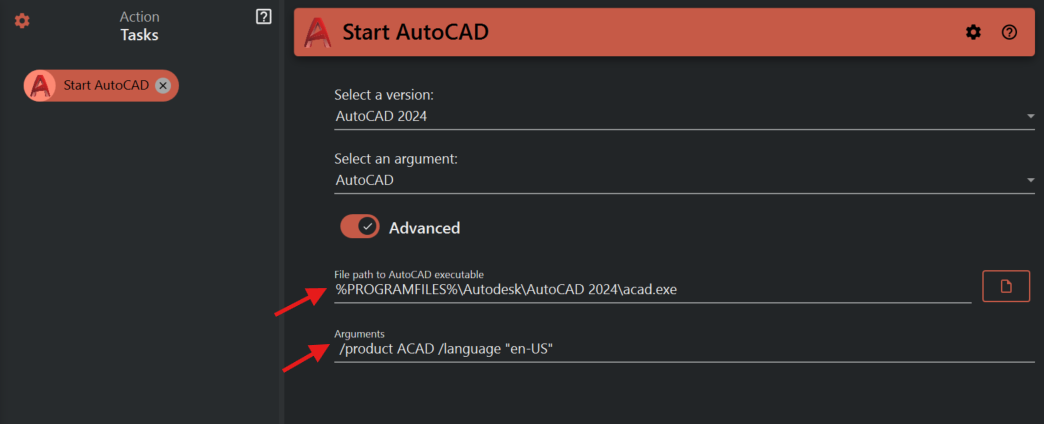
- If required, toggle on the 'Advanced' switch.
- In the 'File path to AutoCAD executable' field, the default path will be provided. If you need to change this, click the folder icon and navigate to the AutoCAD executable file.
- Under 'Arguments,' add any command-line arguments you need. By default, it might include product and language arguments like /product ACAD /language "en-US".
¶ Step 5: Starting AutoCAD
Once all settings are correctly configured, initiate the 'Start AutoCAD' task to open the program with the selected options.
¶ Important Notes
- Make sure that you have the necessary licenses for the specified AutoCAD version.
- Custom arguments are for advanced users. If you're unsure, it's best to stick with the default settings.
- The startup process might vary based on the version of AutoCAD and the specifications of your device.