¶ Start Navisworks
¶ Overview
This guide explains how to use the 'Start Navisworks' task.
¶ Step 1: Accessing the Task
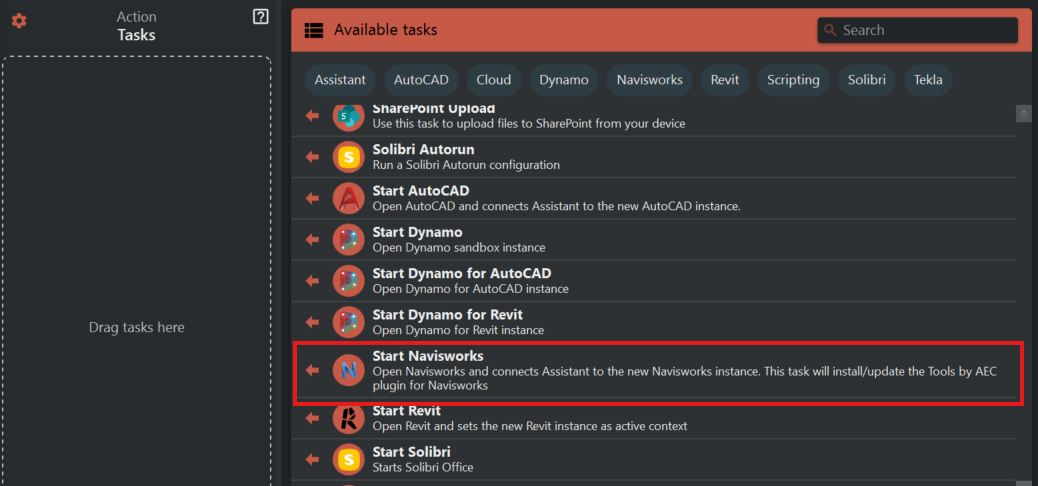
- Look to the right side of the screen to find the 'Available tasks' section.
- Identify and click on the ‘Start Navisworks’ task.
¶ Step 2: Selecting the Version
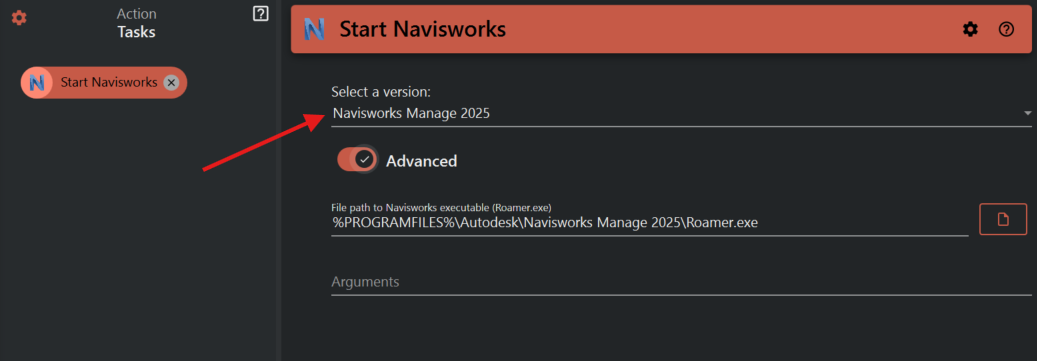
- If available, use the 'Select a version' dropdown to choose which version of Navisworks you want to start (e.g., Navisworks Manage 2022).
¶ Step 3: Using Advanced Options
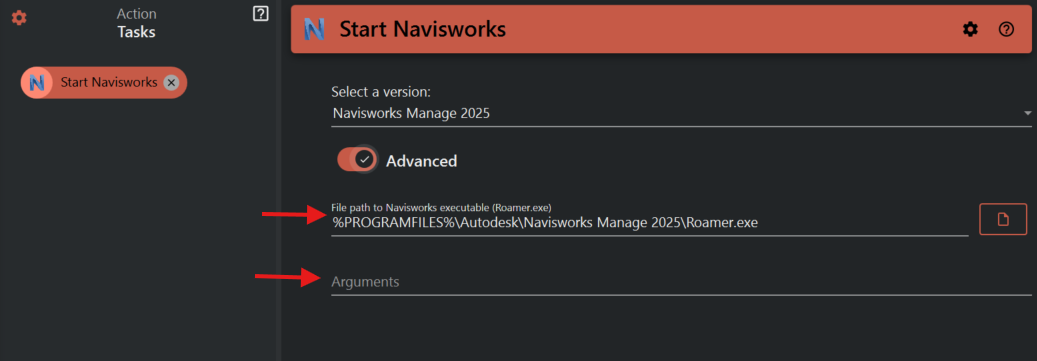
- Toggle the 'Advanced' option if you need to specify a particular executable or add specific arguments.
- In the 'File path to Navisworks executable (Roamer.exe)' field, either accept the default path or use the folder icon to navigate to a different executable if necessary.
- In the 'Arguments' field, enter any command-line arguments you wish Navisworks to start with.
¶ Step 4: Starting Navisworks
- With your version and advanced options configured, initiate the task to start Navisworks.
- Navisworks will launch with the settings you’ve specified.
¶ Important Notes
- Starting Navisworks via this task should be almost instantaneous, but this may vary based on system performance and version.
- Ensure the Navisworks version you are trying to open is installed on your device.
- Using advanced options requires some technical knowledge of Navisworks command-line arguments. Use this feature only if necessary.