¶ Try Task

This task is useful when you want to execute a set of tasks and have a fallback plan if any of them fail. It is similar to a try-catch block in programming, allowing for graceful error handling within your workflow.
¶ Blocks
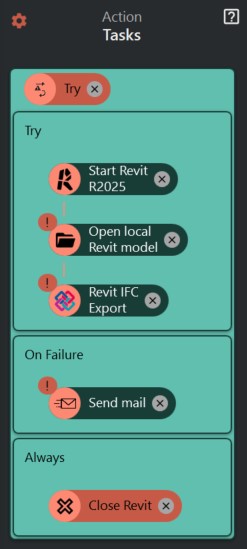
By default, the Try task comes with two blocks: Try and On Failure. You can add any number of tasks to these blocks.
¶ Try
The tasks within this block will be executed first. If all tasks in this block complete successfully, the On Failure block will be skipped. However, if any task within the Try block fails, the execution will immediately stop and jump to the On Failure block.
¶ On Failure
This block contains tasks that will be executed only if a task in the Try block fails. It's your safety net for handling errors, allowing you to perform cleanup, send notifications, or log the error.
¶ Configuration
You can configure the Try task to add a third block, the Always block, which ensures certain tasks are always run regardless of success or failure.
¶ Always Block
By default, the Always block is disabled. You can enable it with a toggle button in the task's configuration.
When enabled, the tasks in the Always block will execute after the Try or On Failure blocks have completed. This is useful for tasks that need to run no matter what, such as closing a connection, saving a log, or cleaning up temporary files.