¶ Unzip File
¶ Overview
This guide provides instructions on how to extract files from a .zip archive using the 'Unzip File' task.
¶ Step 1: Initiating the Unzip Task
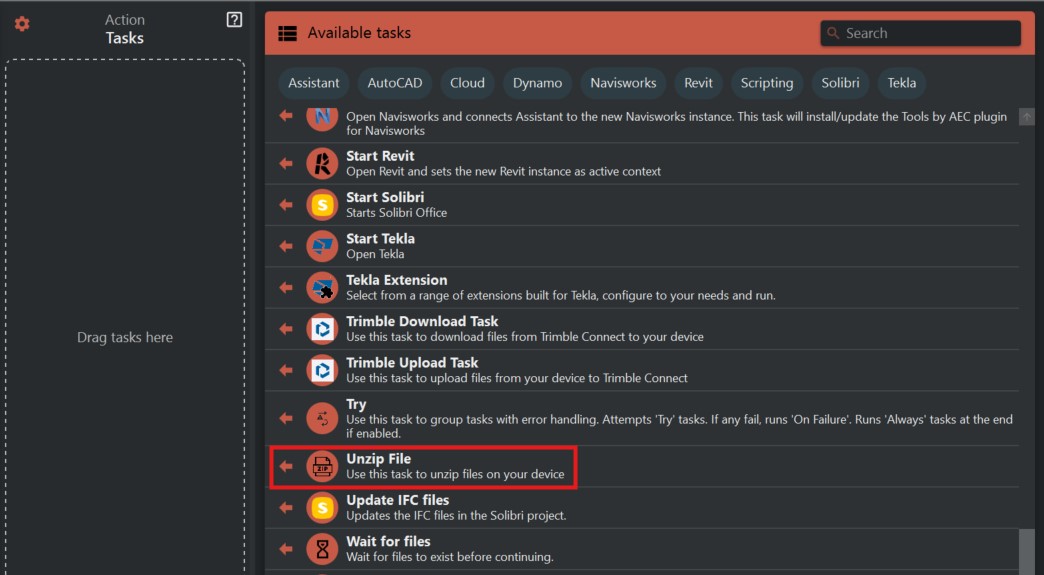
- Look to the right side of the screen to find the 'Available tasks' section.
- Identify and click on the ‘Unzip File’ task.
¶ Step 2: Specifying the .zip File and Destination
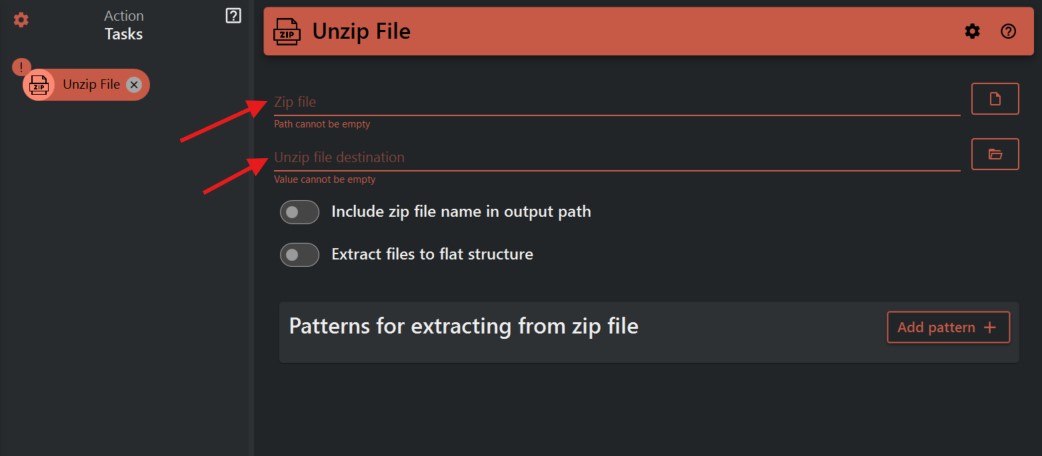
- In the 'Zip file' field, enter the path to the .zip file you wish to extract or use the folder icon to navigate and select the file.
- In the 'Unzip file destination' field, specify where you want the extracted files to be placed. Again, you can type the path or use the folder icon to choose a destination.
¶ Step 3: Unzipping Options
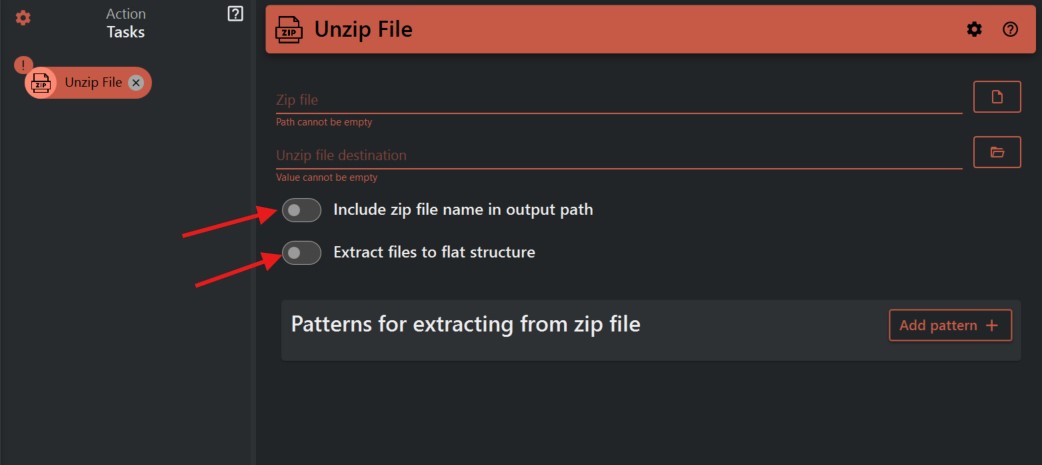
- Choose whether to 'Include zip file name in output path'. If selected, a folder named after the zip file will be created in the destination to contain the extracted files.
- Alternatively, select 'Extract files to flat structure' to extract all files directly into the chosen destination without preserving the folder structure from the zip file.
¶ Step 4: Using Patterns for Extracting
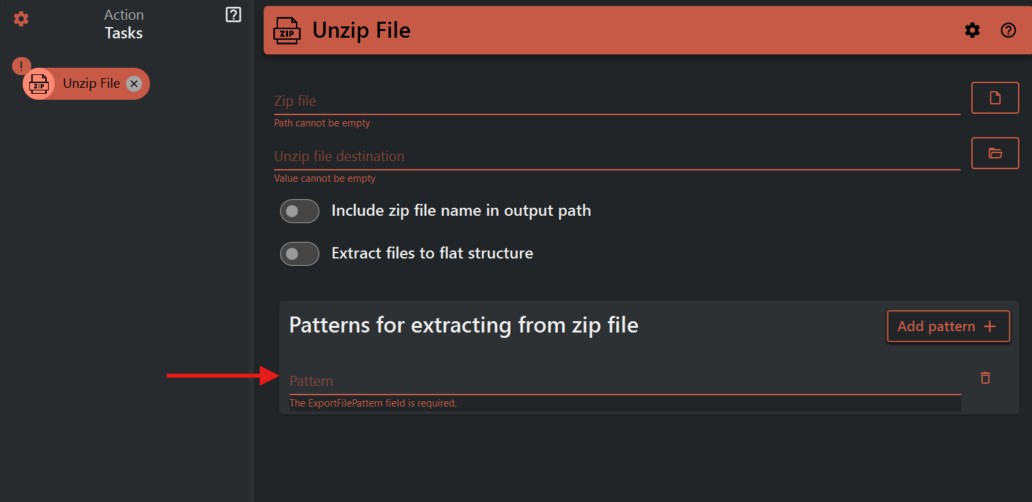
- If you want to extract specific files, click 'Add pattern' and define the file types or names you want to extract. For example, '*.pdf' will only extract PDF files.
¶ Important Notes
- Ensure that the destination has enough space to accommodate the extracted files.
- If the zip file is large, the extraction process may take some time, so consider running this task when you're not using the device for other resource-intensive tasks.
- Be careful with the 'flat structure' option, as it can lead to a disorganized extraction if the .zip file contains multiple nested folders.