¶ Triggers
Triggers allows you to have actions executed automatically based on either a time schedule or certain file system events like when a file changes or a file is added to a folder. This has a few advantages over using Windows Scheduler, like allowing other types of triggers and the fact that the triggers are stored in the .actions file, allowing anyone opening the file to enable the triggers without having to set it up in Windows Scheduler.
¶ Advantages of using Triggers
There are several advantages to using Triggers in Assistant, including:
Flexibility: Triggers allow you to create custom automation workflows based on your specific needs and requirements.
Simplified setup: Unlike Windows Scheduler, Triggers are stored in the .actions file, which makes it easier to share and collaborate on automation workflows.
Visibility: With Triggers, you can see all your automation workflows in one place, making it easier to manage and modify them.
¶ Use cases for Triggers
Triggers can be used in a wide range of scenarios, such as:
Running backups: You can set up a trigger to run a backup script on a regular schedule, ensuring that your important files and data are always protected.
Scheduling tasks: You can schedule tasks to run at specific times or intervals, such as sending automated emails or generating IFC or PDFs, update model data or combining models, basicly whatever you are able to configure in Assistant.
¶ How to set up triggers
¶ Open the triggers view
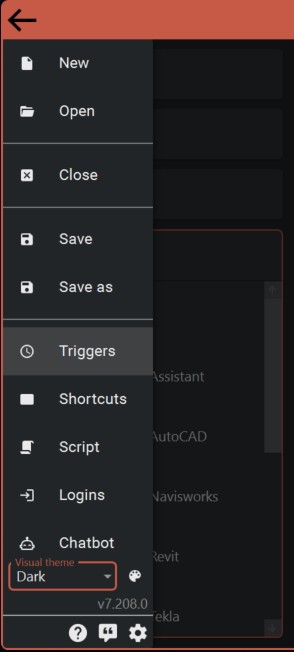
Open the triggers view in the hamburger menu.
¶ Adding a new trigger
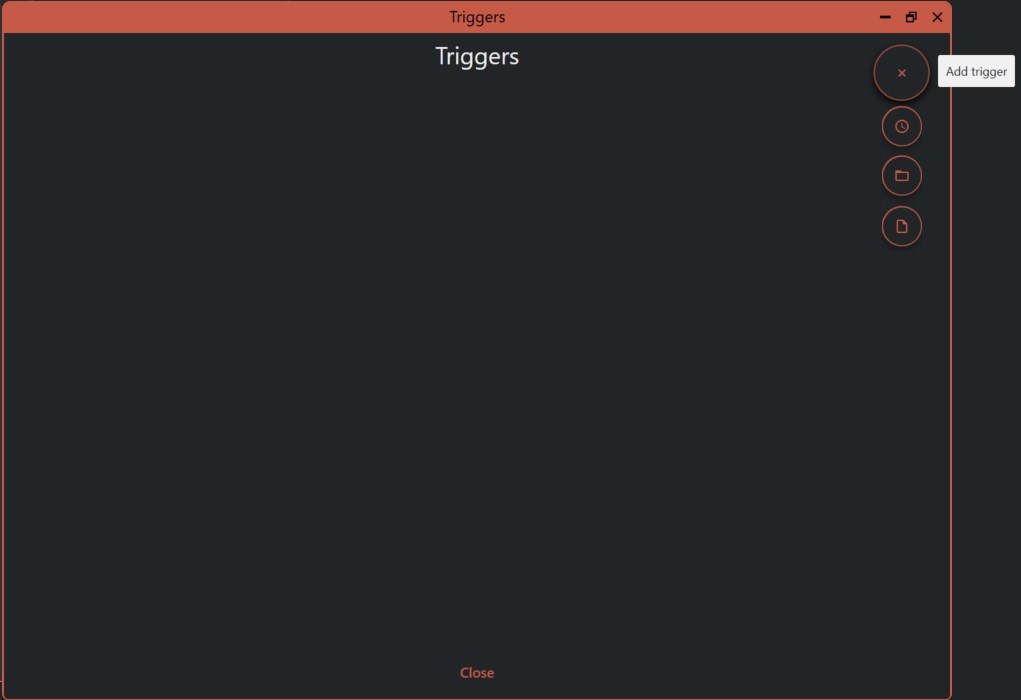
Hover over the large circular button with a pluss sign and select the trigger type you want from the dropdown menu.
¶ Enable/disable trigger
All triggers have a enable/disable button at the buttom middle. If the enable button is toned down, it means that the trigger is not configured correctly. This can be a missing file/folder input or that no actions are configured to execute.
When a trigger is enabled, a yellow ribbon will be visible under the title bar, saying "triggers are active". From here, you can click "Show" to open the triggers view, "Disable" to disable all triggers" or "Minimize to system tray" to minimize Assistant to the system tray.

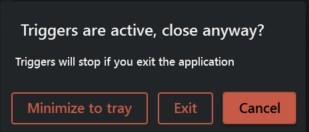
While triggers are active, closing assistant will prompt a warning letting you know that exiting the application will prevent the triggers from executing.
¶ Trigger types
There are three trigger types available.
¶ Schedule
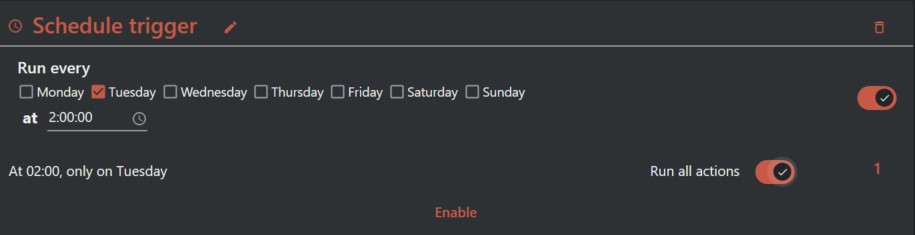
The schedule trigger allows for setting up a trigger that executes at given days at a given time. It is also possible to set up a more advanced schedule by configuring a cron expression.
Configure actions to run by either selecting "Run all actions" or checking the actions you want to execute in the action list, then reopen the triggers view and hit the "save" icon. The number will then update to match the count of actions you have selected. To later see which actions are checked in a trigger, click the number. The action list will then update in the background, checking the configured actions.
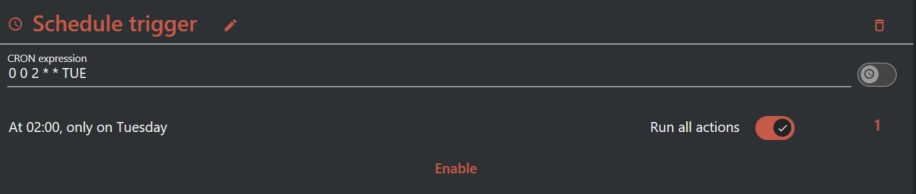
To set up an advanced schedule trigger using cron expression, turn off the "Show designer" toggle on the right. This will make the cron expression input box visible. There are many pages that can help you create a cron expression, here is one example: https://crontab.guru/
¶ Folder trigger
Monitors the configured folder for any .actions files. Once a file is added to the folder, Assistant will read the .actions file and start executing all actions that was checked in the .actions file. After reading the .actions file, it will be deleted to avoid executing multiple times and also allowing the user to paste the .actions file multiple times if they want multiple executions.

¶ File trigger
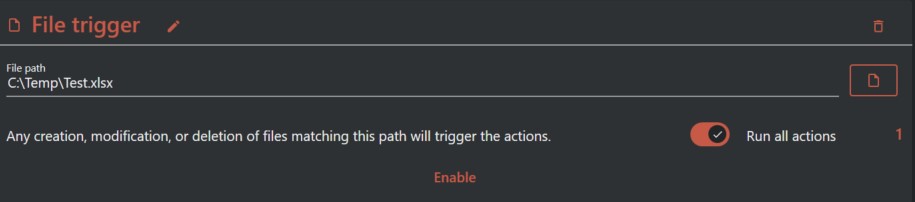
Executes actions when a specified file changes. Allows the user to configure a file to monitor and will execute the configure actions when any changes are made to the configured file.
Configure actions to run by either selecting "Run all actions" or checking the actions you want to execute in the action list, then reopen the triggers view and hit the "save" icon. The number will then update to match the count of actions you have selected. To later see which actions are checked in a trigger, click the number. The action list will then update in the background, checking the configured actions.