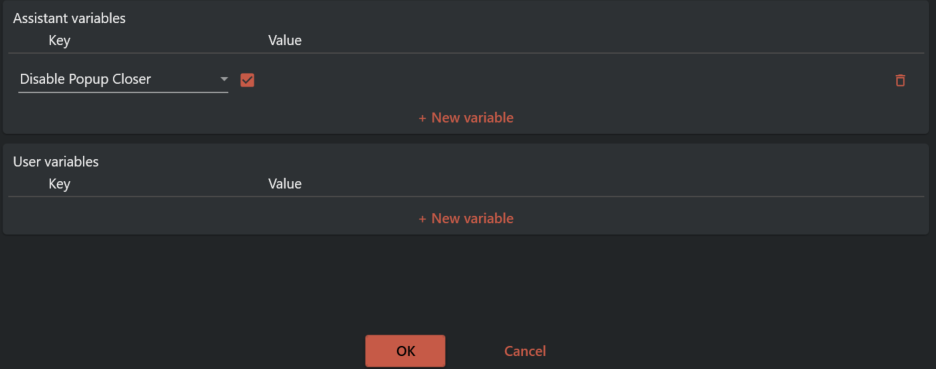
¶ Assistant variables
¶ Revit popup closer settings
In this example you will learn how to close an unhandled popup.
Lets say you have an action file that opens a model and runs a set of actions afterwards. You discover that Assistant never finishes the "Open model" task and Revit has a popup.
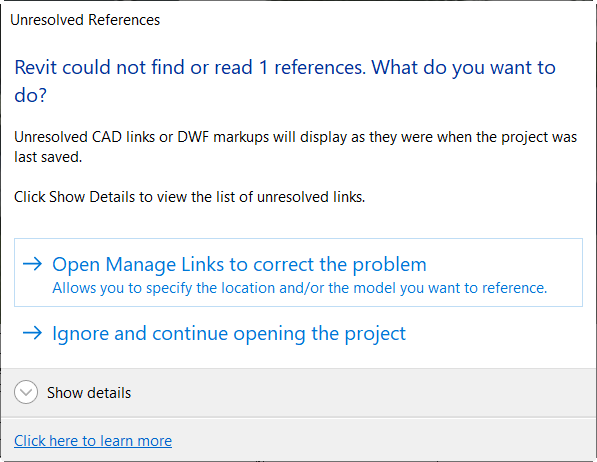
Something has happend to a link. You do some research and conclude with that this does not affect the rest of your routine and you want Assistant to click "Ignore and continue opening the project".
Open variables and click New variable.

Select RevitPopupCloserSettings in the list and click Open editor.

Click Start in the top right corner. Hover the button you want Assistant to click for a few seconds, stop the refresh by clicking the Refresh in x.x button.
Copy the text in the Title field under Window spy. See the clip bellow
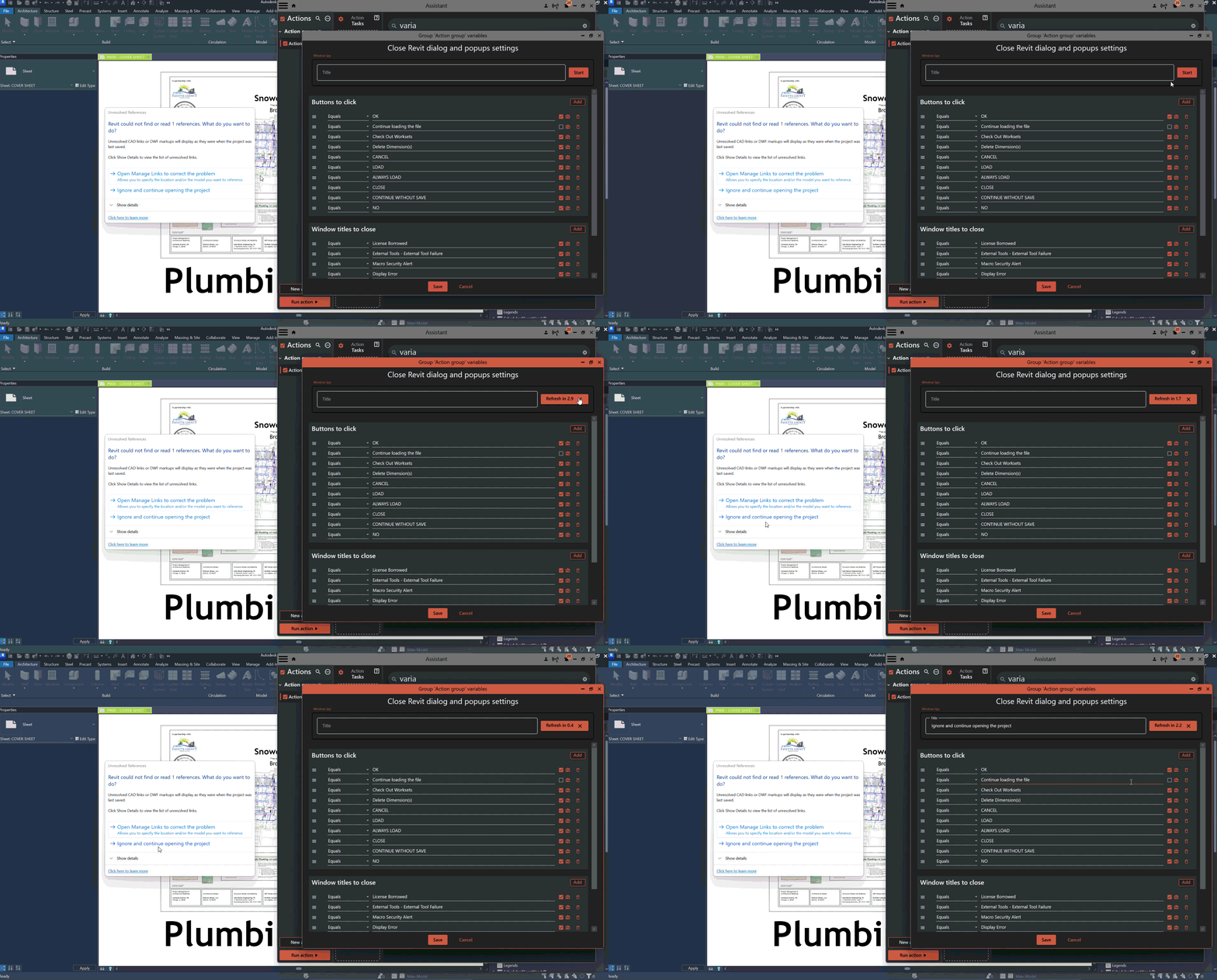
Click Add and paste the value from the Title field in the step above into the Compare value column field. Enable Ignore case by clicking the checkbox. Then click save and close the variables window.
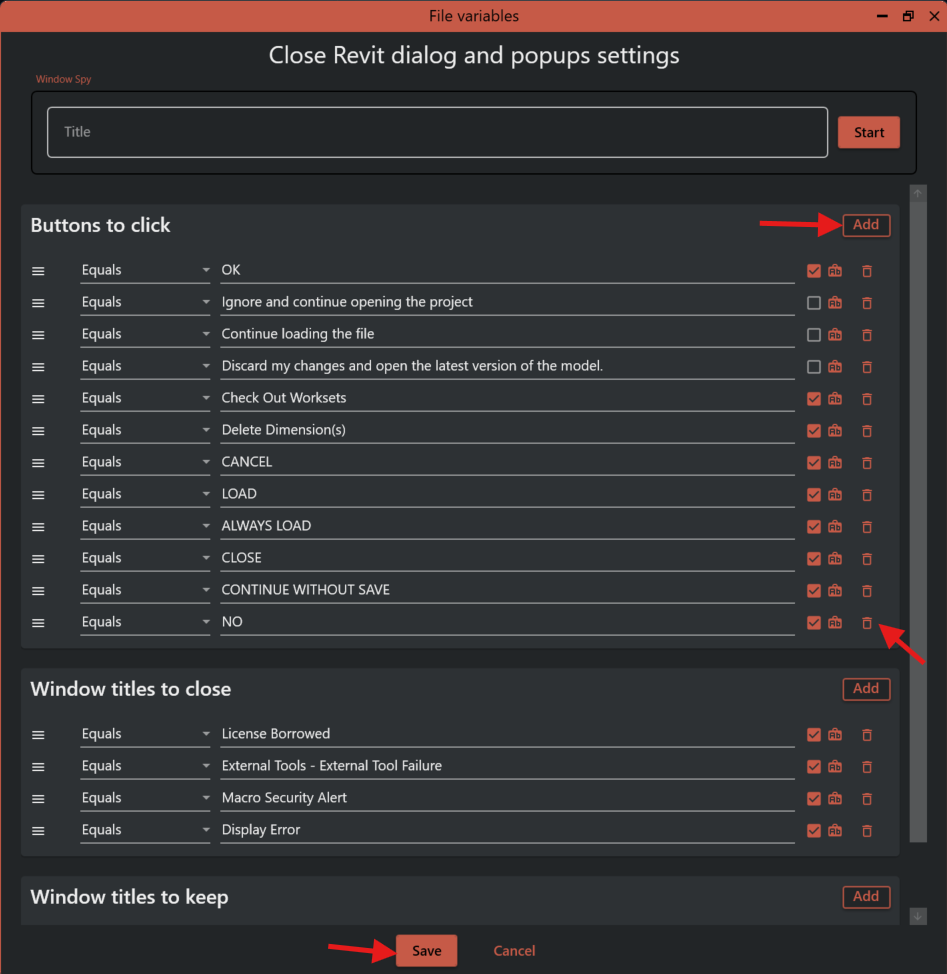
The list of buttons to click are hierarchically structured. In this example it means that if a popup have a "OK" button and "Ignore and continue opening the project" the "OK" button will have precedence over "Ignore and continue opening the project" because the "OK" button is higher up in the list. You can manage this by dragging and dropping the elements to change their order.
Assistant will now click "Ignore and continue opening the project" whenever this is an option.
¶ Disable popup closer
If your task needs to show popups, you can dissable the popup closer by adding the disable popup closer variable and tick the checkbox