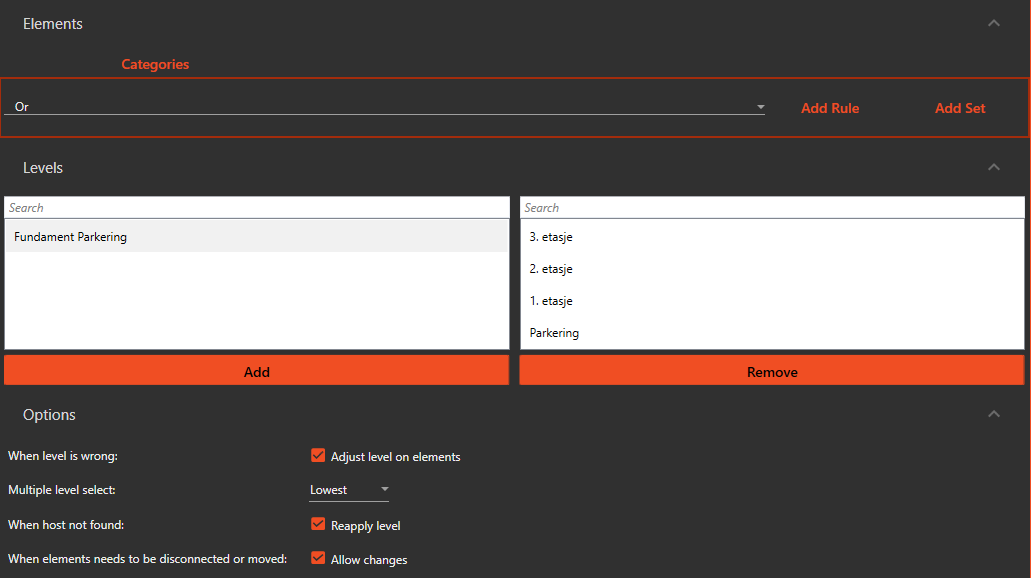
¶ Element level correction
The Element level correction check is a feature of Check&Fix that allows users to correct the levels of elements in their model. The check works by selecting elements that match a specified filter, and then determining the best matching level for each element based on its elevation. The level that is closest to, but still below the top or bottom of the element, is chosen.
Users can configure the check by selecting the levels in their model that they want to be used, and also specify whether they want the top or bottom of the element to be used for level assignment. Elements on levels not included in the configured list will be assigned the best matching level of the levels that are configured.
-
Select the element filter. This filter will be used to select which elements in the model should be corrected.
-
Select the levels to be used. Only the levels selected will be considered for level assignment. Levels on the left will be ignored and levels on the right will be used.
-
When level is wrong: Select whether to apply the calculated level or just show the result in the run result.
-
Multiple level select: Choose whether the top or bottom of the element should be used for level assignment.
-
When host is not found: Check this to reapply the calculated level on hosted elements where the host is not found
-
When elements need to be disconnected or moved: When applying the new level, this can trigger a recalculation in Revit that may result in the element being moved slightly or even be disconnected, typically if they are in a pipe or duct system. Check this option to allow these changes. Any disconnects or movements will be reported in the run result.
-
Run the check. The check will then apply the best matching level to each element based on the configuration.