¶ Configuring the Void Manager
The Void Manager can be configured through a variety of tabs each pertaining to different aspects of the application. Below is a breakdown of each tab and how to use it.
To open the options: Press the hamburger menu on top left and click the option gear down right.
¶ Columns
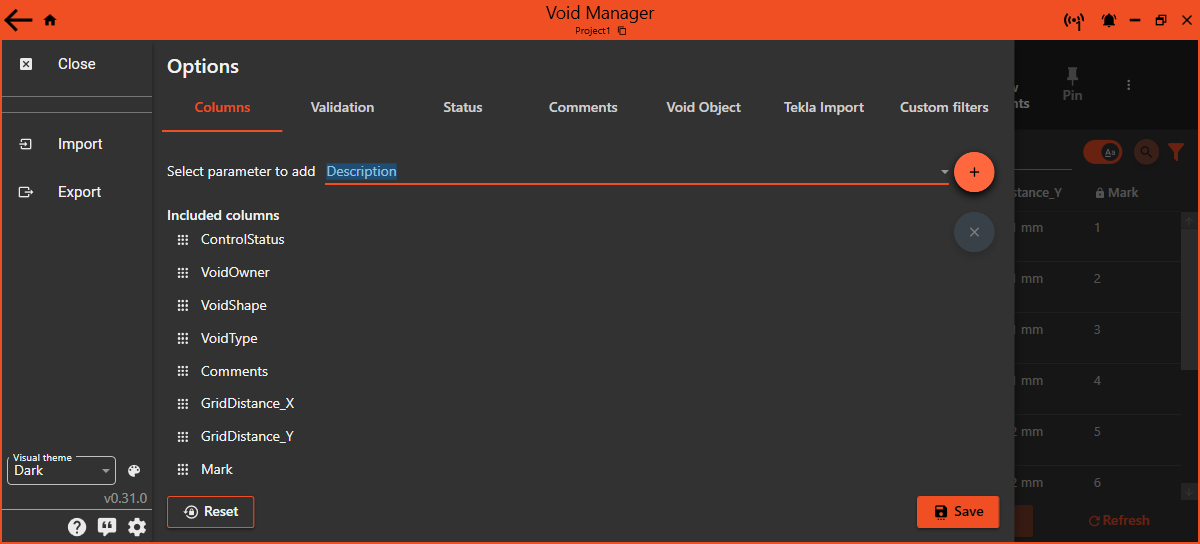
To customize which data columns are visible in the Void Manager interface:
- Go to the
Optionsand select theColumnstab. - Use the
+button to add new parameters to your view. - To remove parameters, select the parameter and click the
Xbutton. - Reorder the parameters by dragging them
¶ Validation
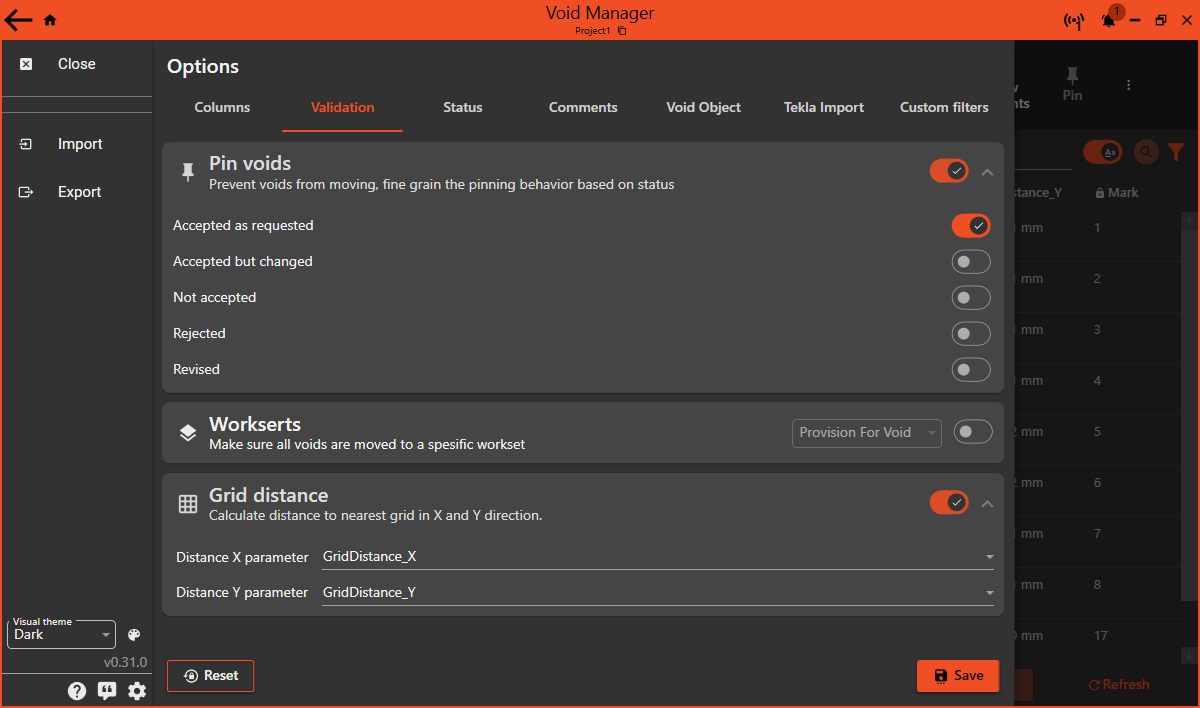
Adjust how the Void Manager validates voids:
- Navigate to the
Validationtab. - Enable or disable pinning, workset, and grid distance checks.
- Set your tolerance levels for movement and size to refine validation.
¶ Status
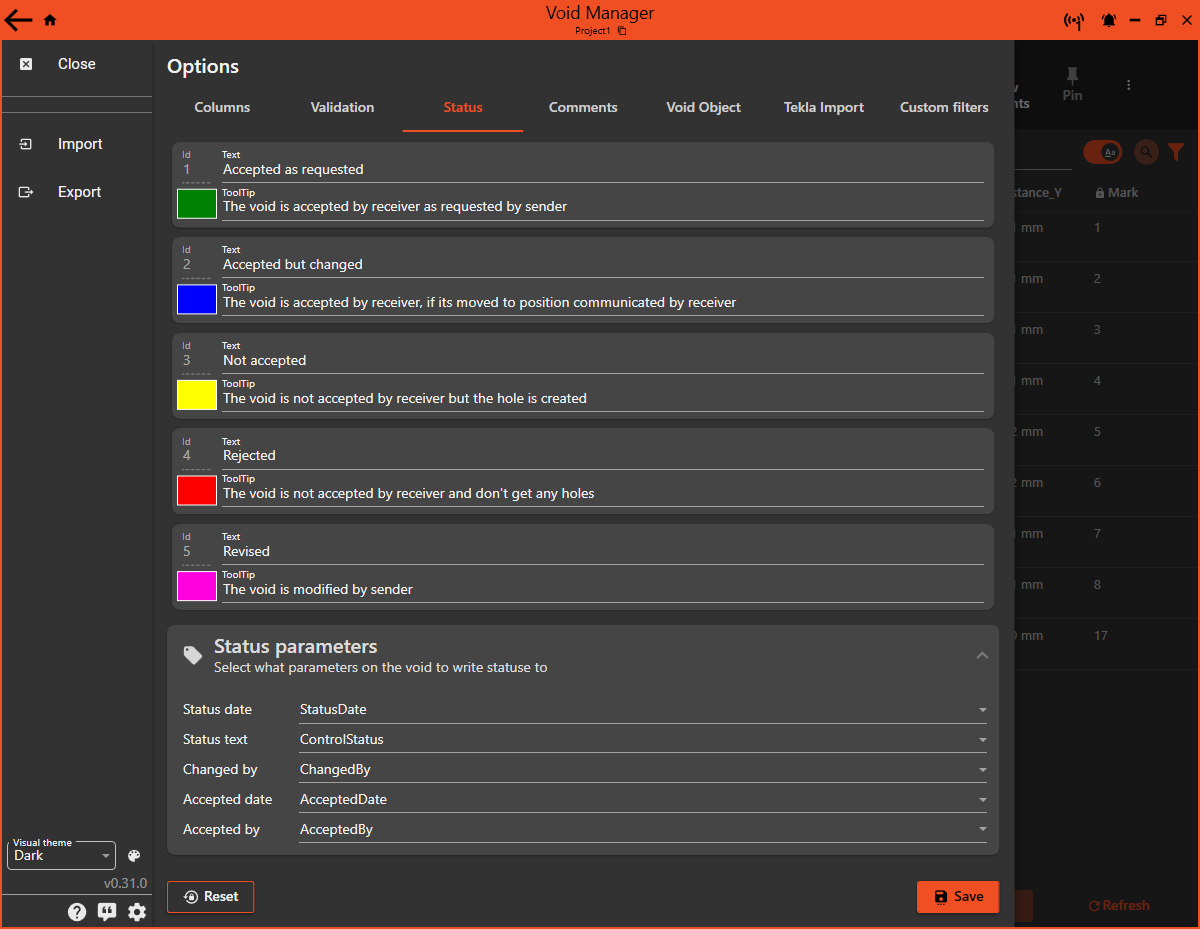
Customize how void statuses are displayed and managed:
- Open the
Statustab. - Create or edit status types along with their tooltip descriptions.
- Assign colors to each status for visual identification.
- Configure parameters for status date, text, accepted date, and accepted by.
¶ Comments
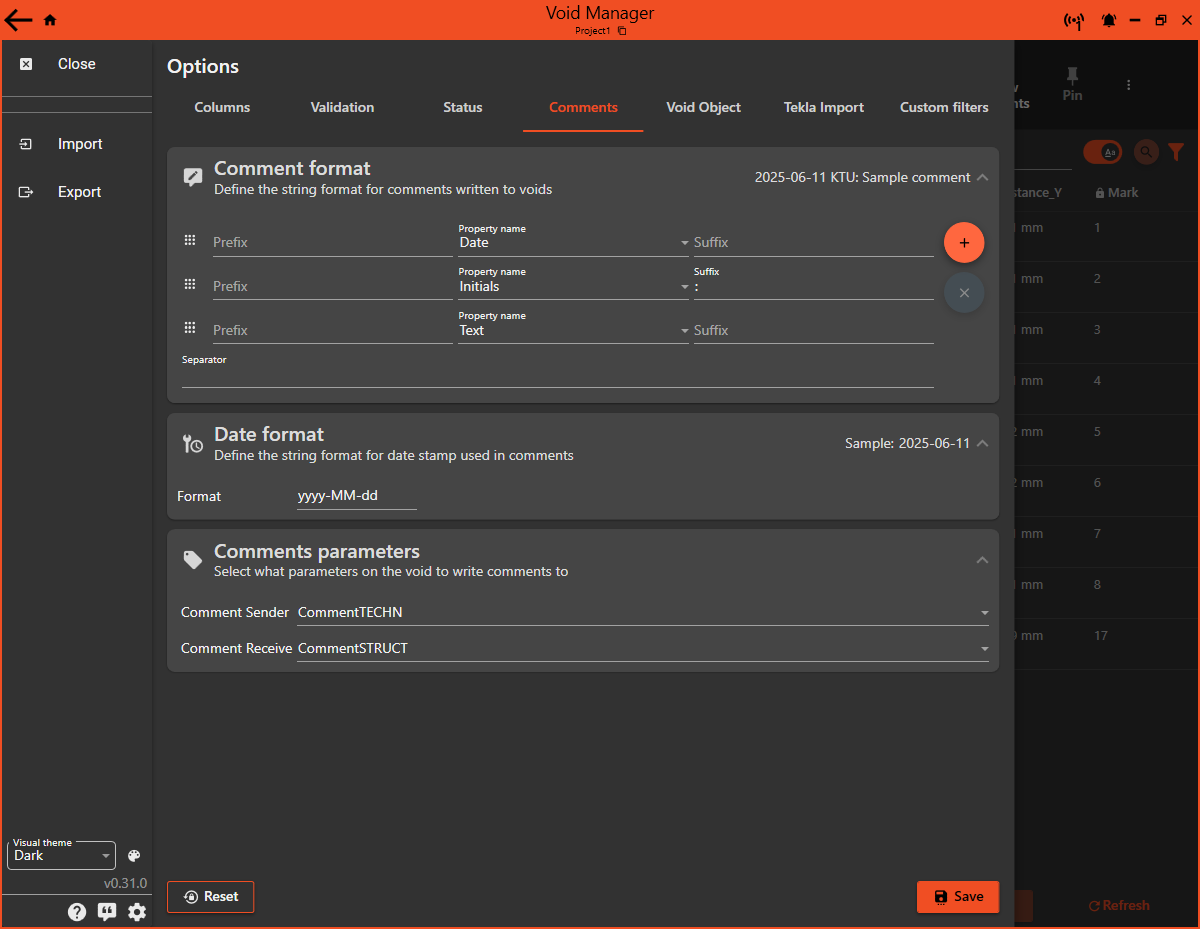
Manage how comments are integrated within the voids:
- Select the
Commentstab. - Specify the date format for timestamping comments.
- Determine the parameters for sender and receiver comments.
- Set up the comment format to include the date, initials, and comment text.
¶ Void Object
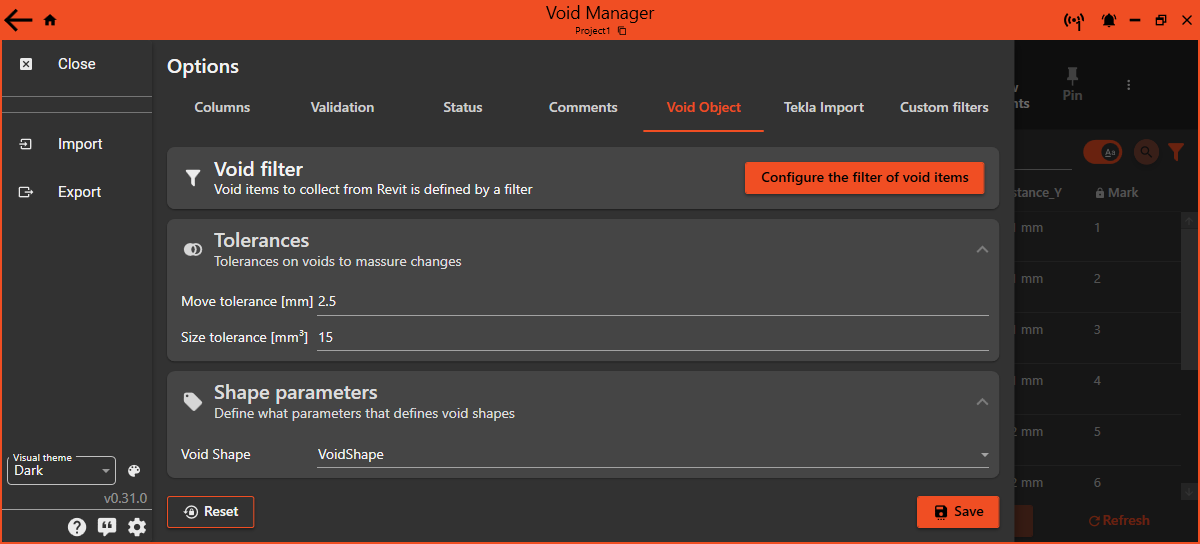
Define a filter to configure void manager to find the voids elements.
If its in a link you have to select the link in the Models button.
The category is defaut set to Generic Models and Mechanical Equipment.
¶ Configure void filter
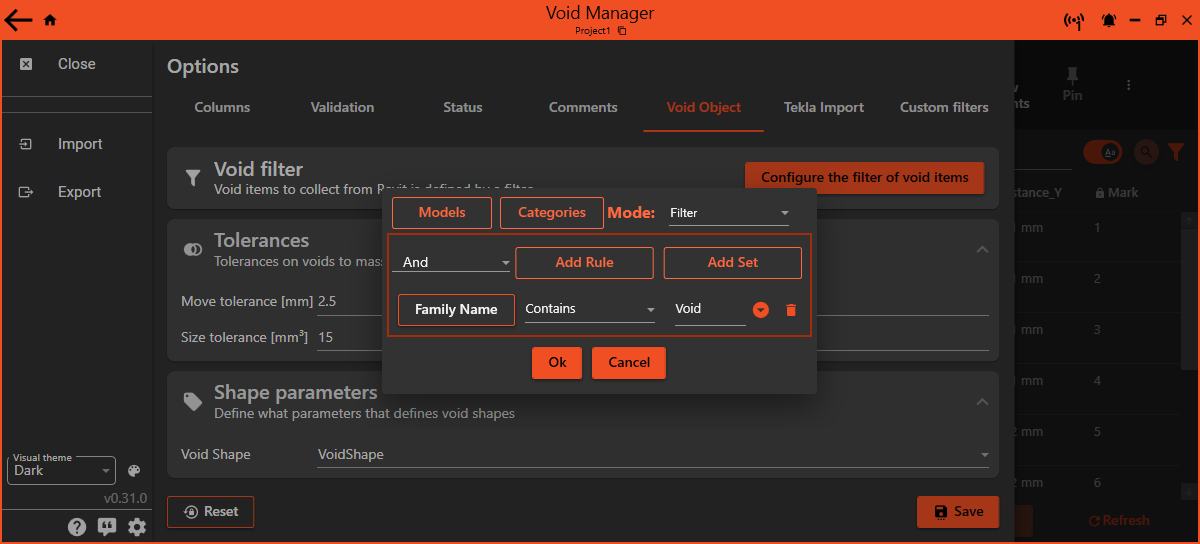
- Select the
Modelsthat contains the voids - Select the Revit
Categoriesof the voids - If needed specify parameter filters to get only the voids you want. See custom filters to filter a subset of the voids.
¶ Tekla Import
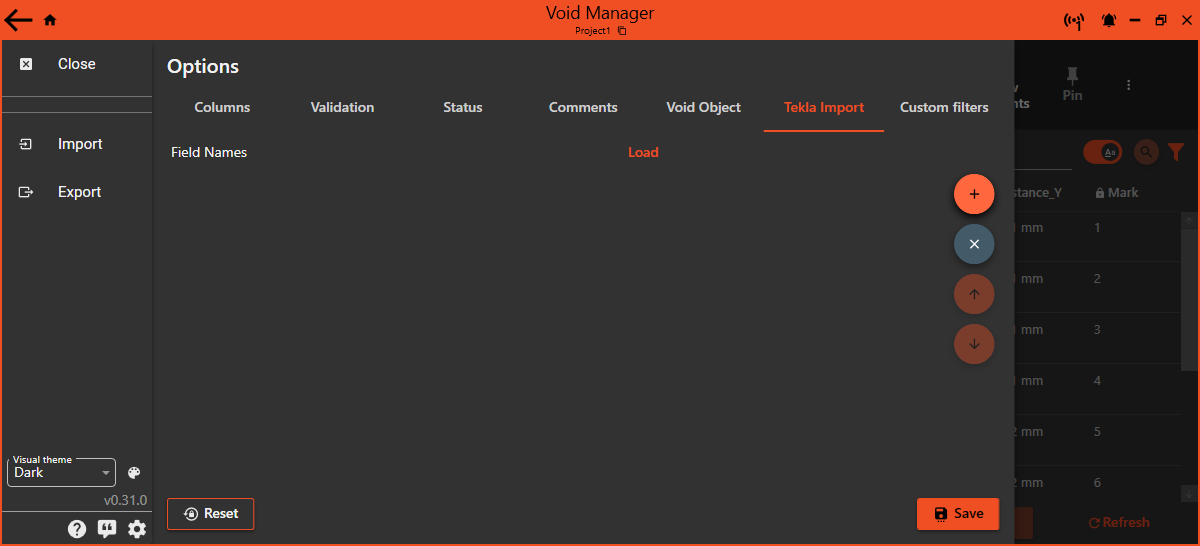
Configure settings for importing data from Tekla structures:
- Go to the
Tekla Importtab. - Map Tekla fields to corresponding Revit parameters to ensure accurate data transfer.
¶ Custom Filters
Create and manage your own filters for voids:
- Use the
Custom filterstab to create nuanced filters based on specific needs. - Add new filters with the
+button and define their rules and sets. - Remove unnecessary filters with the
Xbutton.
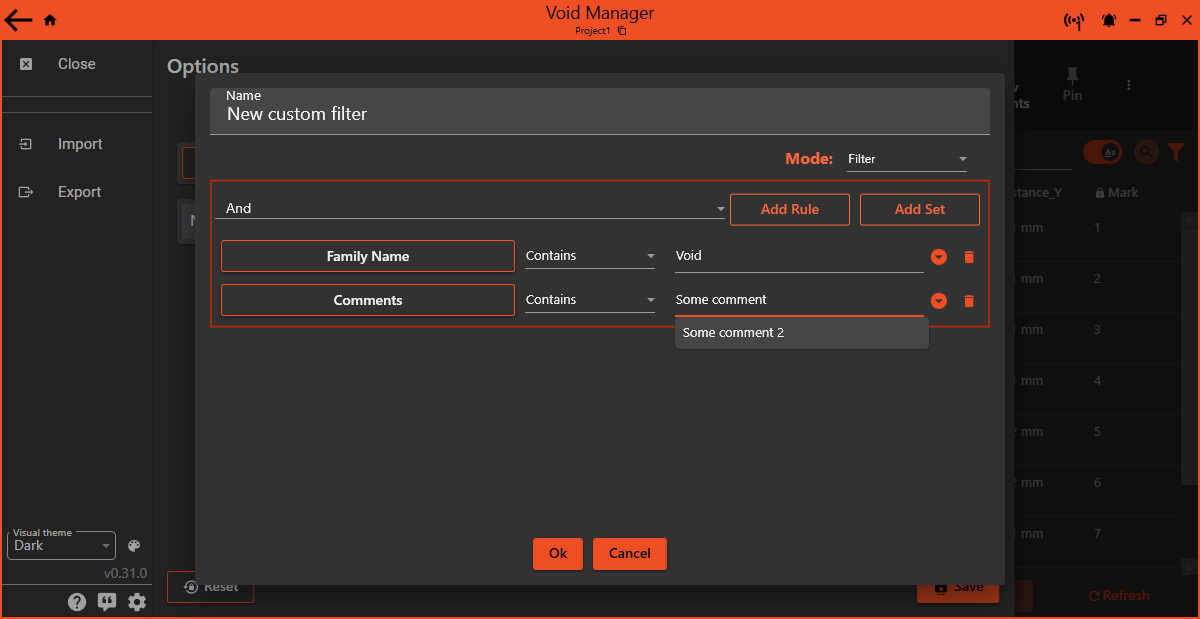
¶ Edit custom filters
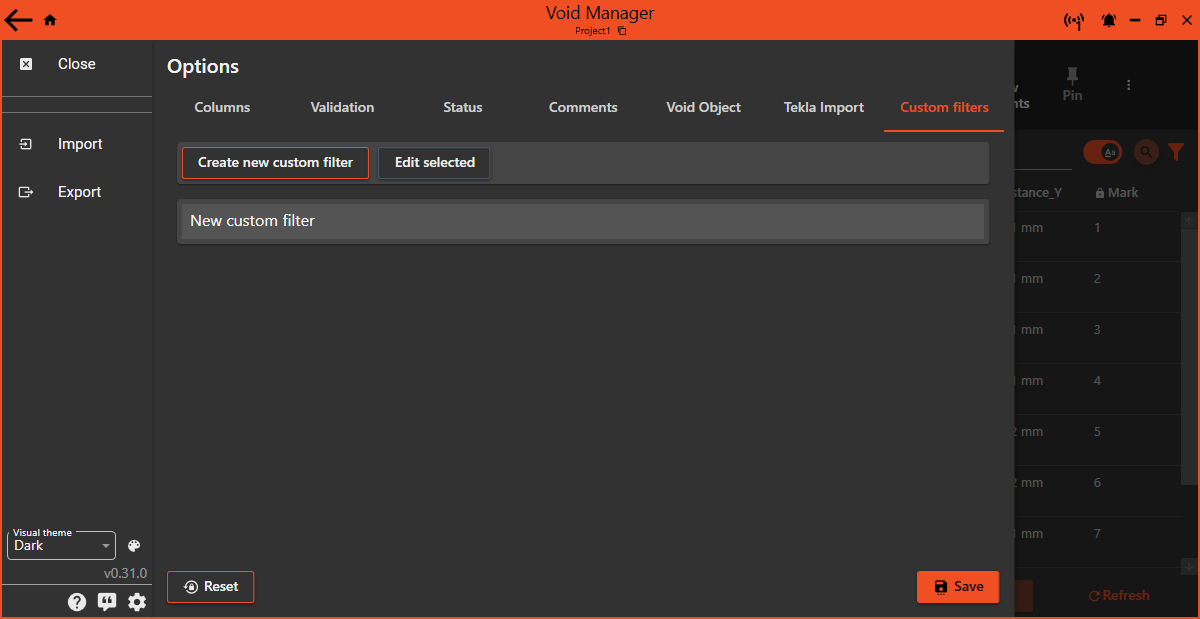
- Set a name for the custom filter
- Fine tune the filter by adding parameter rules.
This is usefull if you intend to filter elements in an area and the elements has a code for that area in a parameter.
Remember to Save your configurations after making changes and use the Reset option to revert to default settings if needed.