¶ Before Starting
The following procedure is done once for a model file containing voids.
Settings in Void Manager are model specific and not user specific.
¶ Project Parameters
The void model objects need a set of parameters which can be assigned information from Void Manager.
Some parameters are available in the COWI Shared parameters file.
Set the COWI Shared Parameters as current in Assistant.
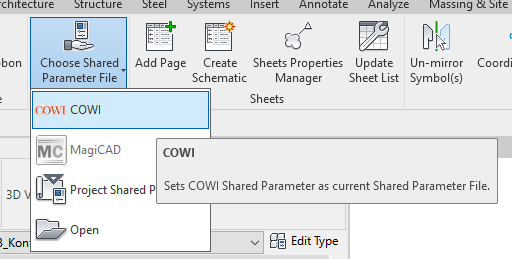
- Select Manage - Project Parameters - Add
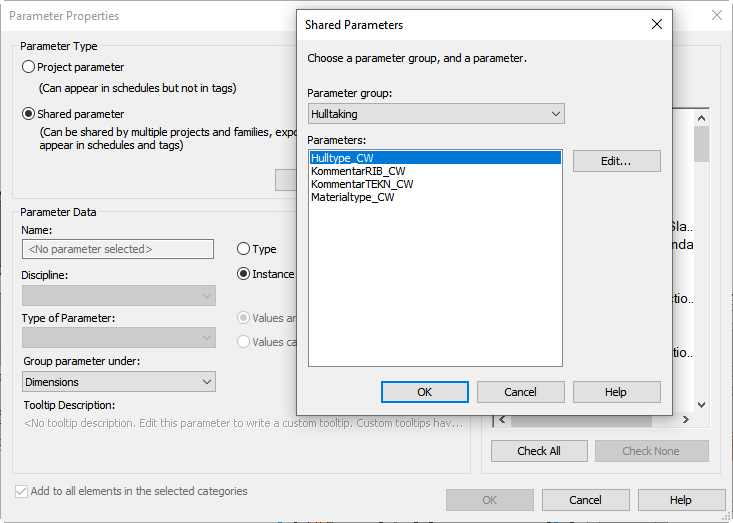
- Change Parameter Type from Project Parameter to Shared Parameter
- Click Select and find “Hulltaking” under Parameter Group
- Add the parameters relevant to your project (see tables below) to the void elements.
Alternatively, make the parameters yourself as project parameters or in a project shared parameters file.
The following tables show the necessary and best practice parameters added to void elements.
The parameter names are suggestions and can be altered.
Necessary parameters:
| NO | ENG | Description | Type |
| KommentarRIB | CommentSTRUCT | Comments from void receiver/controller. Typically the structural discipline. | multiline text |
| KommentarTEKN | CommentTECHN | Comments from void sender/responsible. Typically the technical disciplines. | multiline text |
| KontrollStatus | ControlStatus | Control status of void, e.g. if the void is accepted, rejected, etc. | text |
| StatusDato | StatusDate | Date of last status change. | text |
| GodkjentDato | AcceptedDate | Date of acceptance. | text |
| GodkjentAv | AcceptedBy | Initials of the person who accepted the void. | text |
| EndreatAv | ChangedBy | Initials of the person who changed the void. | text |
| VoidOwner | Owner of the void E electrical, V ventilation, P piping, S sprinkler | text | |
| VoidShape | Shape of the void Rectangle, Round |
COWI best practice parameters:
| NO | ENG | Description | Type |
| Hulltype | VoidType |
Distinguishes the type of void.
|
text |
| SenterKotehoyde | CenterElevation | Elevation of center point of void. If necessary for the builder. | number |
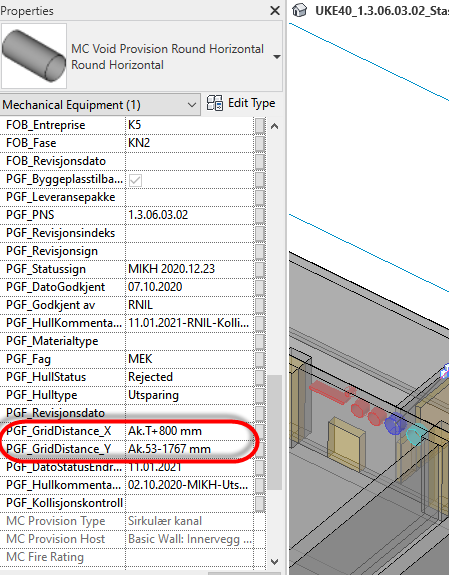
| AkseAvstand_X | GridDistance_X | Distance to closest grid in project X direction. If necessary for the builder. | text |
| AkseAvstand_Y | GridDistance_Y | Distance to closest grid in project Y direction. If necessary for the builder. | text |
¶ Void Manager Setup
The setup will enable Void Manager to assign information to void element parameters.
- Start Void Manager, and click the top left menu symbol.
- Select the settings:
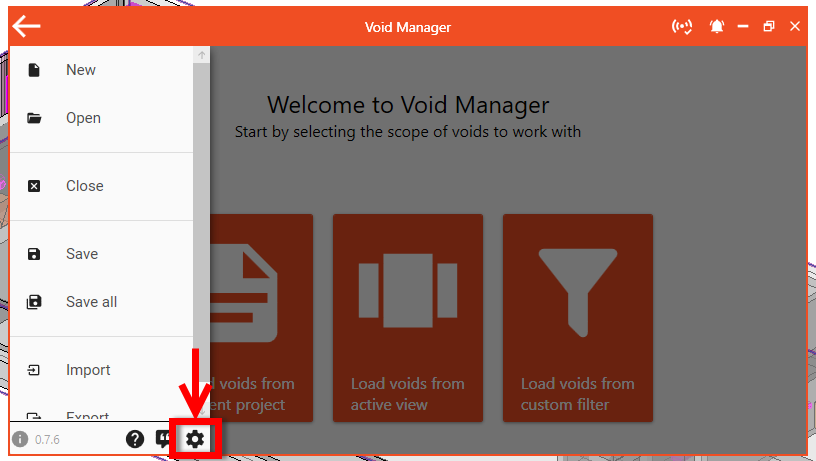
The different main settings are:
|
Columns Add or remove parameters ("columns") which 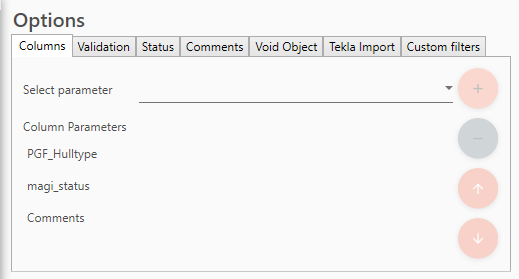
|
Validation Grid Distance: Select parameters for grid distances. 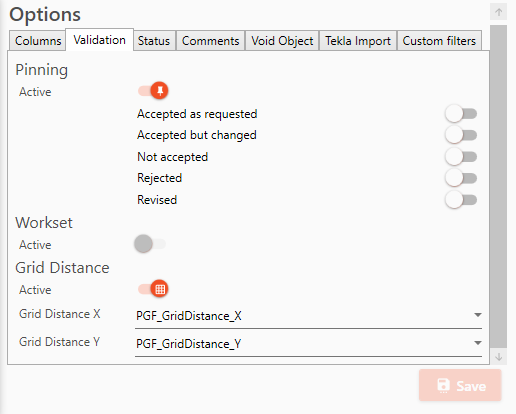
|
|
Comments Choose format for date stamp. Set parameters for sender and receiver comments respectively. 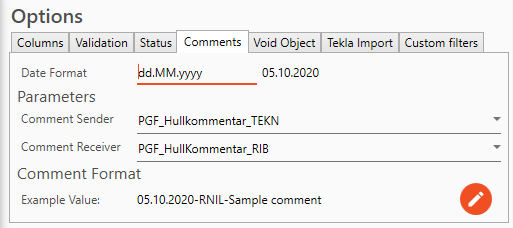 |
Void Object Select how Void Manager recognises a 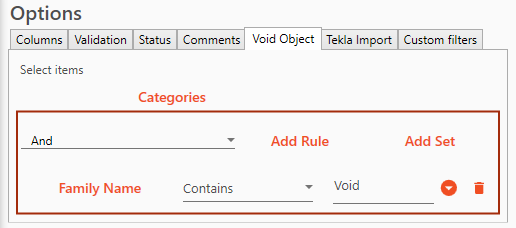 |
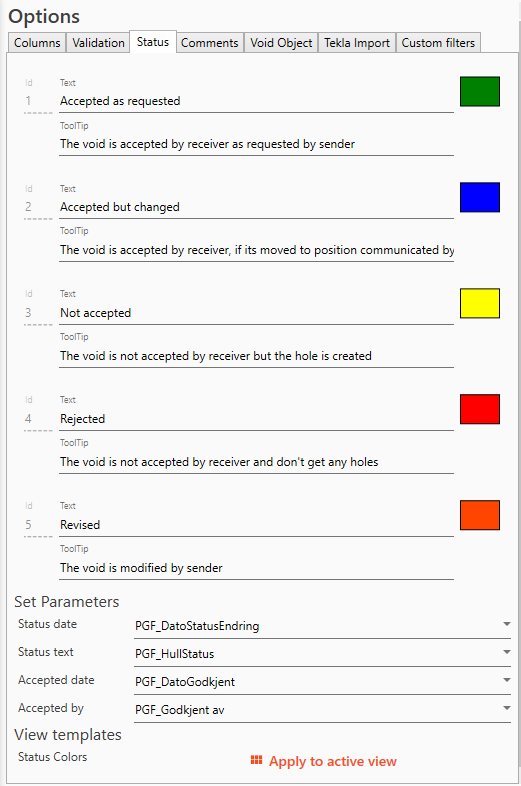
Status
- Set status values and descriptions according to project preferences.
COWI best practice is using the default. - Select parameters for control status date, control status text, accepted date and accepted by.
Sources of confusion:
- Voids automatically created using MagiCAD will have a parameter called magi_status.
The parameter can be used directly instead of creating KontrollStatus/ControlStatus, but filters in views will not work with magi_status. - “Apply to active view” in Void Manager only works if the status parameter is a shared parameter.
Filters can still be applied in the traditional way for views/templates if you want to keep the status parameter as a project parameter.
¶ View Filters
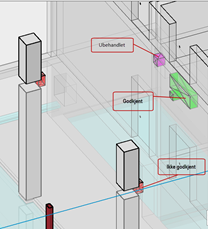
The 3D control views should be set up using a view template, where the colour of void elements changes according to status changes.
Large structural elements, like walls and slabs, can be partially transparent to enhance the void objects.

¶ Communication
¶ Example videos
Comments and status change:
/void-manager/guides/cowi-standard/videos/communication_wiki2.mp4
Automatic change to status Revised after void changes:
/void-manager/guides/cowi-standard/videos/revision_wiki.mp4
¶ Loading voids
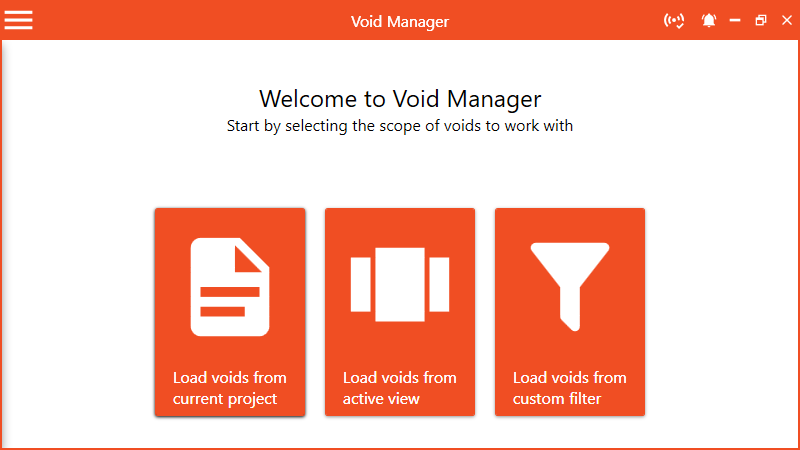
Start Void Manager and select your preferred option for loading voids.
If the model has got separate views for separate zones, the “Load voids from active view” is a good option to keep control and limit the number of voids in the list.
You can always use the “Back to start page” button on the bottom left of the Void Manager dialogue to load new voids when needed.
¶ Filter Void List
Make parameters available to the filter function under Columns in the Void Manager Setup.
(1) The filter is activated by pressing enter after typing the search text or by clicking on the magnifying glass.
(2) The filter is deleted by crossing it out.

¶ Comments and status change
See the example video for a quick run through of the communication functions.
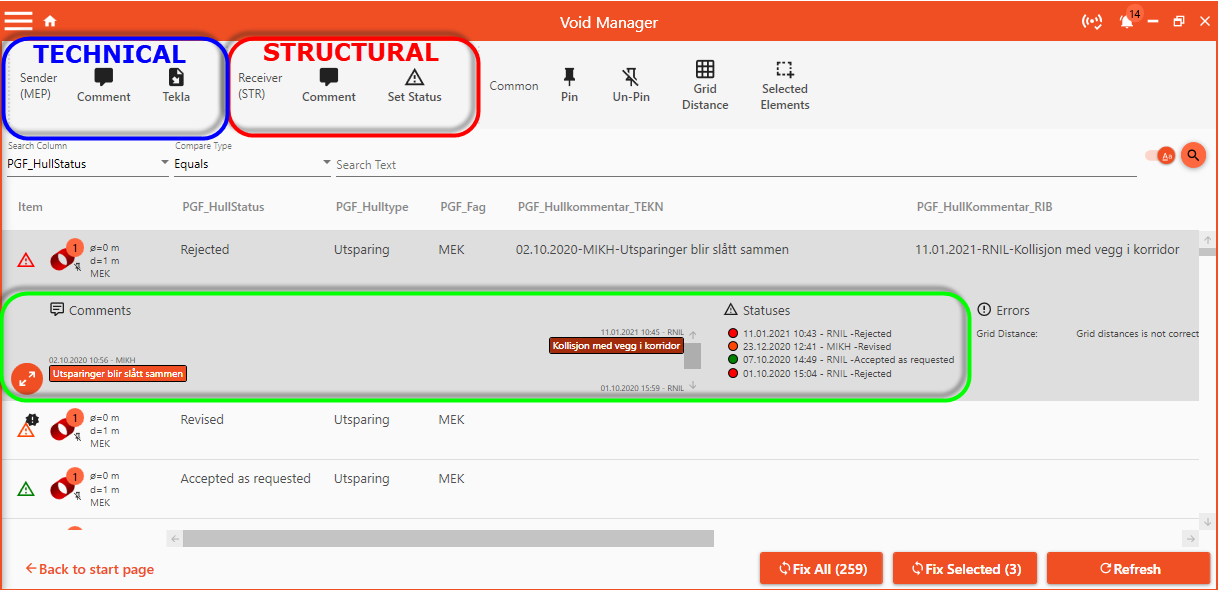
Sender: Technical disciplines
Receiver: Structural disciplines
The Sender is responsible for status changes regarding void revisions.
The Sender uses an automatic function for changing status on objects to Revised, see below.
The Receiver is responsible for status changes for approving or rejecting the void suggestions.
The Receiver uses the Set Status function to change status on objects.
Comments and status changes appear in the green area when clicking on a void in the Void Manager Dialogue.
Status change to Revised by Sender:
If a void is moved and/or changes in size, Void Manager will mark the void object with an error:
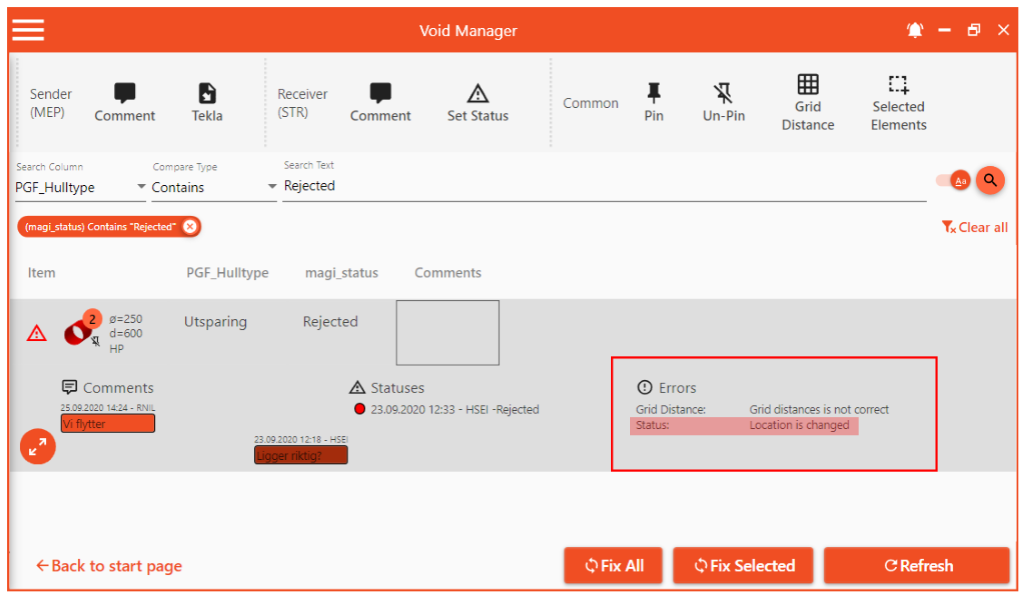
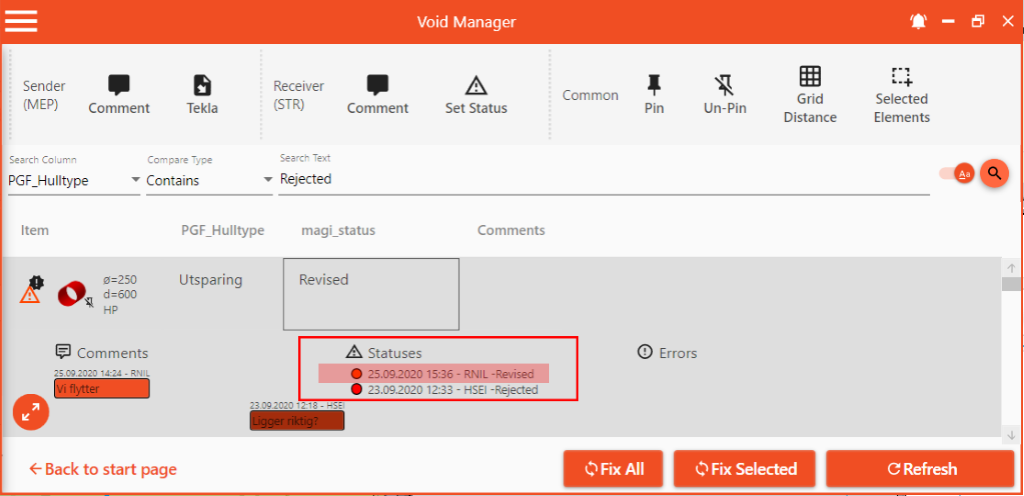
To notify the receiver of the change, the status of the void must be changed to Revised.
The status will automatically be updated when using either Fix Selected (to keep control) or Fix All (if you have control).
The error will then disappear when the status has been updated.
See example video at the start of the section.
¶ Grid Distances
See example video:
/void-manager/guides/cowi-standard/videos/grid_distance_wiki2.mp4
Void Manager can automatically calculate the distances to the nearest axes in void object parameters with the Grid Distance function.
Set up grid distance parameters under “Validation” in the Void Manager Setup before starting, see section “Before Starting”.
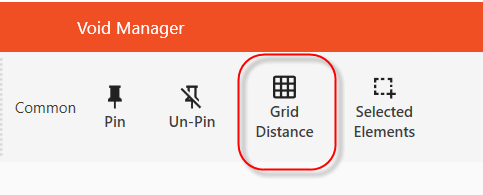
Select the voids from the Void Manager list and click Grid Distance.
Calculated distances: