¶ The Agent in Revit, AutoCAD, Navisworks and Tekla
The Agent works in a design app by writing a short C# script and running it in the model you have open. You see each script under its step, and you can open it before you approve it.
| App | Versions | Where you chat |
|---|---|---|
| Revit | 2022 to 2027 | In the Agent panel inside Revit, or in the Assistant window |
| AutoCAD | 2024 to 2027 | In the Assistant window |
| Navisworks | 2024 to 2027 | In the Assistant window |
| Tekla Structures | 2023 to 2025 | In the Assistant window |
Start the app and open the model or drawing first. The Agent works in the one that is open. It can also start Revit for you: ask, or click Start Revit under the message box.
¶ Revit
Open the Assistant tab and click Agent in the Tools panel. The Assistant Agent panel opens on the right, beside your views, so you can watch the model while the Agent works.
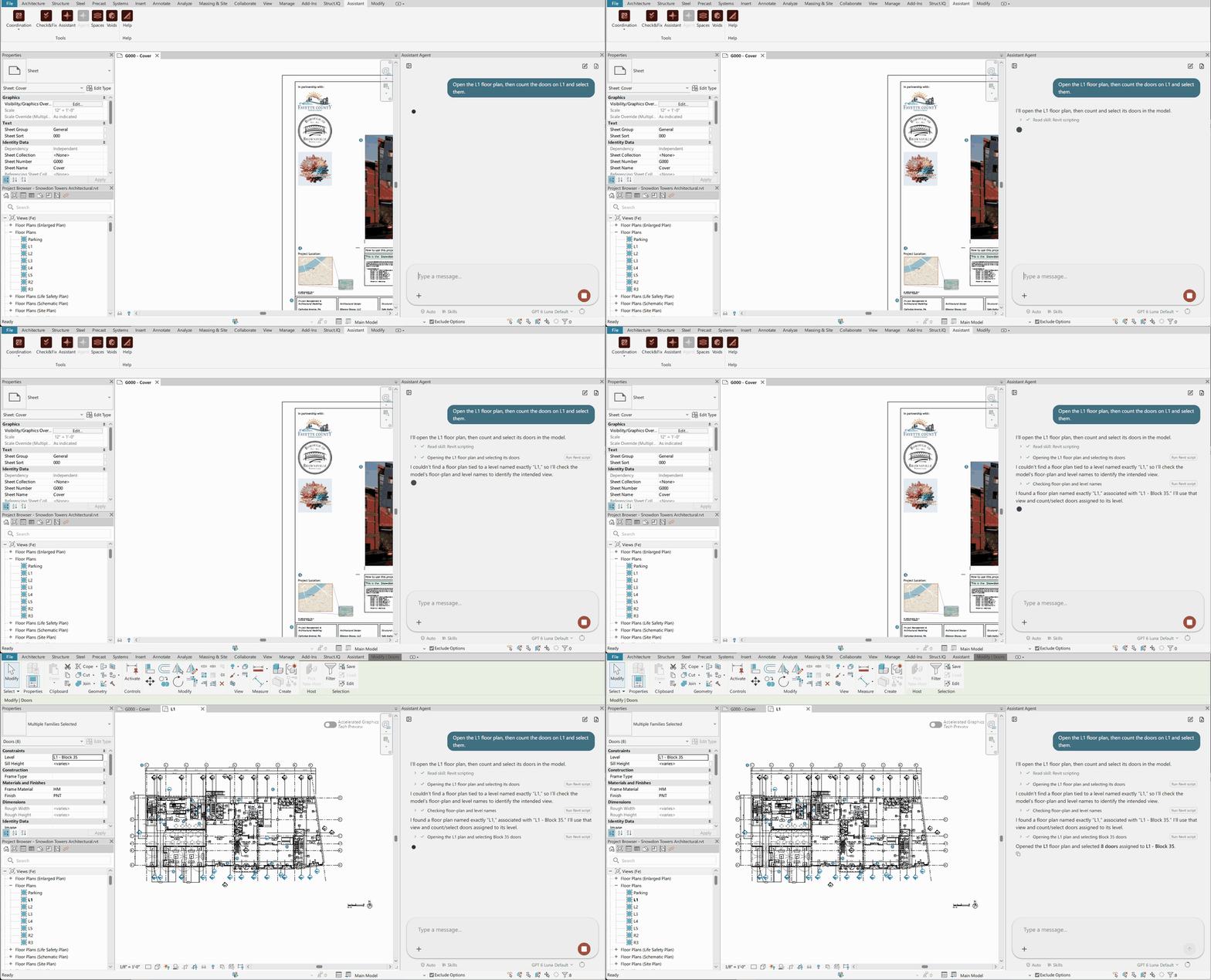
The panel knows which model you have open, and it notices when you switch views. Ask it to read the selection when you need it: "Use the walls I have selected."
What you can ask, for example:
- "List the levels in this model."
- "Which views are not on a sheet?"
- "Select all doors on L2 that have no Mark."
- "Set the Comments of the selected walls to Checked."
Changes go into Revit's undo list, so Undo in Revit takes them back until you save. Saving and synchronizing with central cannot be undone, and in Auto mode they always ask first.
While a script runs, Revit may show warnings and dialogs. The Assistant handles them so the script is not left waiting:
- A warning is dismissed.
- A change that Revit cannot commit is rolled back, so the model stays as it was.
- A dialog is answered with Cancel if it has one, otherwise Close, otherwise OK.
- A dialog with none of these stays open for you.
The step's result lists each of these, so you can see what was dismissed or cancelled. Close any open dialog in Revit before you ask, such as Manage Links: Revit cannot run scripts while it waits for one.
¶ AutoCAD
Open the drawing in AutoCAD, then chat with the Agent in the Assistant window. Changes go into AutoCAD's undo list, so Undo in AutoCAD takes them back.
¶ Navisworks
Open the model in Navisworks, then chat with the Agent in the Assistant window. The Agent can read items, properties and the current selection. It can change the selection, visibility and colours, and work with saved viewpoints, selection sets, clash tests and TimeLiner.
If a script stops partway, the changes it made so far stay. Save a copy of the model before larger changes, and ask the Agent to list what it changed when a step fails.
¶ Tekla Structures
Open the model in Tekla Structures, then chat with the Agent in the Assistant window. Changes are made in the model at once, and Tekla cannot take them back. If a script stops partway, the changes it made so far stay. This makes changes harder to reverse than in Revit or AutoCAD, so be extra careful, and save the model, or a copy, before you ask for changes.
¶ If the app does not answer
- "No active instance found for 'Revit'. Please start the application and try again." The app is not running, or the Assistant is not connected to it. Start it, open the model, and send your request again.
- "No model is open." or "No drawing is open." Open one and try again.
- The step waits for a long time: look for an open dialog in the app and close it.
The connection icon in the Assistant's title bar shows which apps are connected. See Integration connections.