¶ Get started with the Agent
This page shows where to open the Agent, how to write a request that works the first time, and how to find a chat again later.
¶ Open the Agent
In the Assistant, click Agent on the start page. The chat opens right there.
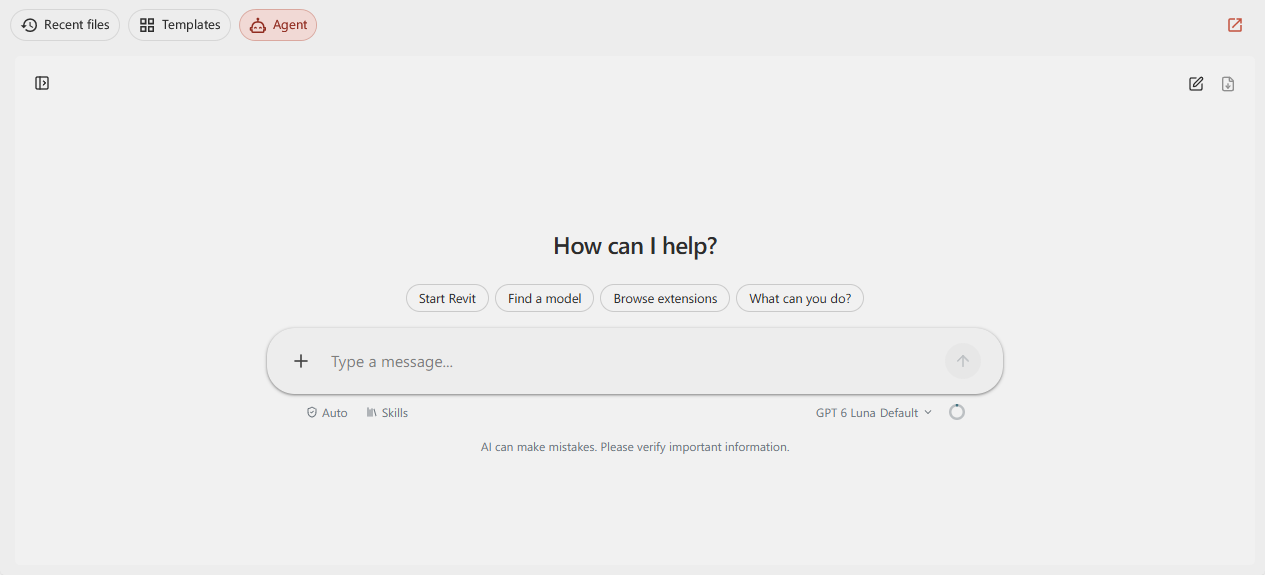
You can also open it in a window of its own:
- Click the arrow button at the top right of the start page, "Open Agent in new window".
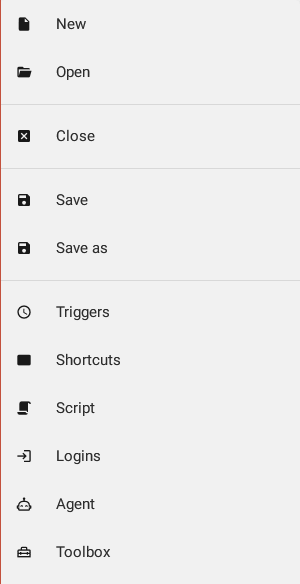
- Or open the menu at the top left and click Agent.
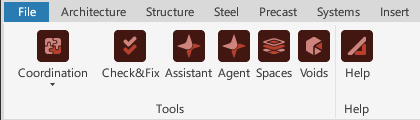
In Revit, open the Assistant tab and click Agent in the Tools panel. The Assistant Agent panel opens on the right side of Revit. The button works when a model is open, and it is greyed out while the panel is already showing.
In AutoCAD, Navisworks and Tekla Structures you chat with the Agent in the Assistant window. See Revit, AutoCAD, Navisworks and Tekla.
¶ Write a request
Write what you want as you would to a colleague. A request that names the place and the result works best.
| Instead of | Write |
|---|---|
| "Copy the drawings." | "Copy the PDF files in C:\Projects\Example\In to C:\Projects\Example\Out." |
| "Check the doors." | "Count the doors on level L1 and list the ones without a fire rating." |
| "Fix my action." | "The action Export sheets fails on the second task. Find out why." |
- Name folders, files, views and levels exactly as they are written.
- Say what you want back: a list, a count, a new action, a change in the model.
- If the Agent is unsure, it asks you a question with a few choices. Pick one or write your own answer.
Not sure where to start? Click What can you do? under the message box.
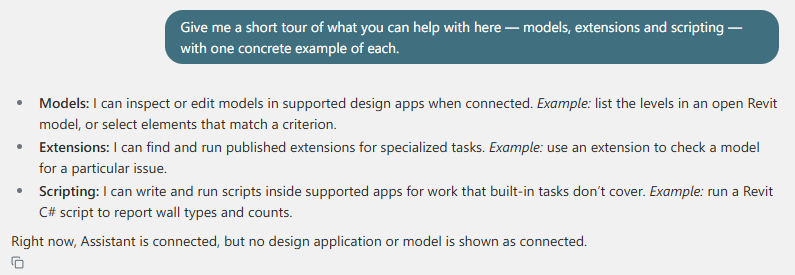
¶ What the Agent knows without being told
- The action file you have open: its name, its actions and tasks, and whether it has unsaved changes.
- The actions and tasks you have selected.
- Which design apps are connected to the Assistant.
- In Revit: the model you have open. It updates when you switch views.
It does not see your screen or your selection in the model until it reads them with a script. Ask it to when you need it: "Use the elements I have selected."
¶ Attach files
Click + in the message box, or drag files onto the chat. The Agent reads them as part of your request.
- PDF, Word (.docx), PowerPoint (.pptx), Excel (.xlsx and .xlsm), CSV, Markdown, text, JSON, XML and log files.
- Pictures: PNG and JPG.
- Up to 20 MB per file.
- Older .doc, .xls and .ppt files cannot be read. Save them in the newer format first.
¶ Find an earlier chat
Every chat is saved on your computer. Click the panel button at the top left of the chat to show Chats.
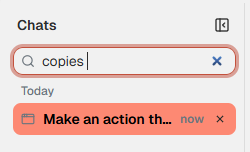
- Chats are grouped under Today, Yesterday and Earlier.
- A chat is named after the first line of your first message. Search finds words in that name.
- Click a chat to continue it.
- New chat, at the top right, starts an empty chat. The old one stays in the list.
- Export conversation, beside it, saves the chat as a Markdown file.
- Point at a chat and click the bin to delete it, together with the files the Agent made for it. This cannot be undone.
A chat can be open in one window at a time. If it is open in another window, you can read it here and continue it there. The cross on the chat you have open closes it, so another window can open it.