¶ AI settings
¶ Open AI settings
Open the menu at the top left, click the gear at the bottom, and click Open beside AI settings.
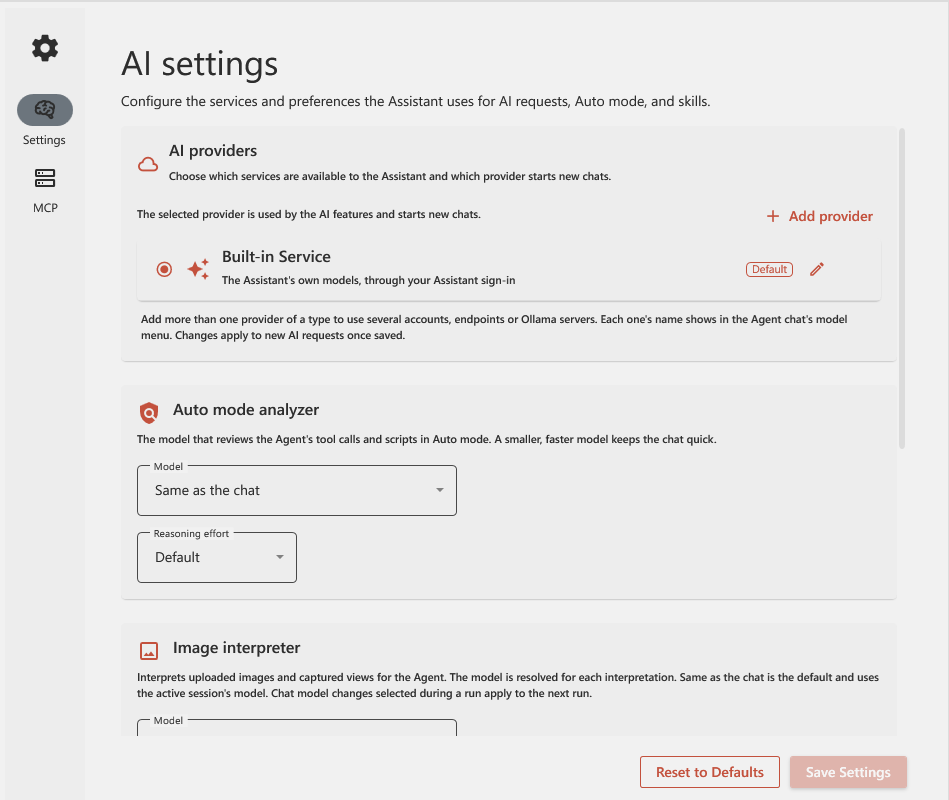
| Section | What it does |
|---|---|
| AI providers | Which AI services the Agent can use, and which one new chats start with. Built-in Service is the Assistant's own models, through your Assistant sign-in. |
| Auto mode analyzer | The model that reviews scripts in Auto mode. "Same as the chat" uses the chat's own model and provider. A smaller model keeps the chat quick, but it is also easier to fool, so it may let through a script that a stronger model would stop. |
| Image interpreter | The model that reads pictures you attach and views the Agent captures. |
| Run host scripts in a sandbox (experimental) | Host scripts are the scripts the Agent runs in Revit, AutoCAD, Navisworks and Tekla. In the sandbox they get a limited set of commands, and some jobs are refused, such as clash tests and TimeLiner in Navisworks. Off by default. |
| Skills | Shared skill folders. See Skills. |
Click Save Settings when you are done. Changes apply to new AI requests.
If your organization manages these settings, the page says so and you cannot change them. See For IT administrators.
¶ Use your own AI provider
Click Add provider in AI settings and choose one:
- OpenAI, with your own API key.
- Azure AI Foundry, with an endpoint and a key or a Microsoft sign-in.
- OpenAI-compatible, for other services that work like OpenAI.
- Ollama, for models that run on your own computer or server.
Each provider you add shows up by its name in the chat's model menu. Chats on your own provider use no AI Credits. Your data then goes to that provider, under your agreement with it.
Setting up a provider for a whole organization is described on the Assistant portal, under AI provider setup.