Triggers let you run actions when an event occurs.
To run the triggers you should have the Assistant open on your computer and remember to enable the triggers.
It's important to enable logging of action runs when running actions by a trigger to be able to look at the result later.
Look at how to save action runs
¶ Get stated
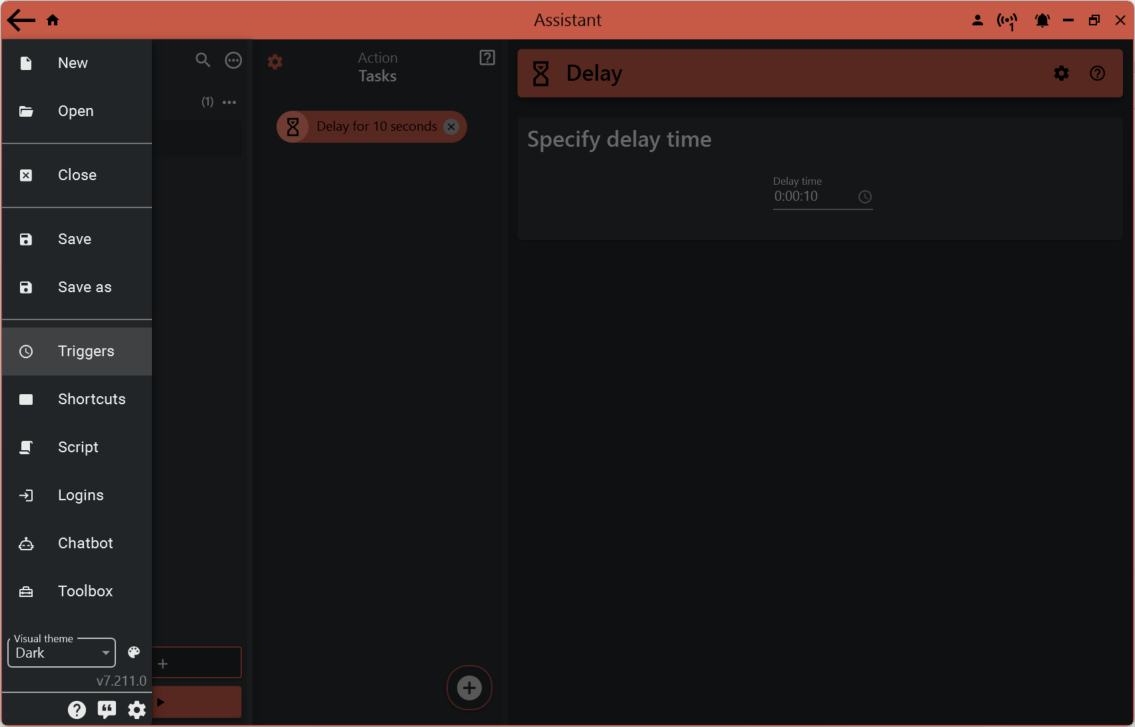
Click on Triggers in hamburger menu to open the trigger configuration view.
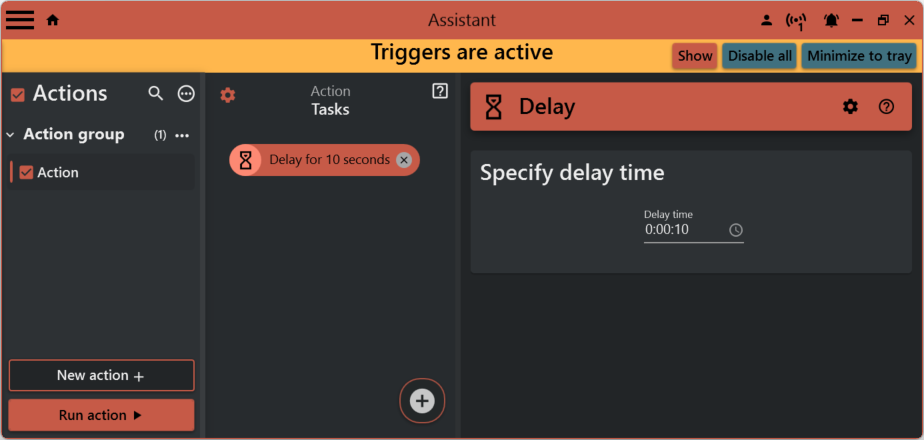
When a trigger is active it will be marked as shown in the picture below.
¶ Trigger configuration view
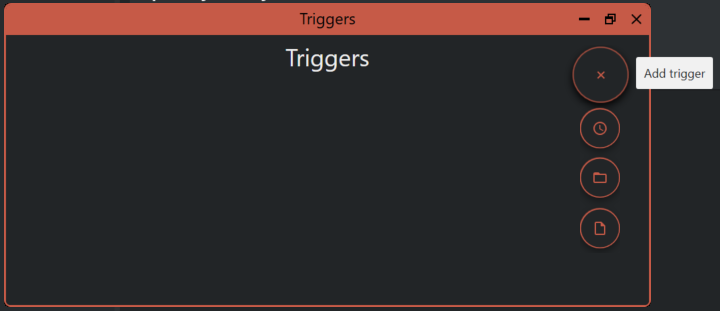
Add a new trigger by hovering over the add button and selecting the appropriate trigger.
Available trigger types
- Schedule: Run actions on selected times
- Folder: Automatically run actions when files are added to a folder
- File: Run actions when a file changes
¶ Schedule trigger
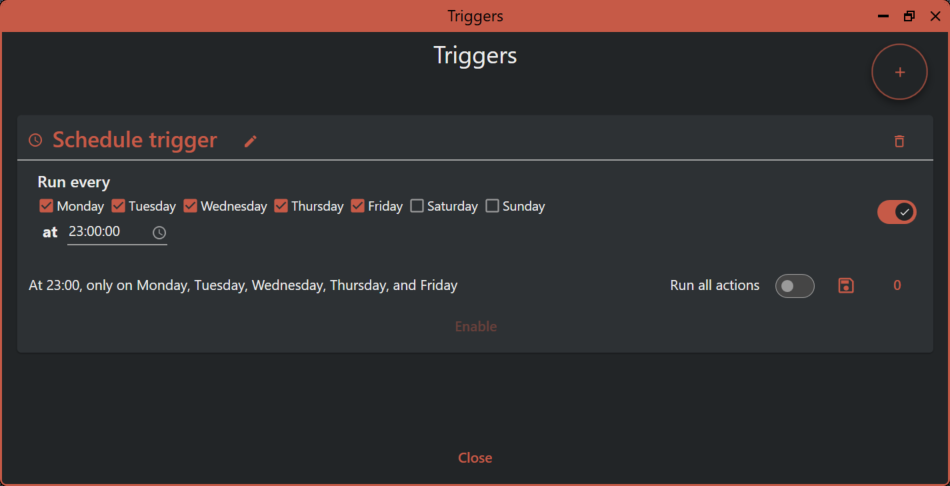
A scheduled trigger lets you set up a time and select days to run the actions.
To run all actions, turn on "Run all actions", or to just run some of the actions, follow selecting actions to run
To activate the schedule, be sure to enable the trigger by clicking the "Enable" button.
¶ Folder trigger
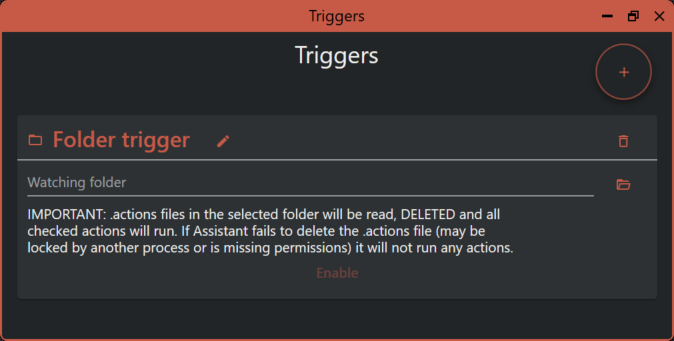
A folder trigger lets you automatically run *.actions files.
Select the folder to watch for action files.
*.actions files in the selected folder will be read, DELETED and all checked actions will run. If Assistant fails to delete the .actions file (it may be locked by another process or is missing permissions) it will not run any actions.
To activate the schedule, be sure to enable the trigger by clicking the "Enable" button.
¶ File trigger
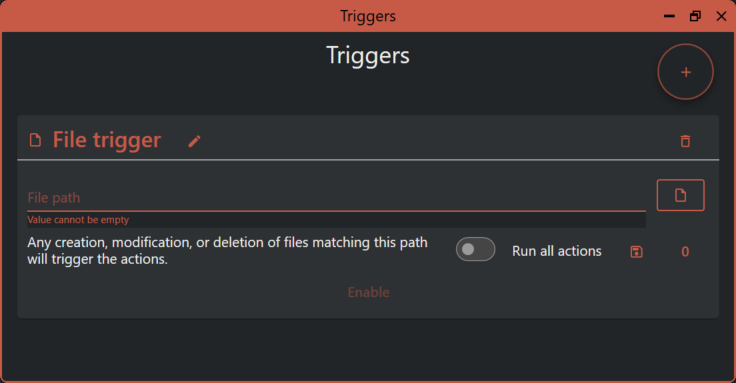
A file trigger lets you run actions when a selected file changes.
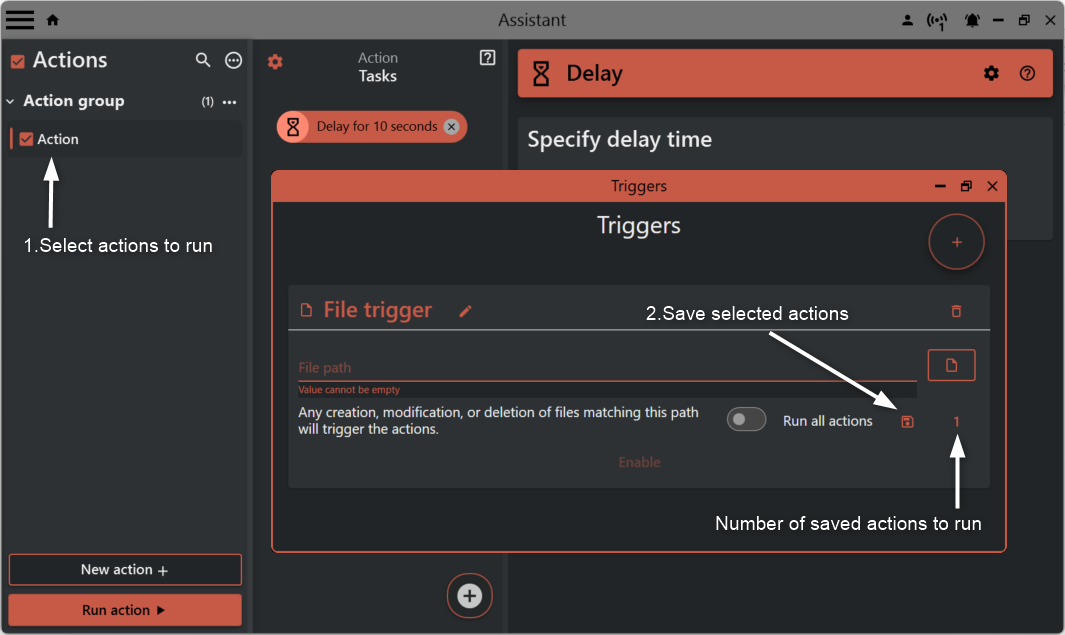
To run all actions, turn on "Run all actions", or to just run some of the actions, follow selecting actions to run.
To activate the schedule, be sure to enable the trigger by clicking the "Enable" button.
¶ Selecting actions to run
Start by checking the required actions before you open the triggers configuration view.
Save the selected actions by clicking the save button.
The number of saved actions is reported.