¶ Copy File
The "Copy File" task allows you to efficiently copy one or more files from a source directory to a destination directory, providing a range of advanced options to cater to your specific needs.
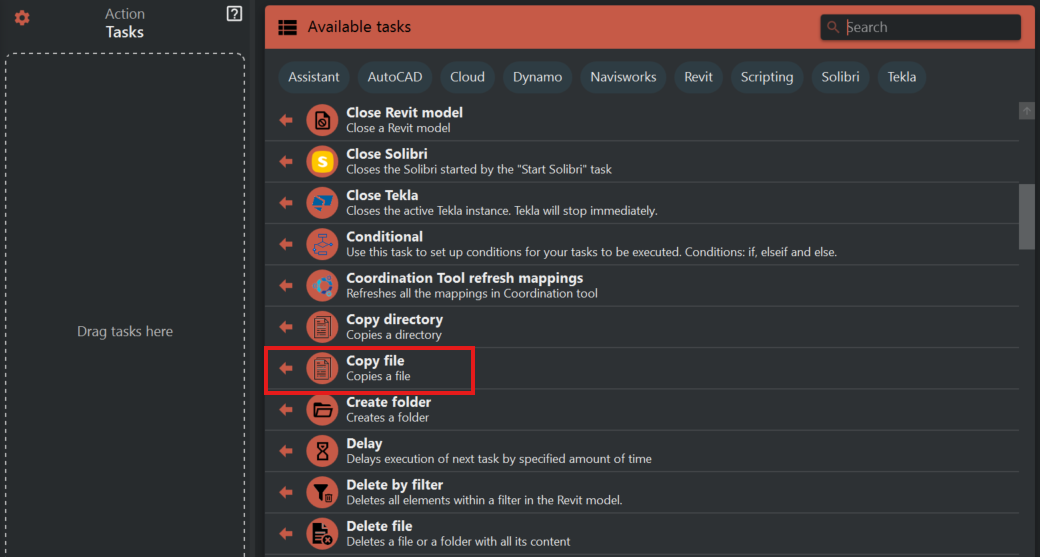
¶ Basic File Copying
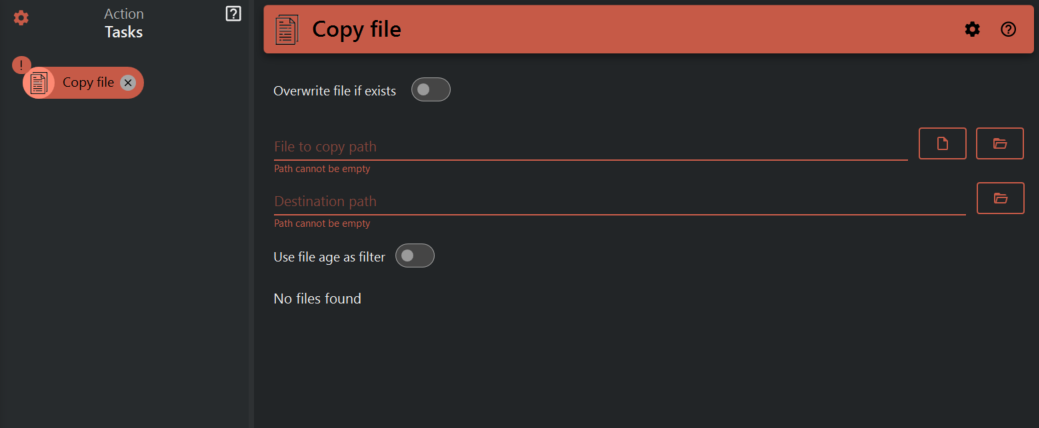
To initiate the "Copy File" task, follow these fundamental steps:
- Select the source directory from which you want to copy files.
- Specify the destination path, which can be a specific folder location.
¶ Optional "?" Syntax and Wildcards
One of the advanced features of the "Copy File" task is the ability to use the "?" syntax and wildcards to filter and match files based on specific patterns. These features offer flexibility in selecting files for copying.
-
Use "?" Syntax: You can include the "?" syntax within the file name or file extension to match files with specific naming conventions. For example,
filename_??.txtwill match files like "filename_AA.txt," "filename_BB.txt," and so on, where any two characters can appear in place of "??". -
Use Wildcards: Additionally, you can use the "*" wildcard to match files based on patterns. For instance,
*.txtwill match all files with a ".txt" extension, anddocument_*.pdfwill match files like "document_report.pdf," "document_contract.pdf," and so on, where any characters can appear before the wildcard.
¶ Environment Variables
The task supports the use of environment variables within the source and destination path, providing dynamic file copying. You can use environment variables such as:
%localappdata%: Refers to the local application data folder for the current user.%programdata%: Points to the program data folder, typically used for application data shared among all users.
For even greater flexibility, you can define your own variables using the ${{ variable name }} syntax in both the source and destination paths. These user-defined variables are ideal for reducing configuration overhead, enabling template files, and making action files reusable for others.
For more details about variables, please refer to the Assistant Variables Guide
¶ File Overwrite Options
The "Copy File" task includes options for handling file overwrites when a file with the same name already exists in the destination directory:
-
Overwrite If Exists: If checked, the task will overwrite the file in the destination directory if a file with the same name exists.
-
Overwrite If Newer: When enabled, the task will overwrite the file in the destination directory only if the source file is newer than the existing file.
-
Overwrite If File Is Changed: If selected, the task will overwrite the file in the destination directory if the source file has changed, regardless of the modification timestamp.
-
¶ File Age Filter
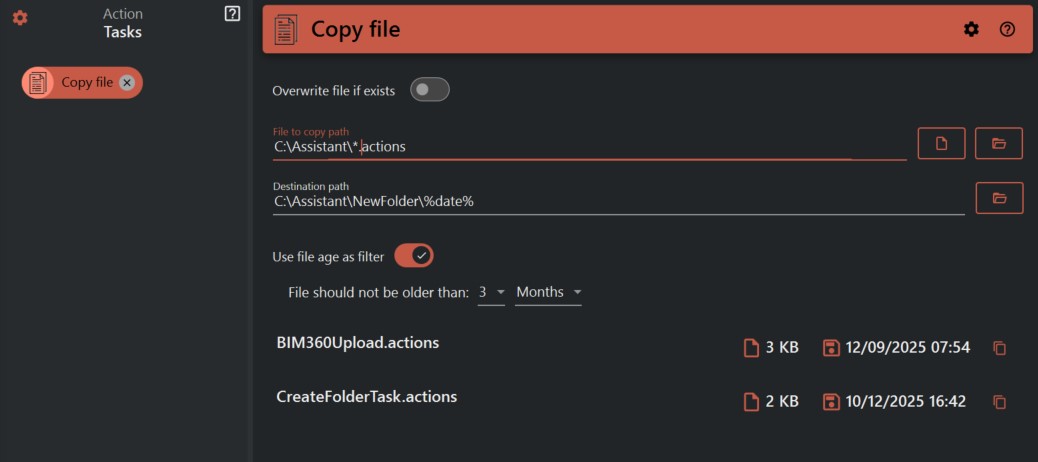
You can enable the "Use File Age as Filter" option to specify criteria based on a file's age for copying. This feature is particularly useful for managing files based on their age.
When this option is enabled, you can set the following file age filter parameters:
- Maximum Age: Define how old files should be based on minutes, hours, days, weeks, months, or years. The task will only copy files that meet the specified maximum age criteria.
¶ Visual Configuration
After configuring the "Copy File" task, our app provides a visual representation of the selected files set to be copied. This feature allows you to review and confirm your configuration before initiating the file copy operation.
With these advanced options, including the optional "?" syntax, environment variables, file overwrite choices, and file age filtering, the "Copy File" task offers powerful file copying capabilities to enhance your automation and streamline your file management processes.