¶ Delete File Task
The "Delete File" task is designed to assist you in efficiently removing selected files or entire folders. This section provides a comprehensive overview of its functionalities, features, and options.
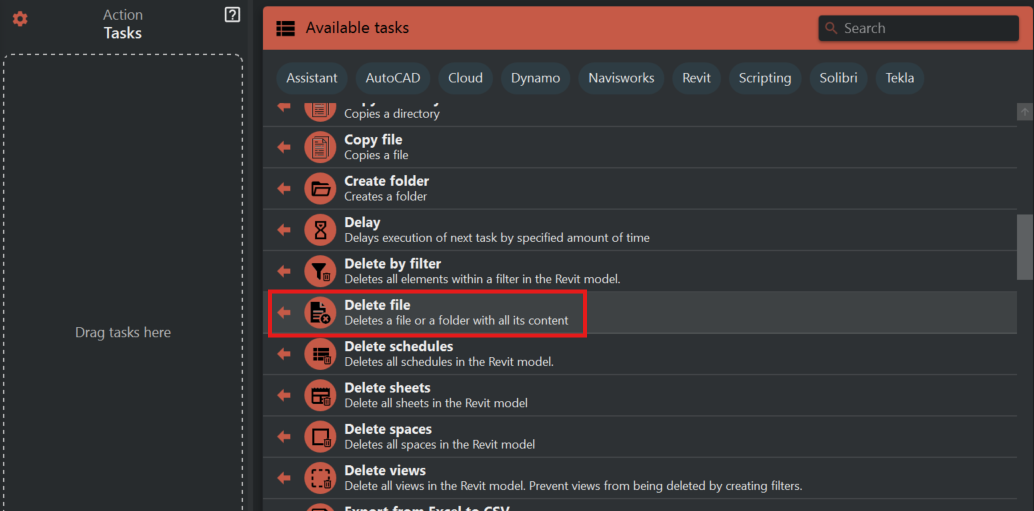
¶ Basic File Deletion
To utilize the "Delete File" task, follow these basic steps:
- Select the file(s) or folder you wish to delete. You can delete a single file, add more rows to delete multiple files, or remove an entire folder.
Your configuration will display the files and folders that are set to be deleted, allowing you to verify your selection.

¶ Optional Advanced Options
The "Delete File" task offers advanced options for enhanced control and customization:
¶ Environment Variables
Similar to other tasks, the "Delete File" task supports the use of environment variables within the source path. This feature enables dynamic and system-independent file deletion. You can use environment variables such as:
%localappdata%: Refers to the local application data folder for the current user.%programdata%: Points to the program data folder, typically used for application data shared among all users.
For even greater flexibility, you can define your own variables using the ${{ variable name }} syntax in the source path, reducing configuration overhead and making action files reusable for others.
For more details about using user-defined variables and their syntax, please refer to the Assistant Variables documentation.
¶ File Matching with "?" and "*"
You can enhance your file deletion operations using the "?" and "*" syntax for file matching:
-
Use "?" Syntax: Include the "?" syntax within the file name or file extension to match files with specific naming conventions. For example,
filename_??.txtwill match files like "filename_AA.txt," "filename_BB.txt," and so on, where any two characters can appear in place of "??". -
Use Wildcards (): You can use the "" wildcard to match files based on patterns. For instance,
*.txtwill match all files with a ".txt" extension, anddocument_*.pdfwill match files like "document_report.pdf," "document_contract.pdf," and so on, where any characters can appear before the wildcard.
¶ Visual Confirmation
After configuring the "Delete File" task, you can visualize the selected files and folders set to be deleted. This feature allows you to review and confirm your configuration before initiating the file deletion.
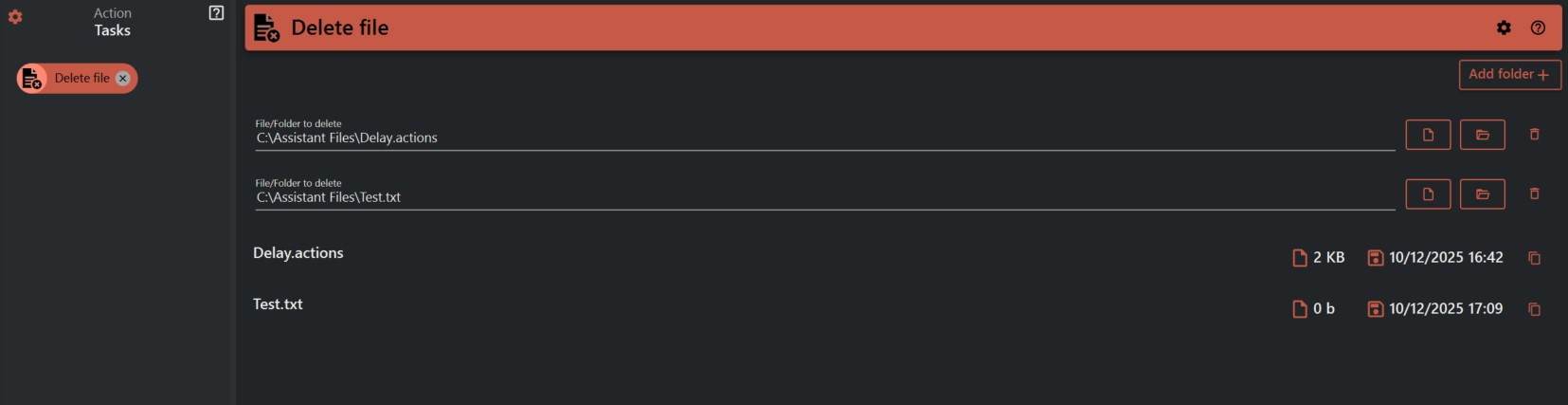
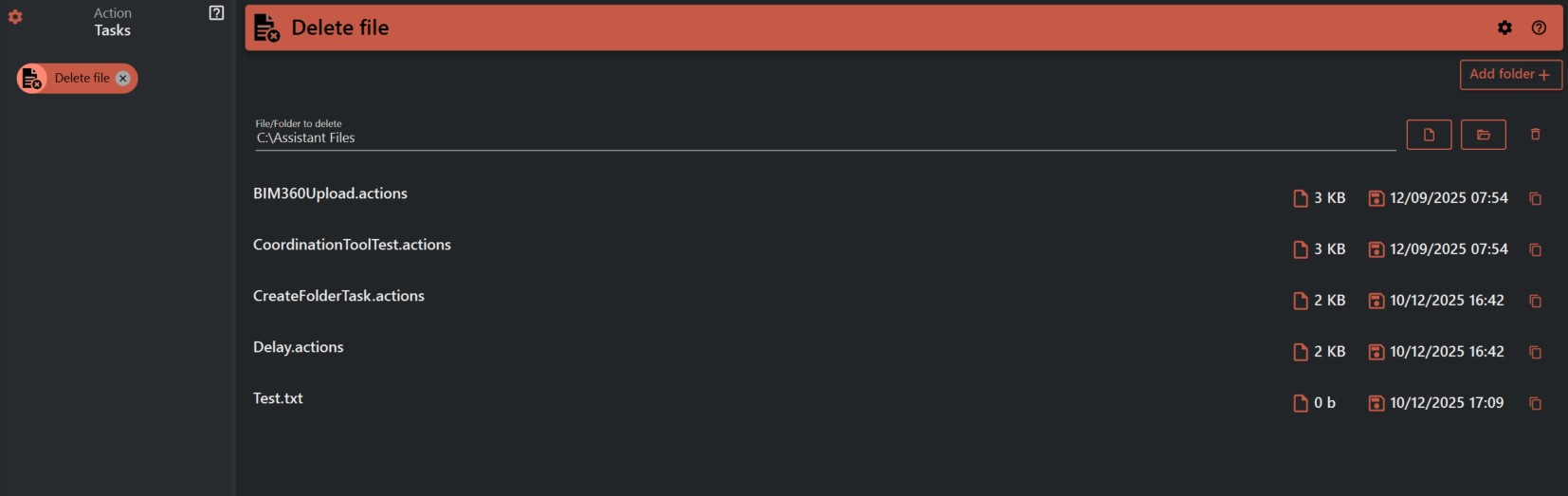
With these advanced options, including environment variable support, file matching using "?" and "*", and visual confirmation, the "Delete File" task simplifies and streamlines the file deletion process, making it a valuable addition to your automation toolkit.