¶ Dynamo
A visual programming tool that aims to be accessible to both non-programmers and programmers alike. It gives users the ability to visually script behavior, define custom pieces of logic, and script using various textual programming languages.
For more information see, What is dynamo
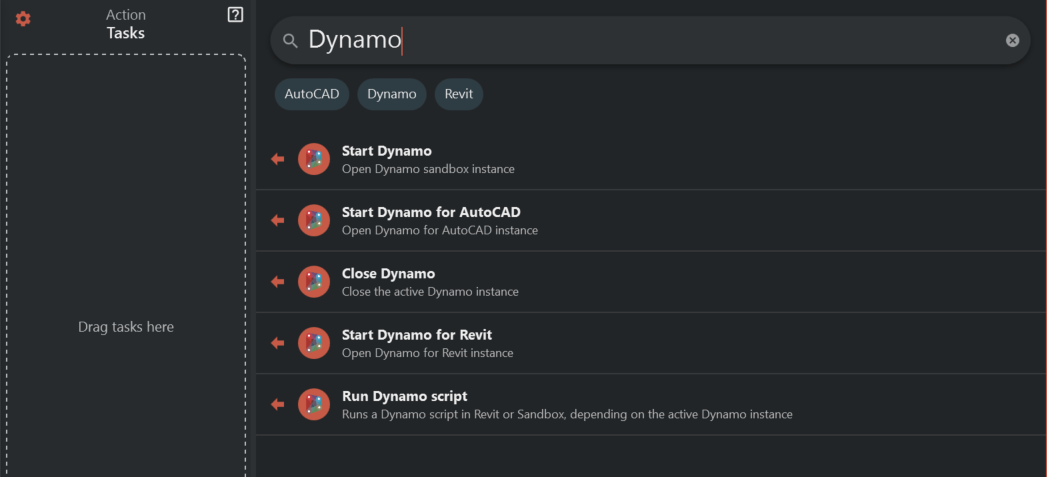
¶ Start Dynamo
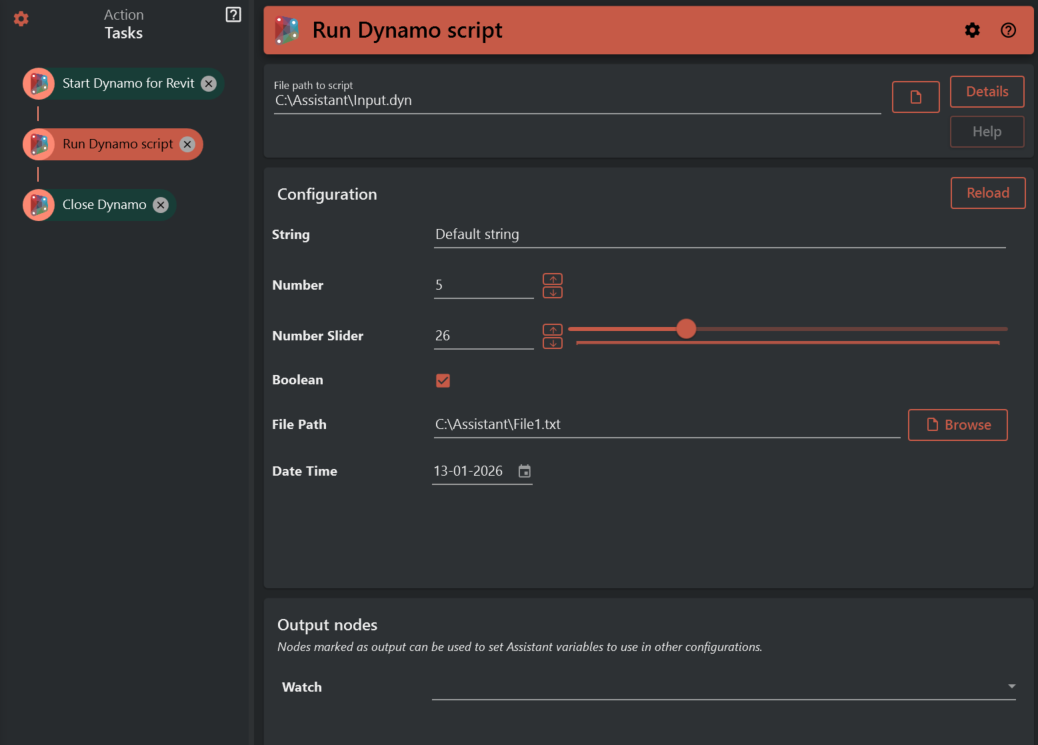
¶ Run Dynamo script
Select the *.dyn file to run
¶ Input
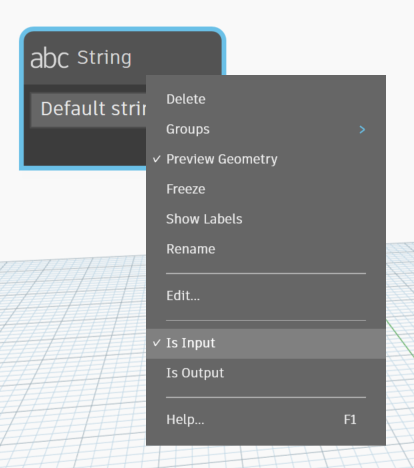
Configure Inputs, see how to mark nodes as inputs below.
Use variables to make you Dynamo script universial to multiple projects!
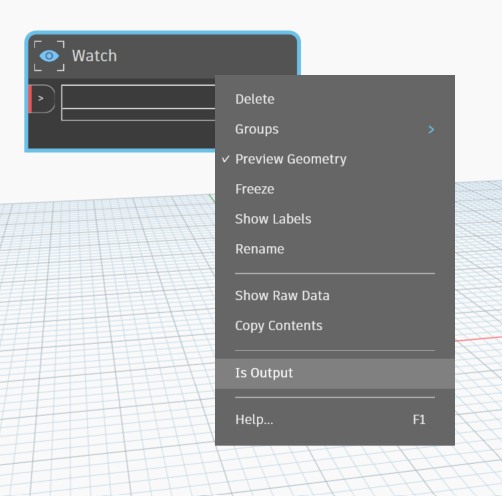
¶ Output
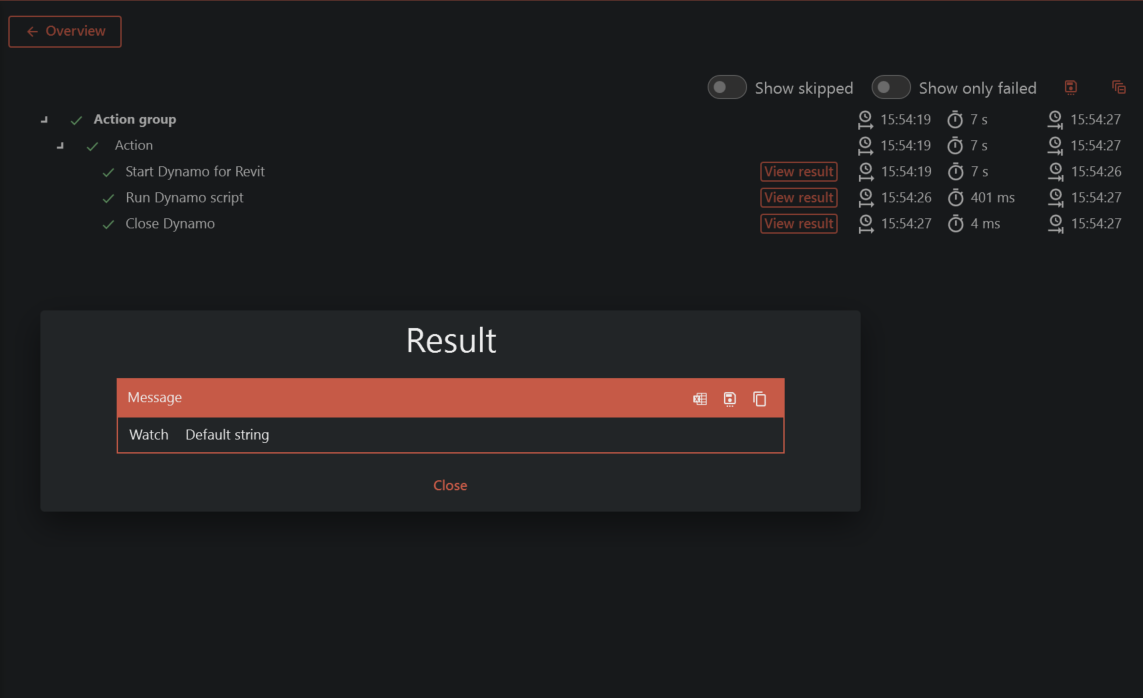
Outputs is repoted on the Show Result button after the task has executed.
You can also write output values to variables in Assistant. Write the name of the variable for details see assistant-variables
It's not requred to assign a output to a variable
¶ See result
¶ Close Dynamo
This task has no configuration, it will discard any changes to the *.dyn file and close the started Dynamo instance.
The "Run Dynamo script" task will not close Dynamo, use this task to do it.
¶ Typical setup
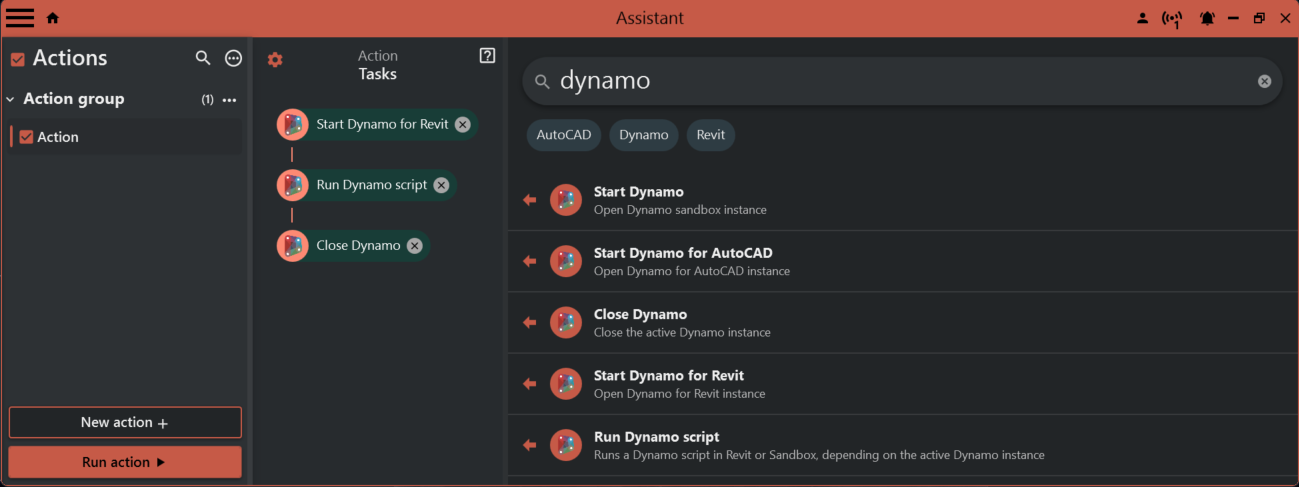
To run a dynamo script you need to start Dynamo. Select what type of Dynamo to start. If you select a Revit Dynamo, make sure Assistant is connected to a Revit Instance.
Add a Rund Dynamo script task and configure inputs, see supported inputs below
Now you can run multiple scripts and finnish by closing Dynamo with the Close Dynamo task.
¶ Inputs
You can mark supported nodes as inputs in Dynamo and configure those inputs in the task. The first time you select a Dynamo file, the values defined in the file will be used as default. When you reload or open the saved task at a later stage, the saved inputs in the task is restored.
¶ Supported inputs
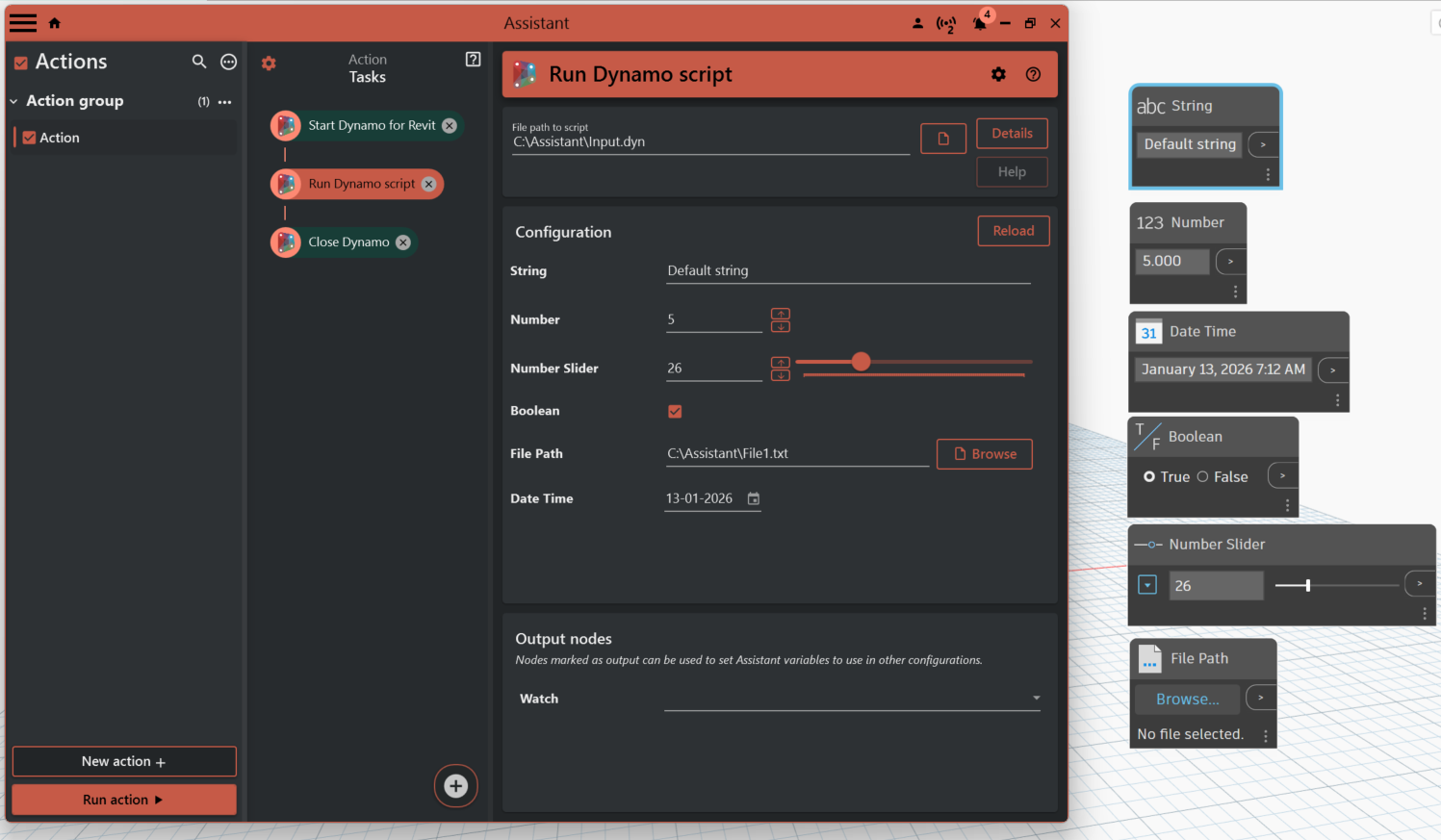
¶ Basic inputs
- String
- Number
- Number slider
- Boolean
- File Path
- Date Time
¶ Revit Selection
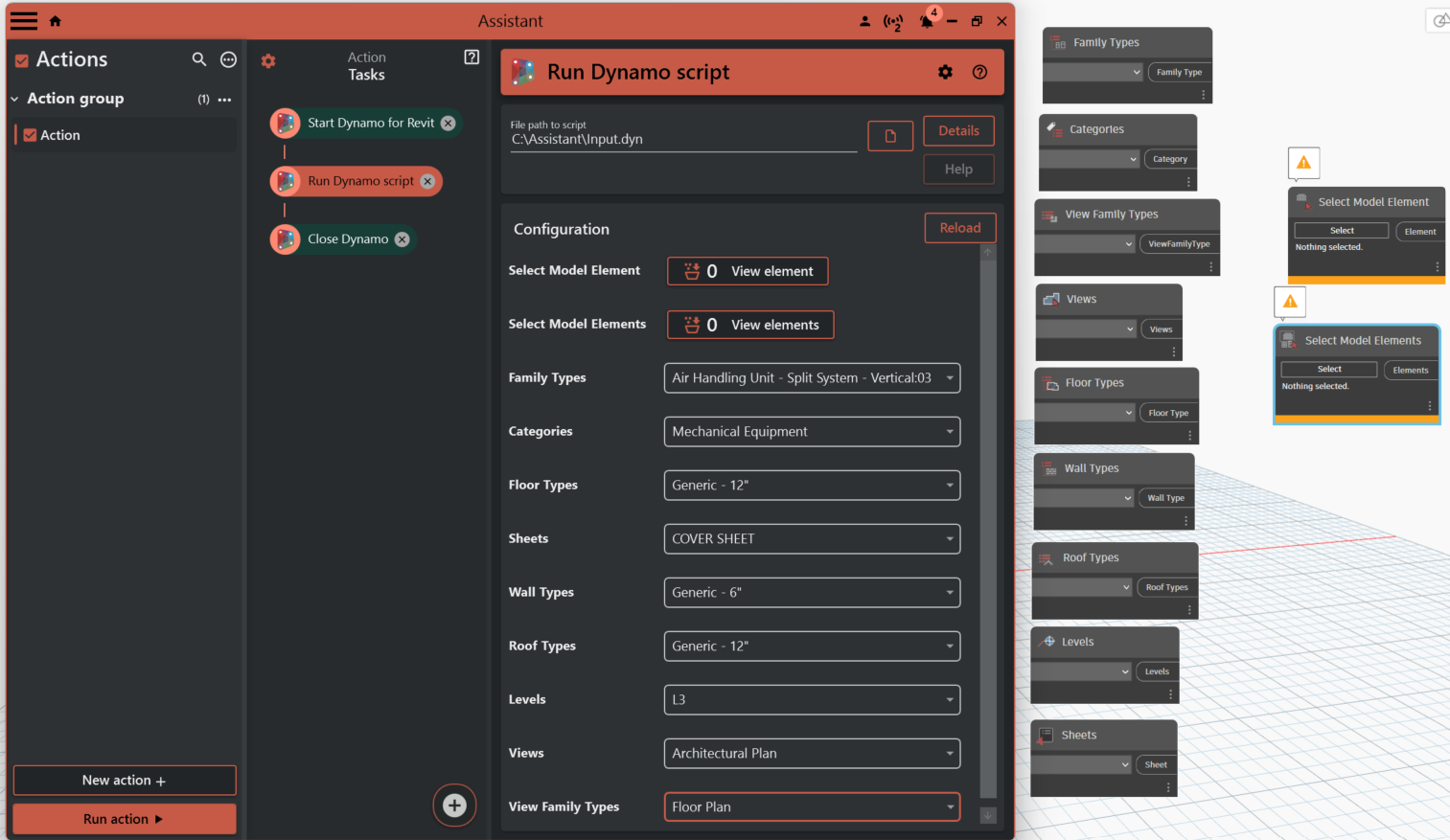
- Family Types
- Categories
- Floor Types
- Sheets
- Wall Types
- Roof Types
- Levels
- Views
- View Family Types
- Select Model Element
- Select Model Elements
¶ Outputs
To use a node as output be sure to mark it as output first.