¶ Built-in variables
A built-in variable is a variable you can use without the need to define it as a variable in Assistant. Some of the variables are also available in windows, such as %programdata%. Open a File Explorer in windows and paste %programdata% into the address bar and you get redirected to C:\ProgramData. Built-in variables in Assistant works in a similar way.
¶ Where can these variables be used?
Built-in variables can be used when configuring any task. For example: path field in Open model task for Revit, path for the Create folder task, path fields when using Copy file task etc.
¶ Available Variables
| Variable | Result | Comment |
|---|---|---|
| %programdata% | C:\ProgramData | |
| %localappdata% | C:\Users{user}\AppData\Local | |
| %appdata% | C:\Users{user}\AppData\Roaming | |
| %userprofile% | C:\Users{user}\ | |
| %time% | 14-32-18 | 24-hour time |
| %date% | 2021-10-07 | Today's date |
| %ALLUSERSPROFILE% | C:\ProgramData | |
| %COMMONPROGRAMFILES% | C:\Program Files\Common Files | |
| %COMMONPROGRAMFILES(x86)% | C:\Program Files (x86)\Common Files | (only in 64-bit version) |
| %COMSPEC% | C:\Windows\System32\cmd.exe | |
| %HOMEDRIVE% | C: | |
| %LOCALAPPDATA% | C:\Users{user}\AppData\Local | |
| %PROGRAMDATA% | C:\ProgramData | |
| %PROGRAMFILES% | C:\Program Files | |
| %PROGRAMFILES(X86)% | C:\Program Files (x86) | (only in 64-bit version) |
| %PUBLIC% | C:\Users\Public | |
| %SYSTEMDRIVE% | C: | |
| %SYSTEMROOT% | C:\Windows | |
| %TEMP% and %TMP% | C:\Users{user}\AppData\Local\Temp | |
| %USERPROFILE% | C:\Users | |
| %WINDIR% | C:\Windows | |
| %SYSTEMDIRECTORY% | C:\WINDOWS\System32 |
When a path contains a username it is recommended to use an appropriate built-in variable to make the configuration work for other users. Example: C:\Users\mnli\ACCDocs should be replaced with %userprofile%\ACCDocs
¶ Action Run Variables
These variables provide information specific to the current action run.
| Variable | Result |
|---|---|
%Assistant.File.Path.Folder% |
Path of the folder where the .action file is located. |
%Assistant.File.Main.Path.Folder% |
Path of the main .action file's folder. |
%Assistant.File.Path% |
Full path to the action file containing the executing task. |
%Assistant.File.Main.Path% |
Full path to the main action file. |
%Assistant.File.Name% |
Name of the .action file with the executing task. |
%Assistant.File.Main.Name% |
Name of the main .action file. |
%Assistant.Task.Name% |
Name of the current task within the action. |
%Assistant.Task.Main.Name% |
Name of the task in the main action run. |
%Assistant.Action.Name% |
Name of the currently executing action. |
%Assistant.Action.Main.Name% |
Name of the action in the main action run. |
%Assistant.Group.Name% |
Name of the current action group. |
%Assistant.Group.Main.Name% |
Name of the group in the main action run. |
Your Assistant file must be saved in order to expand Action Run Variables related to path.
¶ Trigger Variables
These variables are available when an action is started by a File Trigger. This allows you to identify the specific file that caused the trigger to activate, even when a wildcard is used in the trigger's path. For example, if a trigger is set for C:\Workspace*.ifc, and the file C:\Workspace\MyIfc.ifc is changed, these variables will contain the information for MyIfc.ifc.
| Variable | Result |
|---|---|
%Assistant.Triggers.File.Path% |
The full path to the file that triggered the action (e.g., C:\Workspace\MyIfc.ifc). |
%Assistant.Triggers.File.Name% |
The name of the file that triggered the action (e.g., MyIfc). |
%Assistant.Triggers.File.Extension% |
The extension of the file that triggered the action (e.g., .ifc). |
%Assistant.Triggers.Name% |
The name of the trigger that started the action. |
Your action must be started from a trigger in order to expand Trigger Variables.
¶ Integration Variables
These variables are available when Assistant is connected to the corresponding integration. The value is the process ID of the connected application.
| Variable | Result |
|---|---|
%Assistant.Integration.AutoCAD.ProcessId% |
Process ID of the connected AutoCAD instance. |
%Assistant.Integration.Revit.ProcessId% |
Process ID of the connected Revit instance. |
%Assistant.Integration.Tekla.ProcessId% |
Process ID of the connected Tekla instance. |
%Assistant.Integration.Dynamo.ProcessId% |
Process ID of the connected Dynamo instance. |
%Assistant.Integration.Navisworks.ProcessId% |
Process ID of the connected Navisworks instance. |
The integration variables are only expanded when the corresponding integration is available in the current Assistant session.
¶ Aditional options
Some of the built-in variables has some additional options to be as customizable as possible.
¶ %date%
The table below is only some of the options for %date%. This parameter is based on the DateTime datatype in .NET. See DateTime for complete documentation.
| Date option | Result | Comment |
|---|---|---|
| %date:dd-MM-yyyy% | 07-10-2021 | October 7 2021 |
| %date:M/yy% | 10.21 | October 2021 |
| %date:t% | 14-52 | Hour 14 Minute 52, 24 hour time |
| %date:f% | torsdag 7. oktober 2021 14-52 | Thursday 7. October 2021, Hour 14 Minute 52, 24 hour time |
Some variants of %date:XXXX% will result in a path that is invalid as a folder or file name. All invalid characters are replaced with "-".
¶ Example
In this example we will create a folder using the Create folder task.
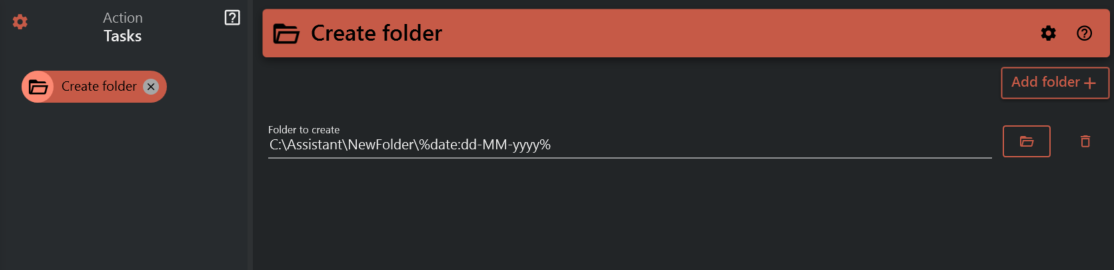
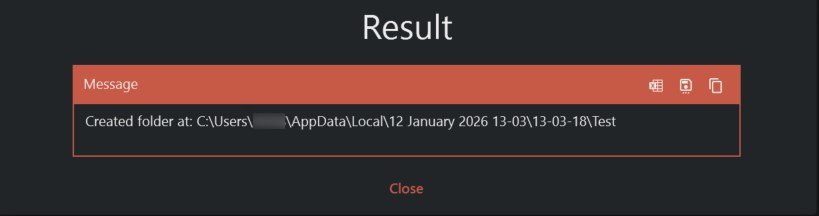
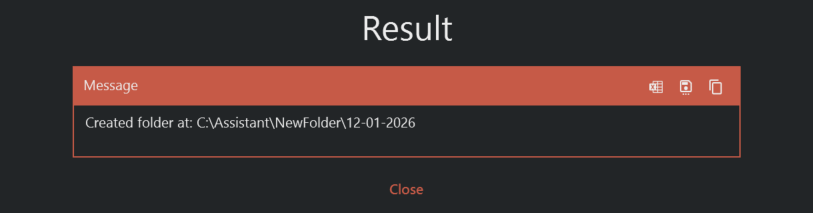
When running this task it will create a folder C:\Temp\Folders\12-01-2026
Built-in variables can be combined
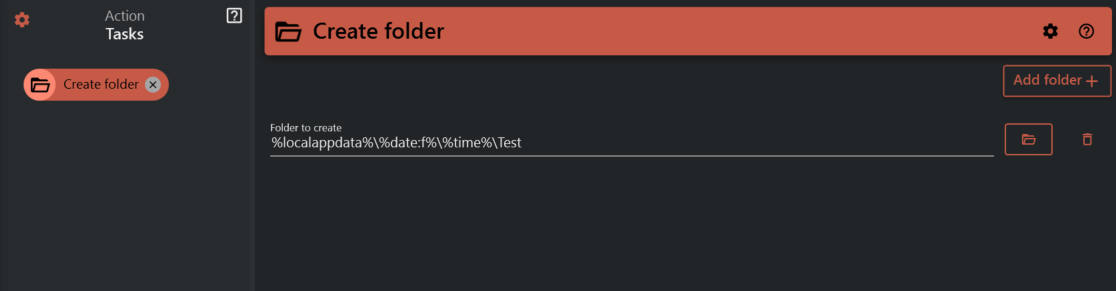
When running this task it will create a folder C:\Users\<USER>\AppData\Local\12. January 2026 13-03\13-03-18\Test