¶ User variables
A User variable is a named variable with a corresponding text value. Its main purpose is to minimize configuration and enable an action file to be used in multiple scenarios.
¶ How to create a variable
Open variables and click New variable.

Give your variable a name in the Key column, and a value in the Value column. Click save.
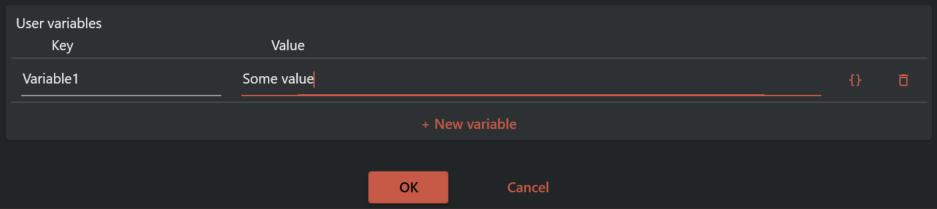
The variable is now ready to be used.
¶ How to use a variable
After defining a variable it can be used in any of the tasks in Assistant. Access the variable, Variable1 by typing ${{Variable1}} in a input field. When the task is run the value field for Variable1 will be substituted.
¶ Examples
The following examples uses the Open file task; however, this method of using variables is valid for all tasks in Assistant.
¶ Example 1
In this example you will learn how to use a defined variable.
Define a variable named DocumentPath at the Action file level or Action level, with a path to a text file as value.
Click here to learn about Action file level and Action level

Add a Open file task, and set the file path to ${{DocumentPath}}. Run the action.
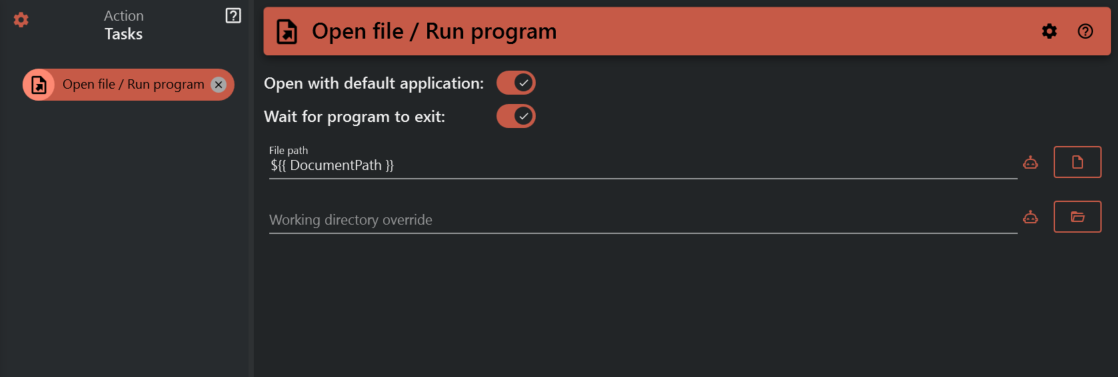
Your default program for opening text files should now open the file.
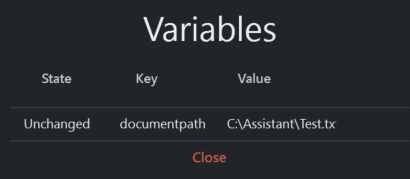
Click Variables to display variables for this task during the action run.
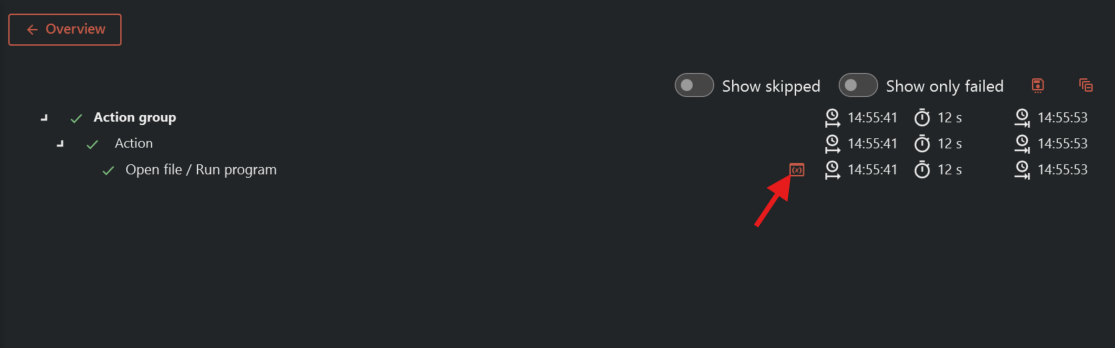
The state of the variable is unchanged because it was not changed during the action run.
¶ Example 2
In this example you will learn how to edit variables during an action run.
Define a variable and configure a Open file task just like Example 1.
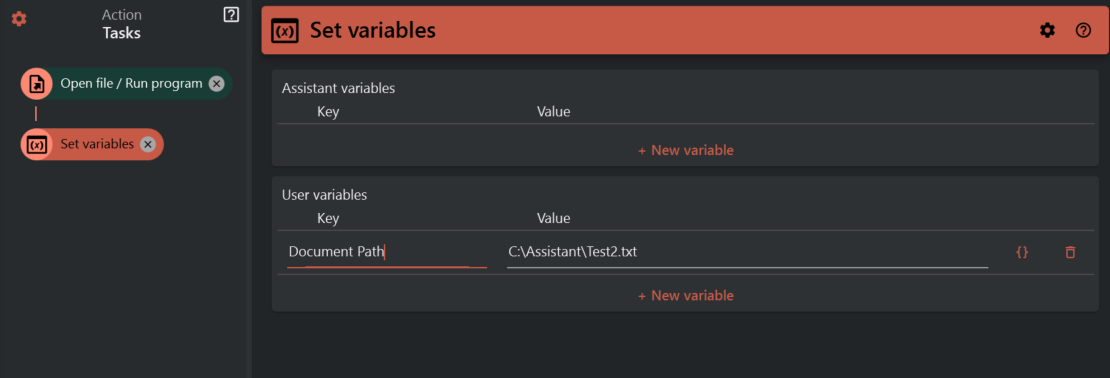
Add a Set variables task, add a User variable named DocumentPath and set the value to a path for some other text file.
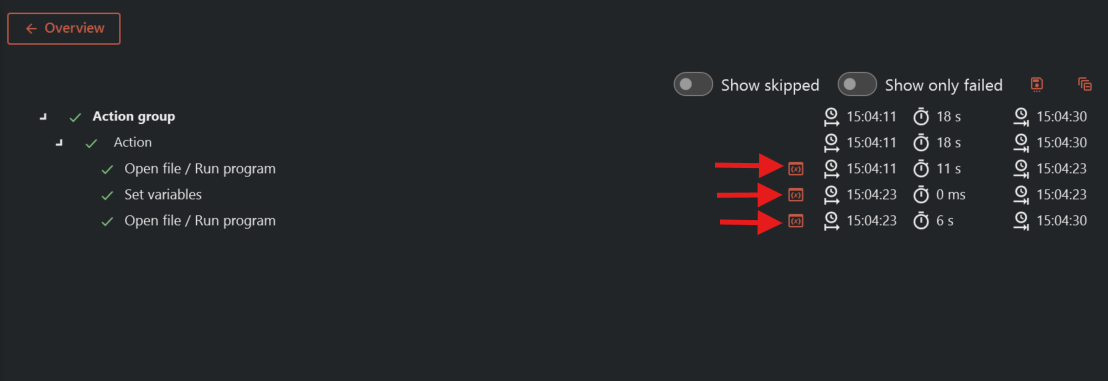
Add a Open file task and configure it the same way as the image below. Run the action.
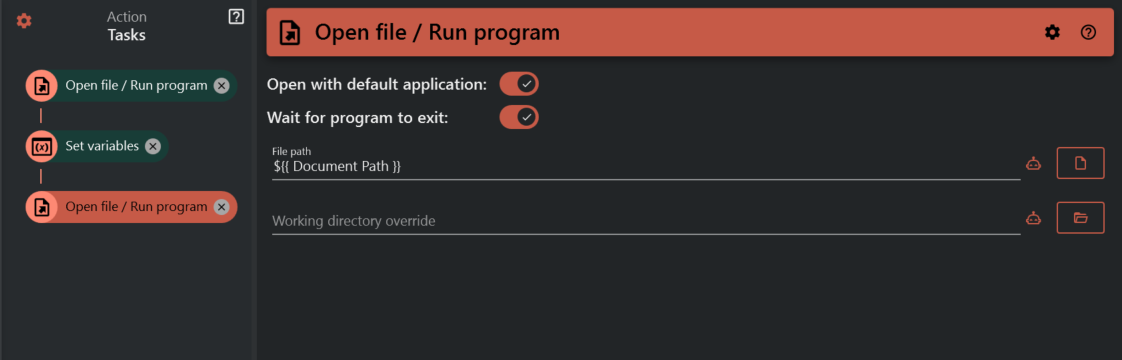
Your default program for opening text files should now open both files.
Click Variables for each task to display the state and value of the variable at that time during the action run.