¶ Assistant .NET Extension Development Guide
Welcome to the Assistant .NET Extension Development Guide! This guide will walk you through the process of developing extensions for Assistant, enabling you to extend its functionality with custom tasks.
To get started, make sure you have the following prerequisites installed:
¶ Prerequisites
¶ .NET 8.0
Install .NET 8.0, which is a cross-platform development framework. You can download it from the official .NET website: Download .NET SDK. Choose the appropriate version for your operating system.
¶ Visual Studio Code
Install Visual Studio Code, a lightweight and versatile code editor. You can download it from the official Visual Studio Code website: Download Visual Studio Code.
¶ C# Extension for Visual Studio Code
Install the C# Extension for Visual Studio Code. This extension provides C# language support and enables C# development within Visual Studio Code. You can install it directly from the Visual Studio Code marketplace: C# Extension.
With these prerequisites in place, you are ready to start developing Assistant extensions. This guide will provide step-by-step instructions, code examples, and best practices to help you build powerful and customized extensions for Assistant.
Let's get started!
¶ Step 1: Create Your Assistant Extension
The first step in developing your Assistant extension is to decide what type of extension you want to create. Understanding the key differences between extension types is crucial:
-
Assistant Extension: This extension type runs within the Assistant app itself and is suitable for various custom tasks. If you intend to create extensions that modify or retrieve information about elements within a Revit model, consider using the Revit Extension.
-
Revit Extension: Revit Extensions are designed to run within the Revit application. They are ideal for tasks that involve Revit model elements.
-
Tekla Extension: If you're working in Tekla Structures, Tekla Extensions provide the capability to extend and automate workflows within the Tekla environment.
-
AutoCAD Extension: For AutoCAD users, AutoCAD Extensions enable custom automation of tasks within the AutoCAD application.
-
Navisworks Extension: Navisworks Extensions allow you to extend and customize tasks within the Navisworks software.
Choose the extension type that aligns with your specific requirements. This guide will help you develop your extension, whether it's for Assistant, Revit, Tekla, AutoCAD, or Navisworks.
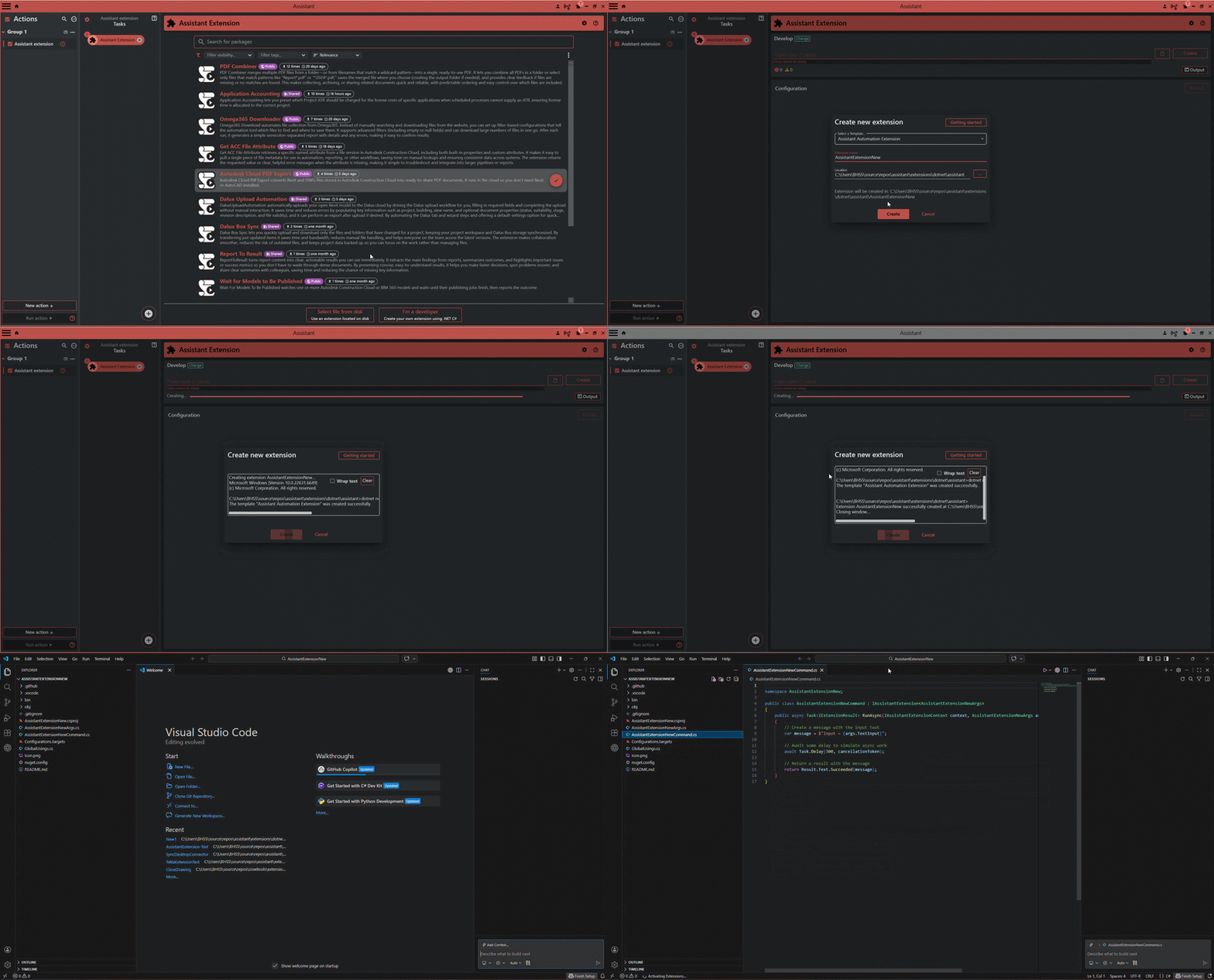
By default, Assistant will install the latest stable version of the templates. If you need to use a specific version, you can enter this command in the command line and replace the **VERSION** with the actual version of the templates you need.
dotnet new install CW.Assistant.Extension.Templates::**VERSION** --add-source "https://pkgs.dev.azure.com/cowi-tools/f7c2ca28-a7af-4180-a54e-2cfc099d4e0e/_packaging/cowi-tools-public/nuget/v3/index.json"
¶ Choose Template Type (Automation or App)
Some integrations support both Automation and App templates. It is important to choose the correct template type before you start development.
Automation Template
Use when your extension runs from a predefined configuration and executes without additional user interaction.
Best for repeatable tasks, batch operations, checks, exports, or transformations.
App Template
Use when you need a full application experience with custom UI, views, commands, and step-by-step workflows.
Best for interactive tools, dashboards, long-running processes, or tools requiring user feedback.
For a detailed explanation and examples, see Template Selection Guide
¶ Step 2: Define Inputs, Implement IExtension, and Define the Extension Result
In this section, we will cover all the initial steps for developing your Assistant extension:
- Define the inputs required by the extension.
- Implement the IExtension interface to define the behavior of the extension.
- Define a class that represents the result returned from the extension.
We will also discuss how to use custom controls in your extension.
- Implement the Assistant Extension
- Implement the Revit Extension
- Implement the Tekla Extension
- Implement the AutoCAD Extension
- Implement the Navisworks Extension
For detailed guidance on developing extensions, please refer to the Assistant .NET Extension Development Guide, which covers the basics of creating .NET extensions for Assistant, and you can apply most of the concepts to the other extension types as well.
¶ Use Git with Assistant Extensions
Learn how to set up Git for version control in your Assistant extension projects. This section will guide you through the installation and configuration process.
¶ Write Help files for your Extension
Help files play a crucial role in ensuring a smooth and efficient user experience with your extension. Here are some key reasons why they are essential:
-
User Guidance: Help files provide essential guidance to users on how to effectively use your extension.
-
Documentation: They serve as comprehensive documentation, offering insights into your extension's features, settings, and usage.
-
Troubleshooting: Help files can include a troubleshooting section to help users solve common issues independently, reducing support requests.
-
User Adoption: Extensions with detailed help files are more likely to be adopted, as users can easily understand and utilize them.
For more details on organizing and writing help files for your Assistant extension, refer to our dedicated documentation: Writing Help Files for Extensions.
¶ Upgrade Old Macro to the New Extension
Upgrading your old Revit Macro to a new Extension is a comprehensive process. You need to take several steps, including creating a backup of your current code, reading the available upgrade guides, thoroughly testing your upgraded extension, debugging any issues, updating code comments and external documentation, communicating with users, and deploying the upgrade in stages. Be prepared to provide assistance and gather feedback during this transition.
For detailed guidance on how to perform this upgrade, please refer to the Upgrade Procedure.
¶ Sample extension walkthrough
In this guide, you've explored the world of Assistant .NET Extension Development. Here's a quick recap of what you've learned:
-
Prerequisites: You've discovered the essential prerequisites for developing Assistant extensions, including .NET, Visual Studio Code, and the C# extension for Visual Studio Code.
-
Creating Your Extension: You've learned to determine the type of extension you want to create, be it an Assistant Extension, Revit Extension, Tekla Extension, AutoCAD Extension, or Navisworks Extension.
-
Customizing Input and Output: You've delved into customizing the Args and Result classes, adding extra input and output fields, and using Attributes for more control.
-
Building Your Extension: Building your extension is essential, and you've understood how to do it manually or through Assistant's automation.
-
Debugging Your Extension: Debugging is vital for a smooth development process, and you've set up your debugging environment in Visual Studio Code.
-
Publishing Your Extension: Once your extension is ready, you've learned the process of publishing it to Assistant's Extension Repository.
Now, if you're eager to put your knowledge into practice and see the development process in action, dive into our "Sample Extension Walkthrough." It's a hands-on example where you'll create a simple "Hello World" extension step-by-step.
Continue to the Sample Extension Walkthrough
¶ Publish Extension to Cloud
Once your extension is built and tested, you can publish it to the Assistant cloud — making it available to users across your organization and enabling version-controlled updates over time. Publishing registers your extension with the cloud, packages it for distribution, and sets up the necessary metadata in your repository to manage future releases.
For detailed guidance on how to publish extension, please refer to the Publish procedure.
¶ Migrate Extension to Assistant
If you have previously built extensions in the older Assistant setup, you can migrate them to the new Assistant cloud platform.
Follow the steps in the migration guide to get your existing extension loaded and published to the new environment Migration procedure.