¶ Assistant Extension
Assistant can be extended with custom tasks known as extensions. These extensions are available for various design software as well.
Select from a range of extensions from the built in package browser and configure them to your need. You can read about how to use them by pressing the Help button or hit F1.
¶ Getting started
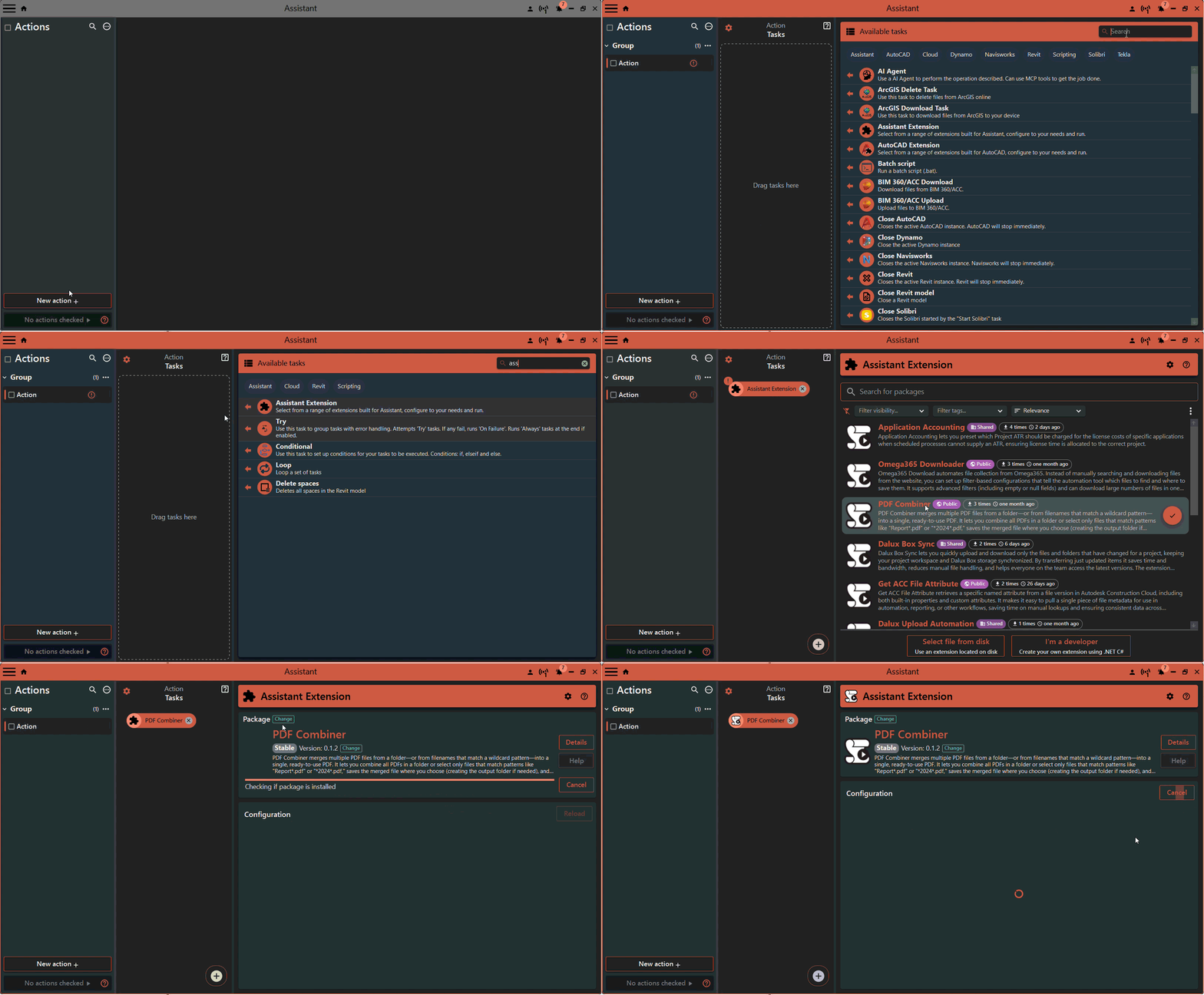
To begin using Assistant Extensions, start by adding an Assistant Extension to your task list:

Supported design softwares has seperate specialiced extension tasks -> Revit, Tekla, AutoCAD, Navisworks
¶ Browse for extension modes
Extensions can be selected using different modes. The most common mode is to choose an extension from the package browser. However, you can also select extensions from a local file on disk or, if you're a C# developer, develop your own custom extensions.
¶ Package browser
The package source is the default mode, where all available packages are listed. You can filter the list by entering a search term or by selecting tags.
Select an extension package by clicking the Tick button, or explore more details by clicking anywhere else on the package in the list.
The selected package is automatically downloaded and installed for other users running the .action file.

¶ Detailed package view
To explore more details about a package, select it from the list by clicking on the package item (not the Tick button).

Here, you can find additional information about the package, access help files, and, if necessary, select a specific version from the version drop-down.

¶ Selected package view
Once you select a package, it is downloaded and installed on your machine. You can configure the extension to meet your requirements. Each package has unique configurations, and the Help button will guide you through each field.
If a new version becomes available, a green Update button will be displayed instead of the Change button.
¶ Extension Configuration
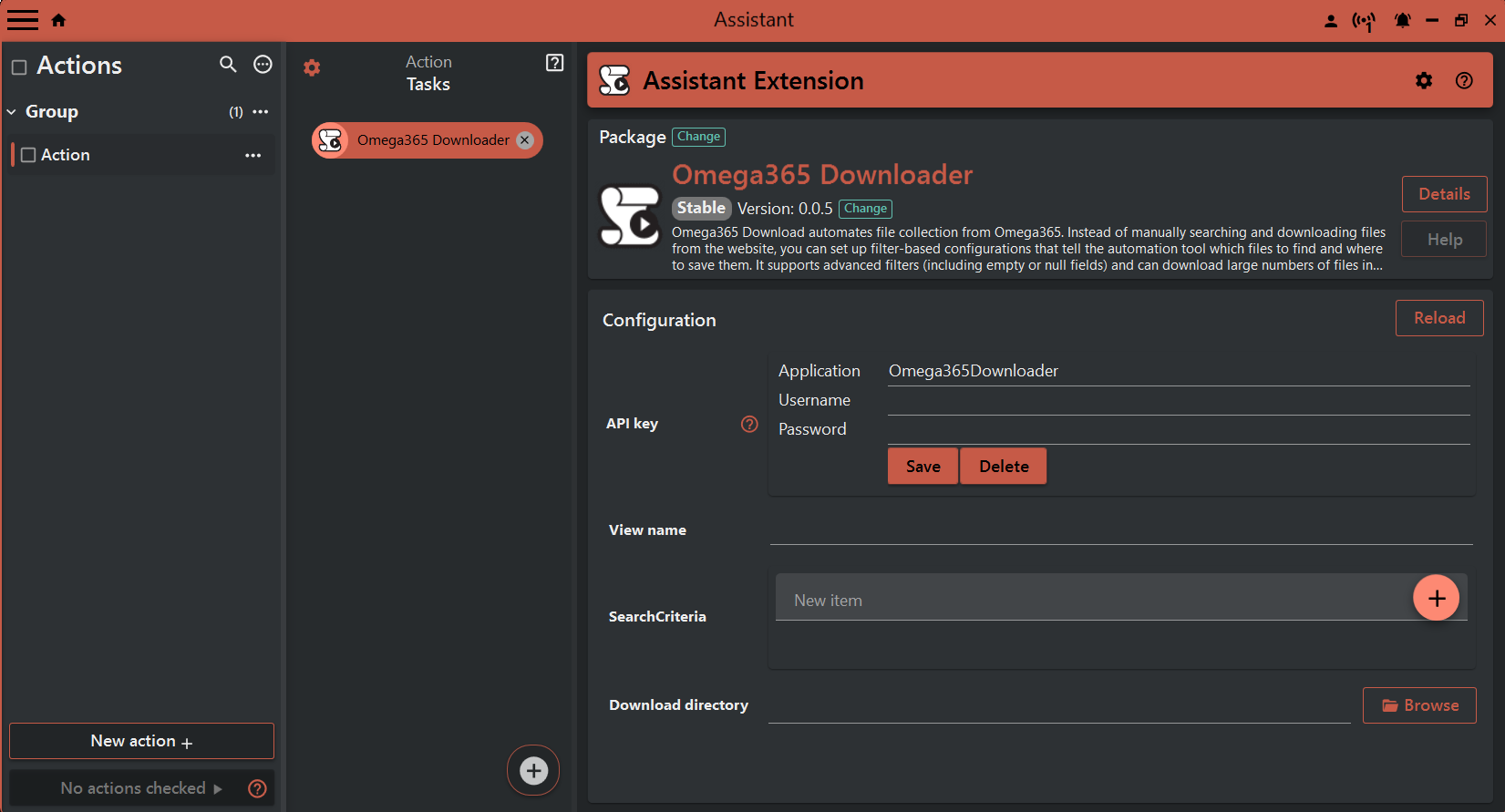
The configuration can be reloaded at any time. This is particularly useful when you need to refresh values based on input fields. For extension tasks in design software, this button is also used to update values from the opened model.
The configuration inputs in the
Configurationview vary by extension and are documented in theHelppage for the extension. Look for the!symbol next to an input; it indicates that the input has a tooltip with a description of the field.
¶ Select file from disk
If you're working on offline projects or require project-specific extensions that don't need to be shared on the package browser, you can use the Select file from disk mode. Follow these steps:
-
Browse for a .dll file built for Assistant extension.
-
The configuration process in this mode works the same as in the Selected Package Configuration. Configure the extension as needed.

¶ Develop extensions
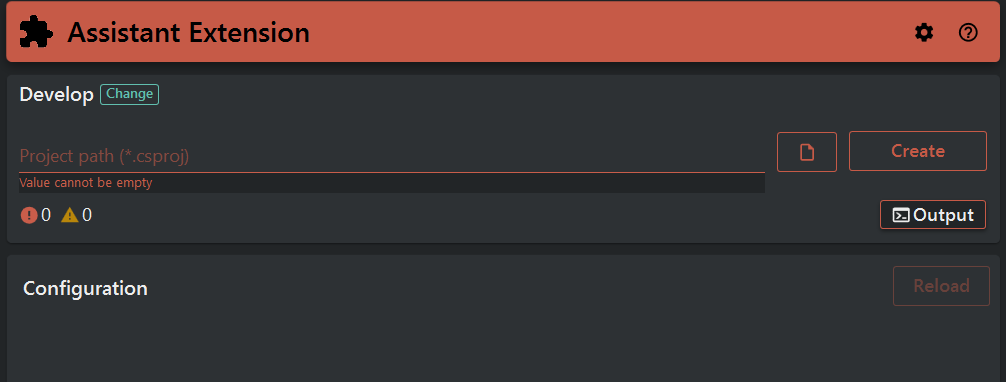
Are you a developer looking to extend Assistant with custom tasks? Fantastic! Here's a high-level overview:
-
Develop your custom task using the .NET framework and follow the guidelines for Assistant Extension Development.
-
Once your extension is ready, you can share it with other Assistant users as an extension package. For detailed instructions on creating .NET extensions for Assistant, see Assistant Extension Development.
¶ Beta testers (Feeds)
If you've been invited to beta test an extension, you can switch to the beta feed. Here's how:
-
Press the
three dotsbutton in the Assistant Extension task. -
Select the
Betaoption from the feed.
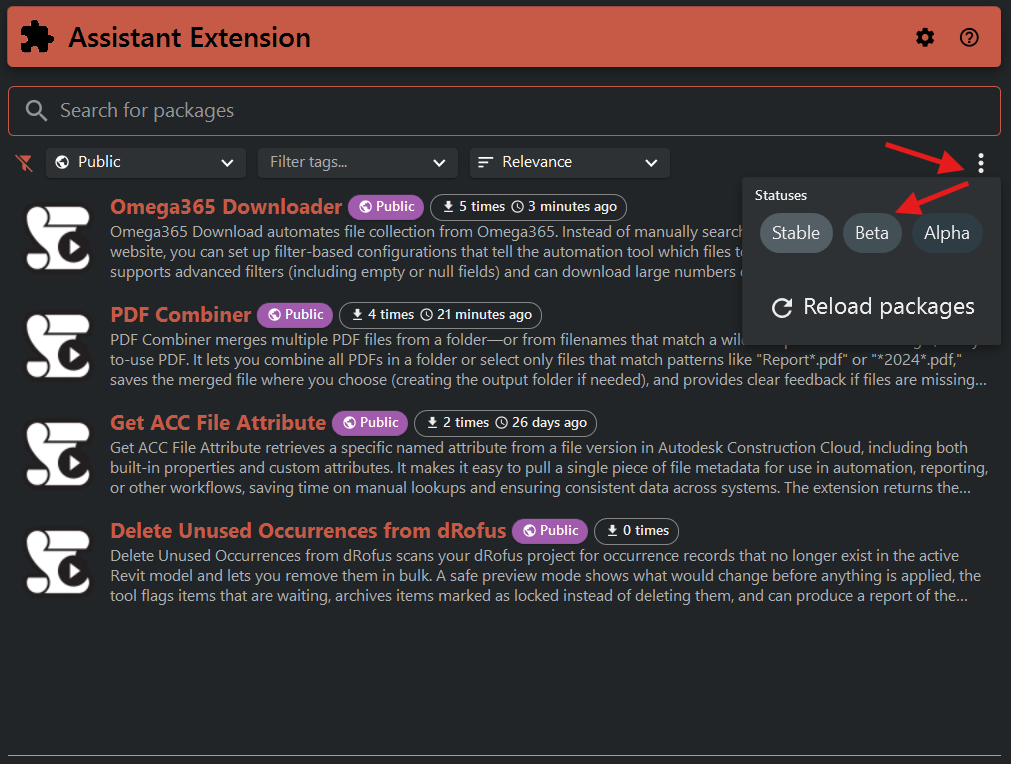
When a stable version is available of the package, a button is shown to switch to stable version.
¶ Package installation folder
All installed packages are stored in the following directory: C:\ProgramData\Assistant\Extensions\.
The complete path to a specific package is structured as follows:
C:\ProgramData\Assistant\Extensions\{IntegrationType}\[{IntegrationVersion}]\{PackageId}\{PackageVersion}
-
{IntegrationType}represents the software integration, which could be Assistant, Revit, Tekla, AutoCAD, Navisworks, and more. -
[{IntegrationVersion}]is applicable to design software. For example, for Revit Extension, the value might be2023for packages designed for Revit 2023. -
{PackageId}is the internal ID of the extension. -
{PackageVersion}indicates the version of the extension.
For example:
C:\ProgramData\Assistant\Extensions\Assistant\GetPIMSTags\0.0.2C:\ProgramData\Assistant\Extensions\Revit\2023\AddSharedParameters\0.0.2
This structure allows you to easily access and manage extension files, particularly if you need to perform manual tasks related to your extensions.