¶ Assistant 6.7.1
¶ Assistant
¶ Features
-
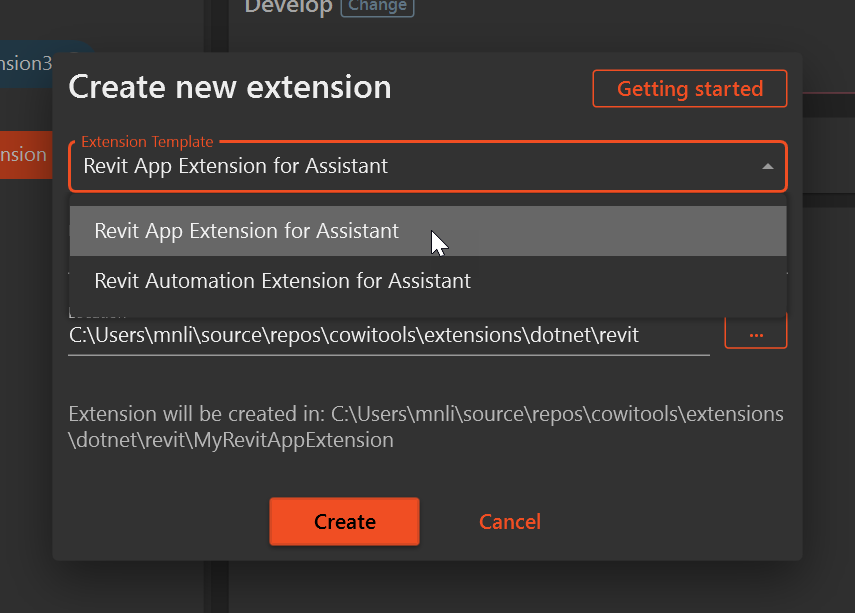
Added a new RevitAppExtension template that enables users to create fully interactive, MVVM-based Revit Extensions with a modern WPF UI. This template provides a foundation for building rich, user-friendly applications with support for data binding, command patterns, and seamless UI interactions. If you previously developed addins for Revit we strongly recommend you to look into this. Click here for developer documentation.
-
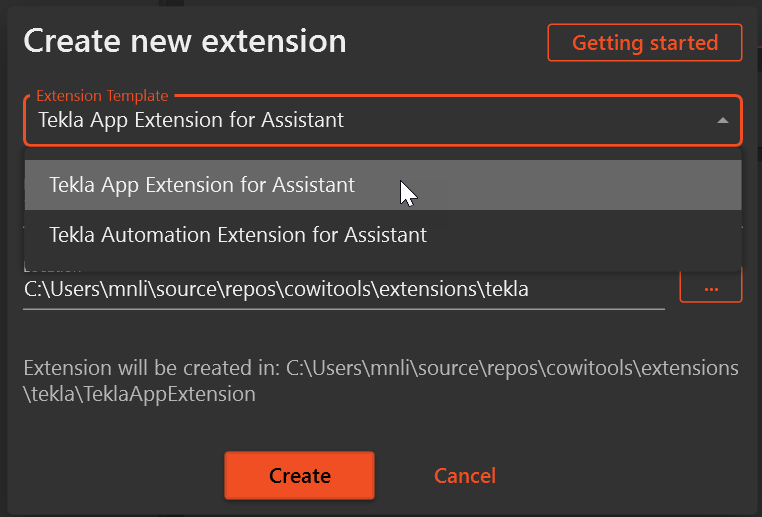
Added a new TeklaAppExtension template that enables users to create fully interactive, MVVM-based Tekla Extensions with a modern WPF UI. This template provides a foundation for building rich, user-friendly applications with support for data binding, command patterns, and seamless UI interactions. If you previously developed addins for Tekla we strongly recommend you to look into this. Click here for developer documentation.
-
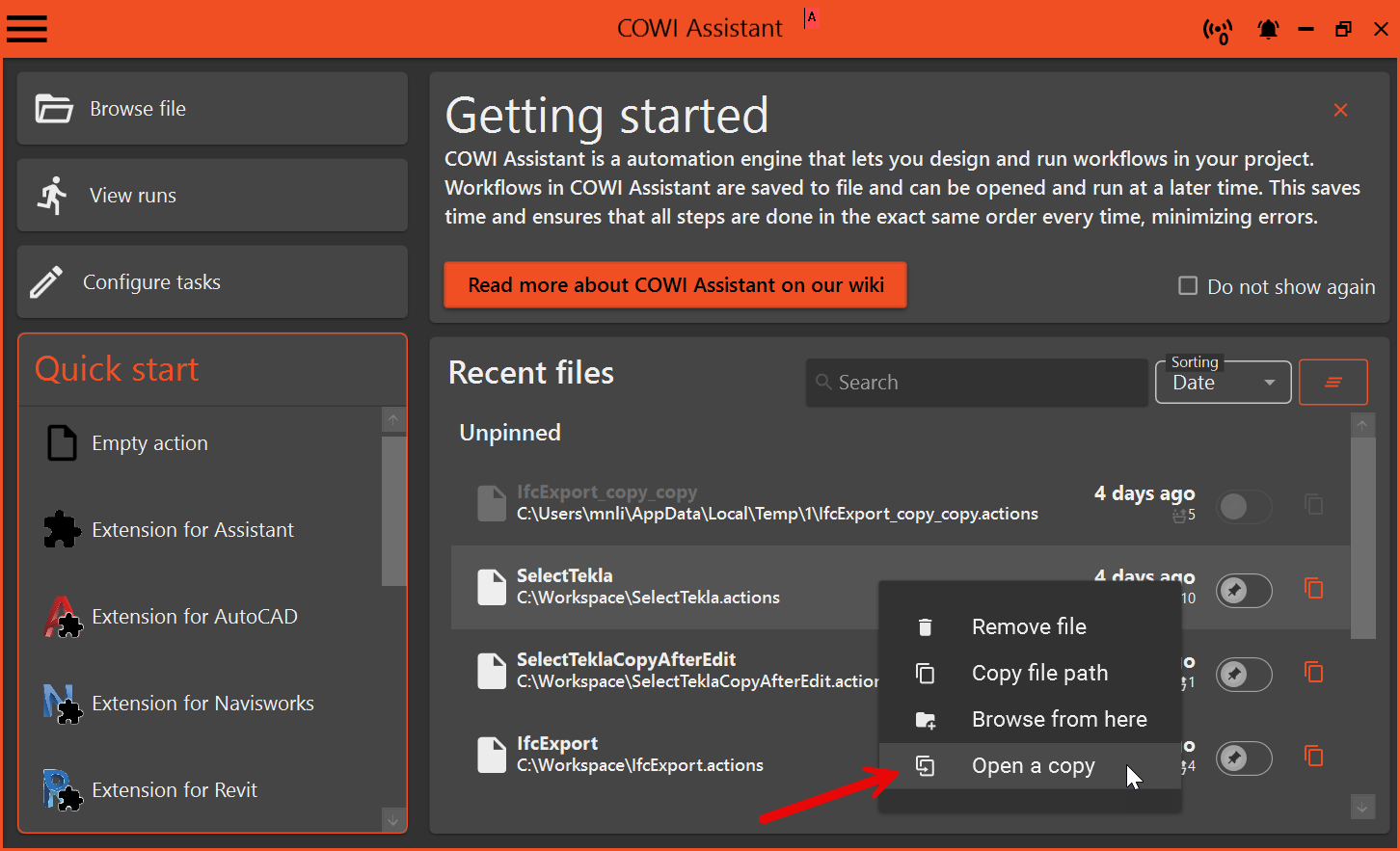
Users can open a copy of an action file directly from the Recent Files list. When editing this copy, any attempt to save the file will prompt the user with a Save As dialog, requiring them to specify a new file name and location. This ensures that the original file remains unchanged.
-
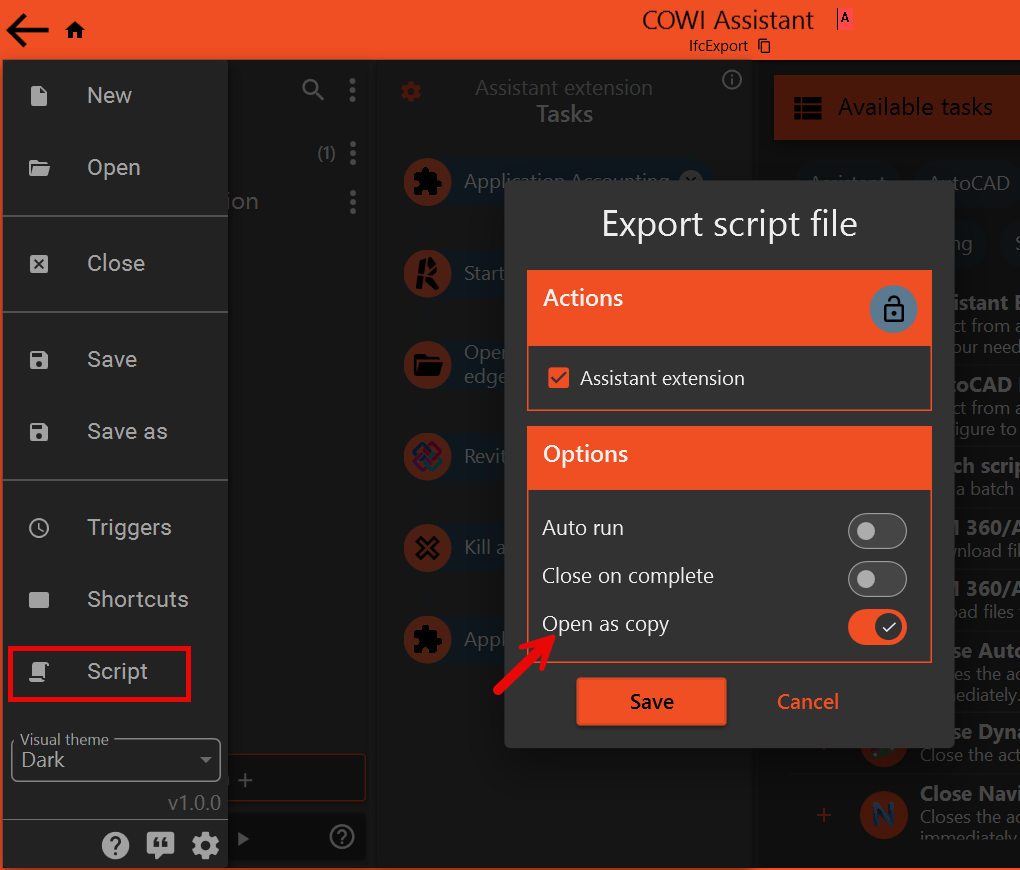
Option to open an action file as a copy when using the "Export script file" feature in Assistant.
-
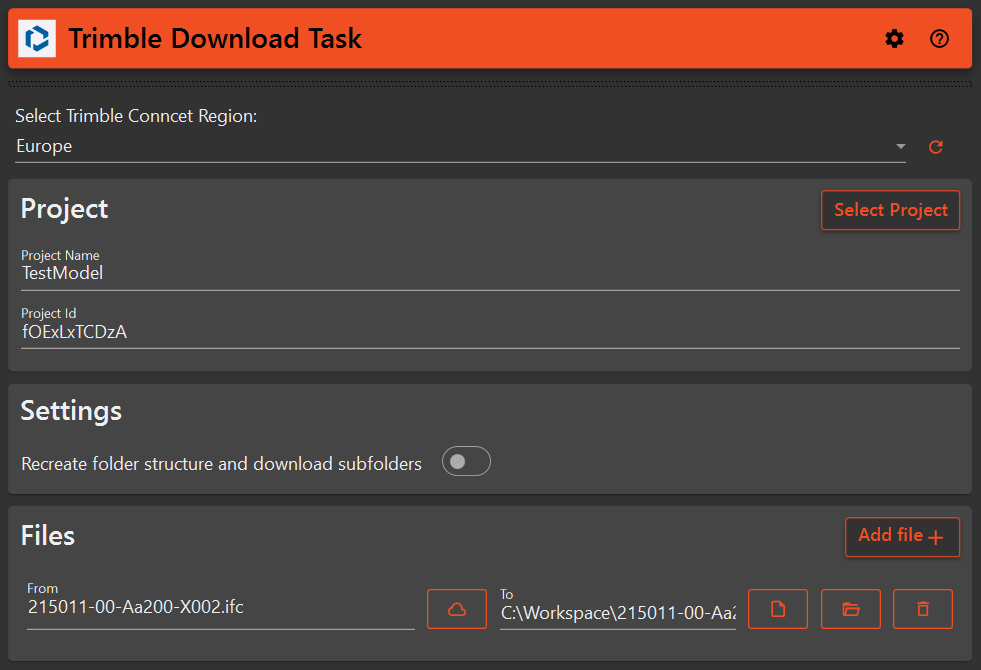
New Tasks for uploading and downloading to Trimble Connect
¶ Improvements
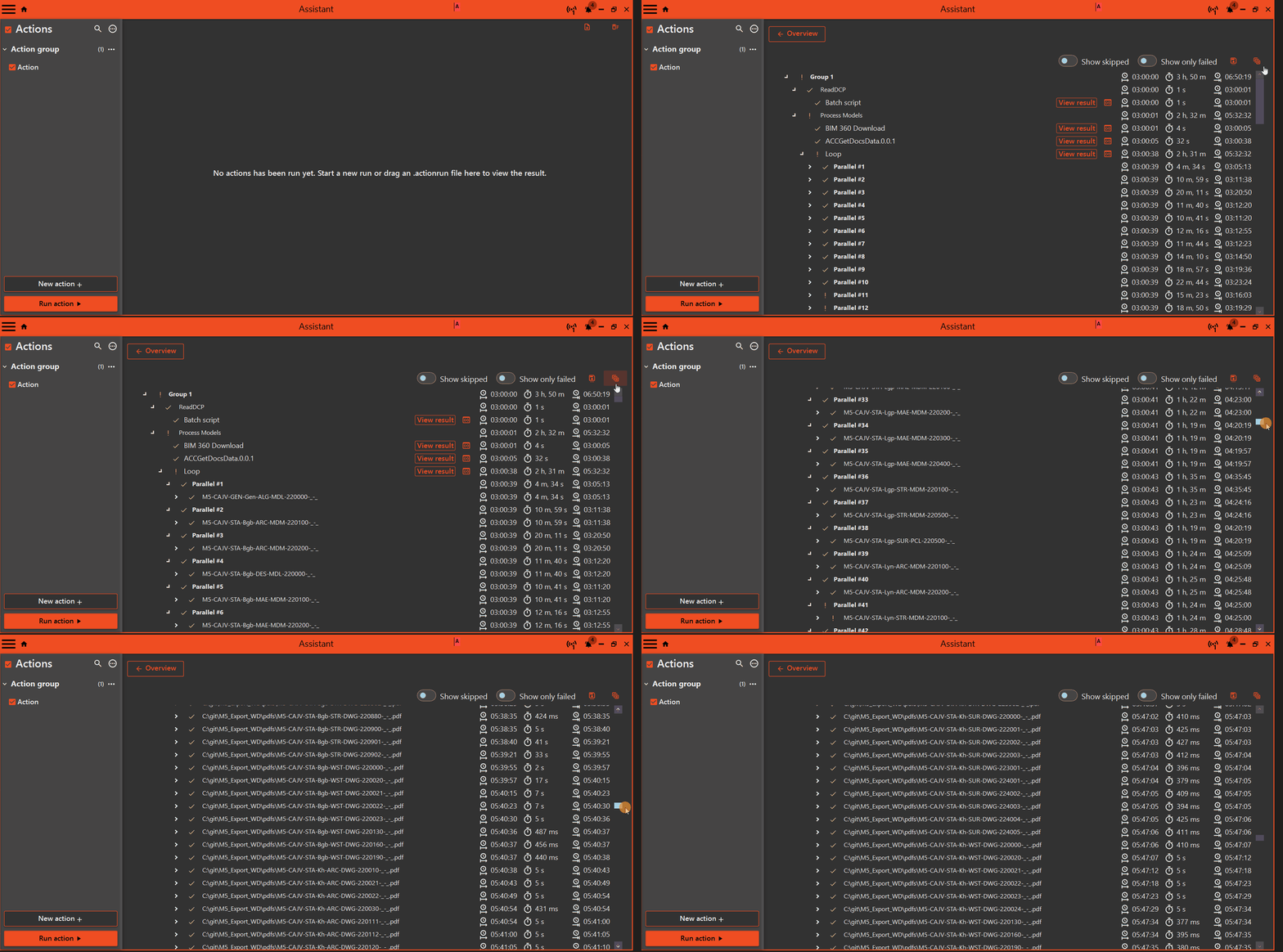
- Improved performance when displaying large action runs. Previously, a file with approximately 5,000 tasks could take up to 30 minutes to open. Now, loading is significantly faster. Additionally, the "Expand All" button has been optimized to expand the next 100 items at a time for large runs, improving responsiveness.
- Name and description of tasks that closes down an instance of an application, such as Revit, Tekla, AutoCAD, etc. has been alligned.
- Performance of shortcuts is improved significantly. When clicking a shortcut in Tekla or Revit, Assistant spent some time "warming up", this warm up time is reduced to almost nothing for the 2. time you execute a shortcut.
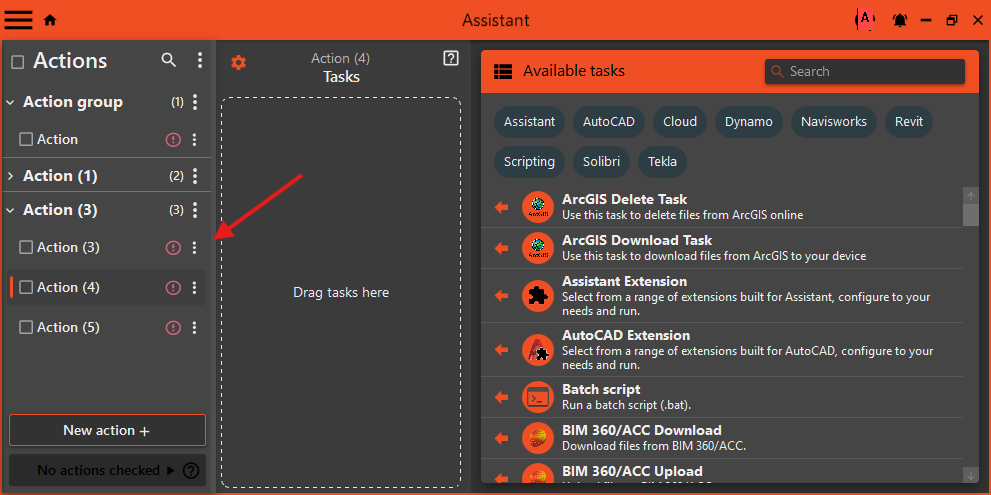
- Improved Action Group Visibility
Action groups previously blended in with regular actions, making it hard to see their state.
The action list UI has been redesigned for clearer distinction and better visual cues.
- Modernized UI
The interface has been updated to follow the Material Design 3 specification. Dark mode colors have been brightened to improve contrast and accessibility. - Available tasks list has been redesigned with rounded colors, a Insert task button that points to the task list with rounded style and the cursor will change to a move symbol when howering a task to indicate that the task can be dragged into the task list.
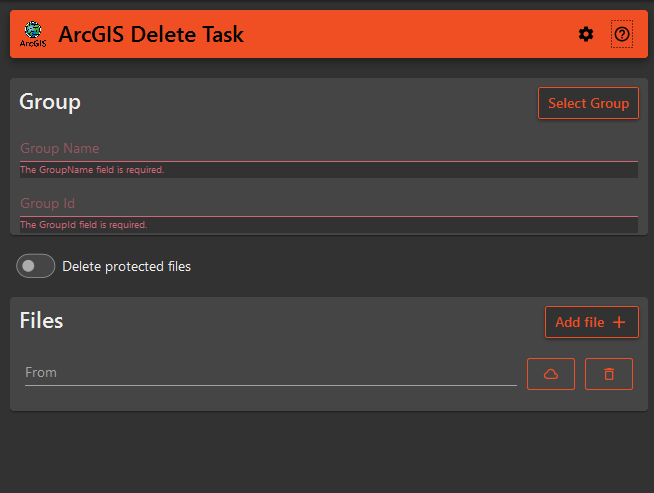
- Simplified Task Configuration Styling
The task configuration panel now uses less of the primary orange color to reduce visual noise and improve focus.Before After 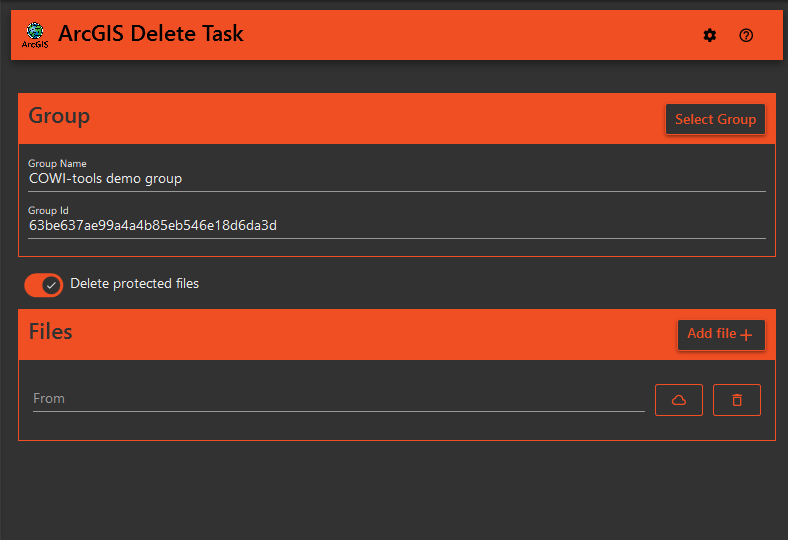
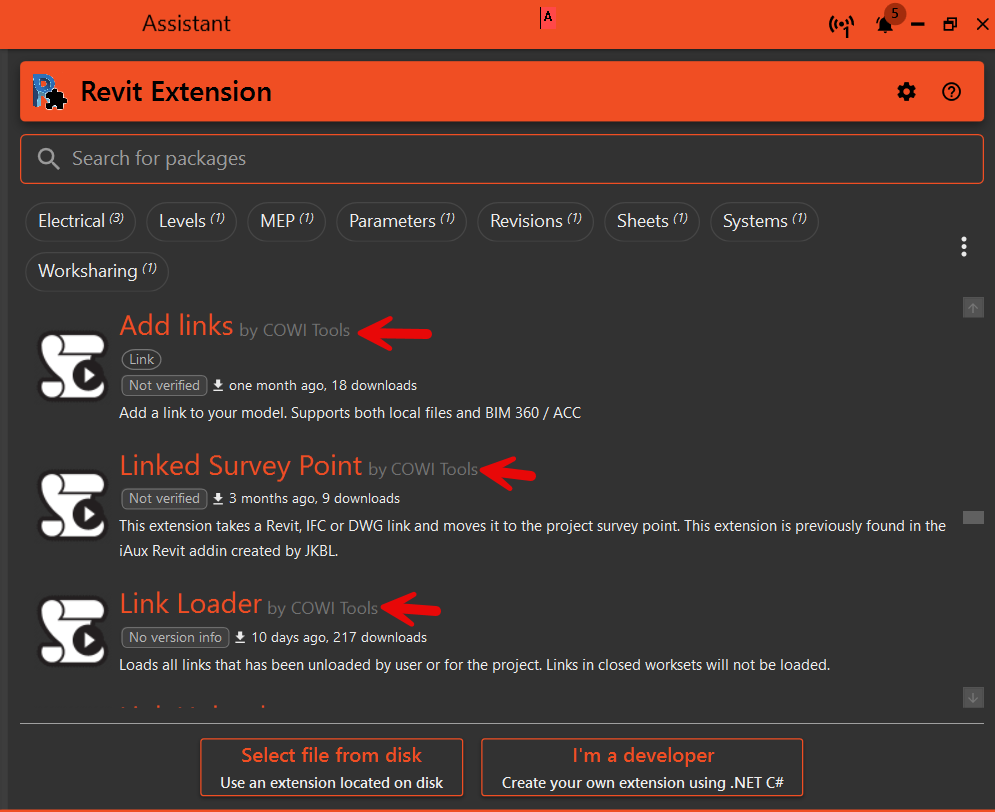
- All extensions available in Assistant has an author, now we display the author for each extension.
¶ Bugs
- The popup for selecting dicipline in Revit blocked execution of Assistant routines, this have been fixed
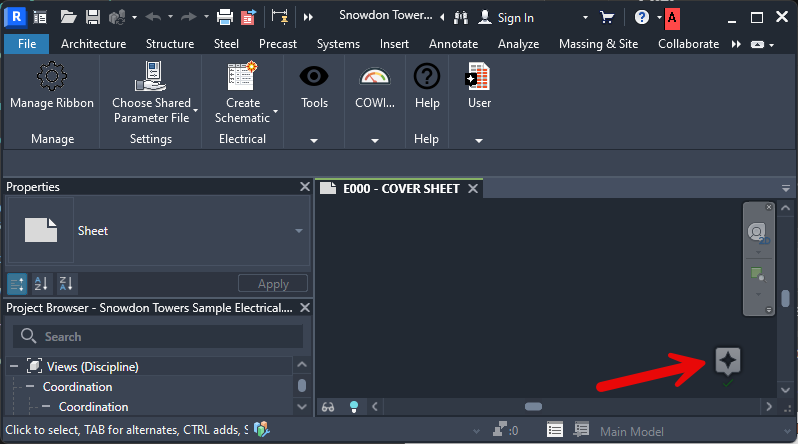
- Some users experienced a mispositioned Assistant icon—shown during shortcut execution—when their Windows display scaling was set to a value other than 100%. This has now been resolved, and the icon positions correctly at all scaling settings.
- Added missing tags
- Fixed an issue where the "Configure Task" button always selected the first action before displaying the actions view
- Fixed an issue in Autorun BCF Export where decimal version numbers could not be entered
- Fixed an issue where saving selected categories in the Categories view did not close the popup and caused the Assistant to be locked with an unresponsive closing dialog
- The Unzip task now allows entering file paths that don’t yet exist, resolving the previous "Task needs configuration" error when using variables like "Loop" in the path
- Improved Action Group Behavior
In rare cases, expanding or collapsing action groups could get out of sync—causing actions to appear or disappear incorrectly.
This issue has been resolved, and group states will now always stay in sync with the visible content.
¶ Coordination Tool
¶ Features
-
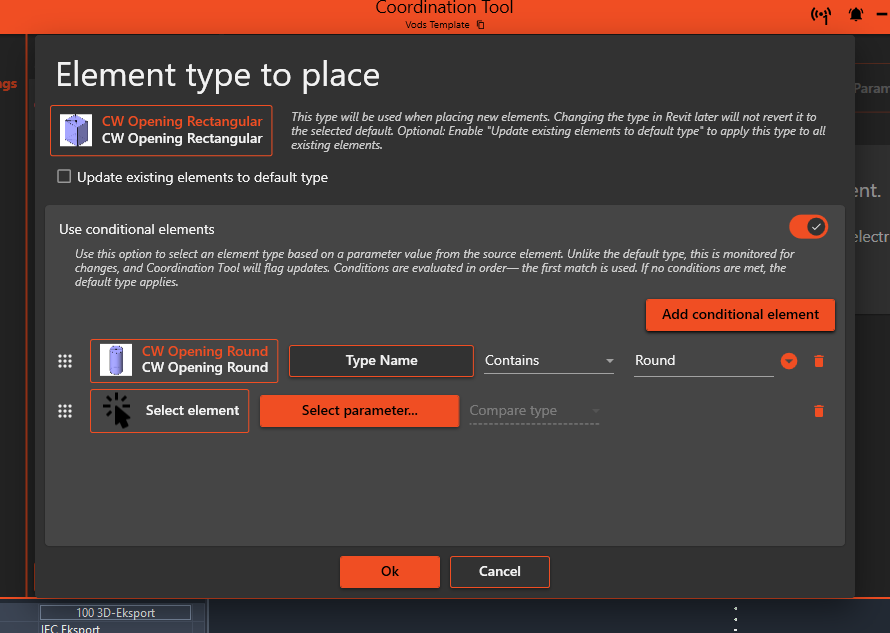
Conditional Elements to Place
You can now define multiple element types to place based on a parameter filter on the reference element.
For example: if the reference element’s type name contains "Round", a round element will be placed instead.
If none of the conditions are met, the default type is used.
You can still override placed elements manually—Coordination Tool will only change them if they match a defined condition.
-
Configuration Summaries
Filter and element buttons now display summaries—such as whether the current model is selected, the number of links, the number of categories, and the number of configured rules.
The element type also shows how many conditional types are defined.

¶ Improvements
-
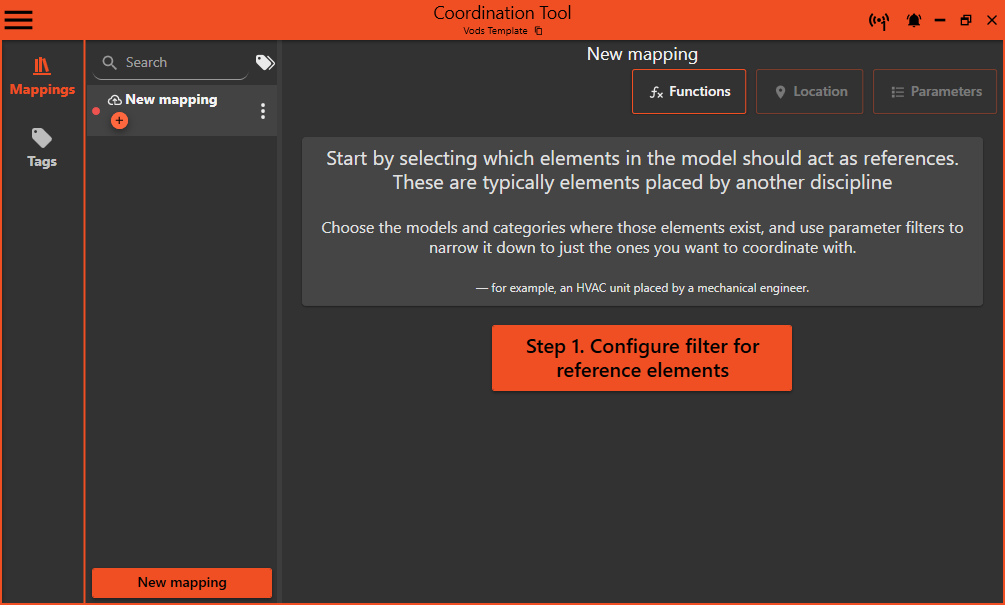
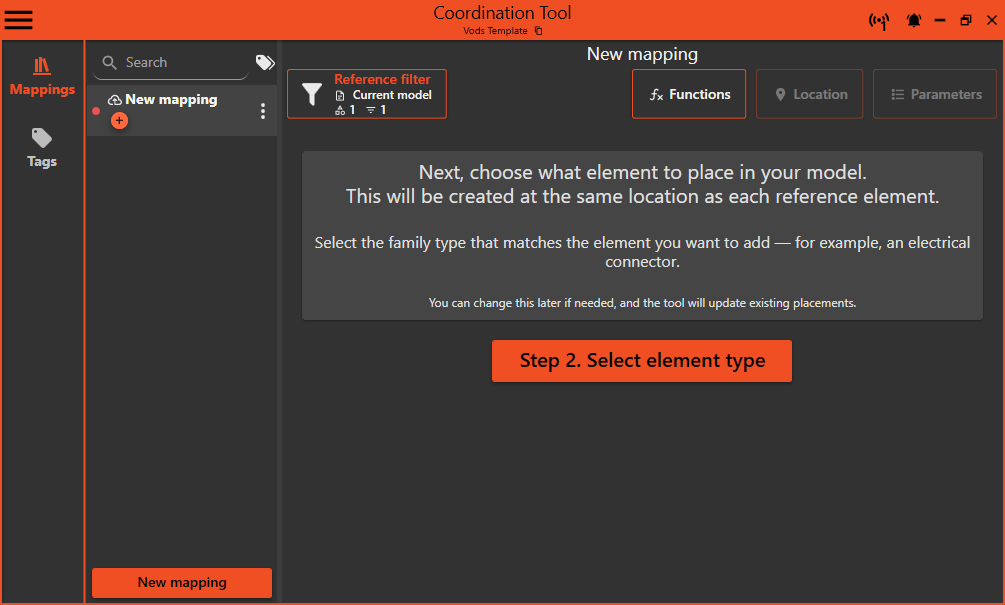
Guided Mapping Configuration
To help new users, the setup steps now include helpful text and examples:-
Step 1: Select references
Choose which elements in the model should act as references—typically from another discipline.
-
Step 2: Select element to place
Pick the family type that should be created at each reference location.
-
-
Modernized UI
The interface has been updated to follow the Material Design 3 specification.
Dark mode colors have been brightened to improve contrast and readability. -
Added the "Plumbing Equipment" category to the category picker, resolving the issue where it was previously unavailable
-
Fixed an issue in the parameter value picker where using “Family” or “Family and Type” as a reference filter did not apply the entered filter value, causing the dropdown to show all results regardless of input.
¶ Void Manager
¶ Features
-
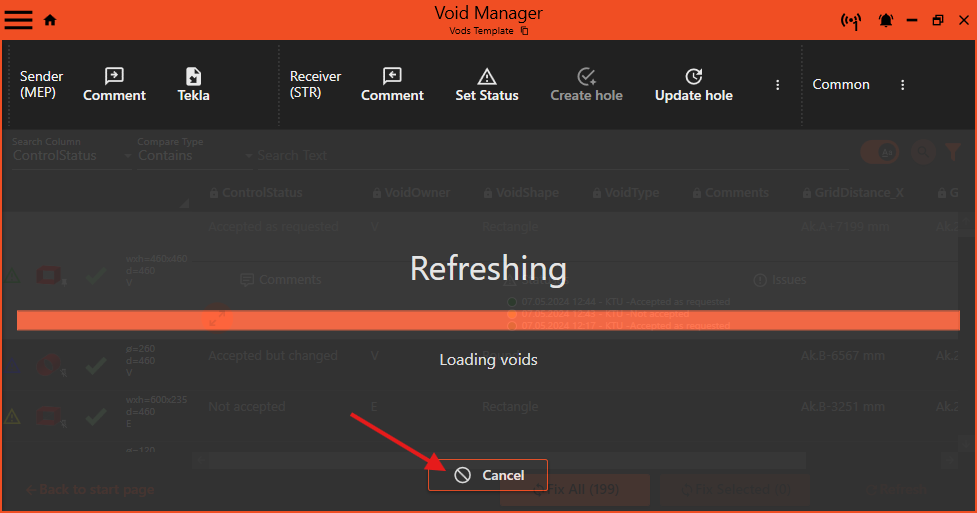
Cancelable Loading
Loading voids can sometimes take a while. You can now cancel the process if needed—perfect if you change your mind or want to load voids from a specific view instead.
-
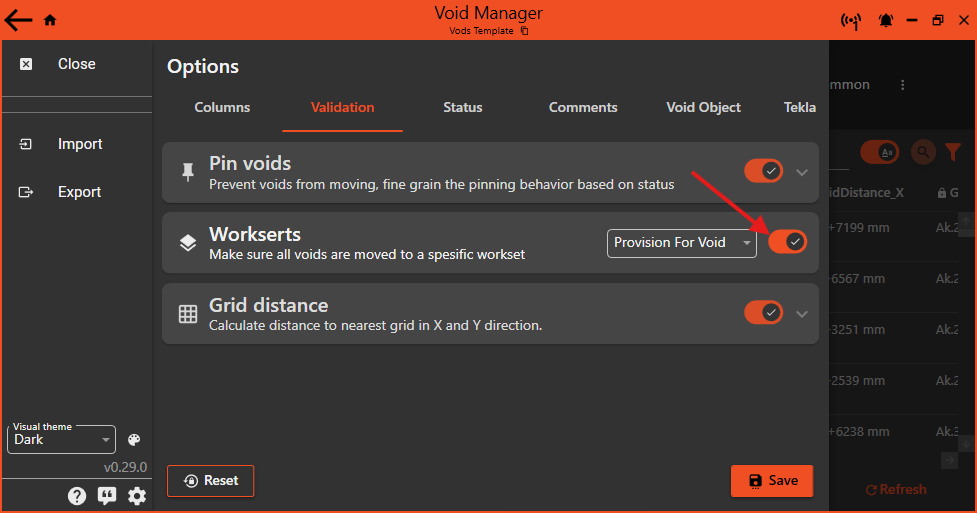
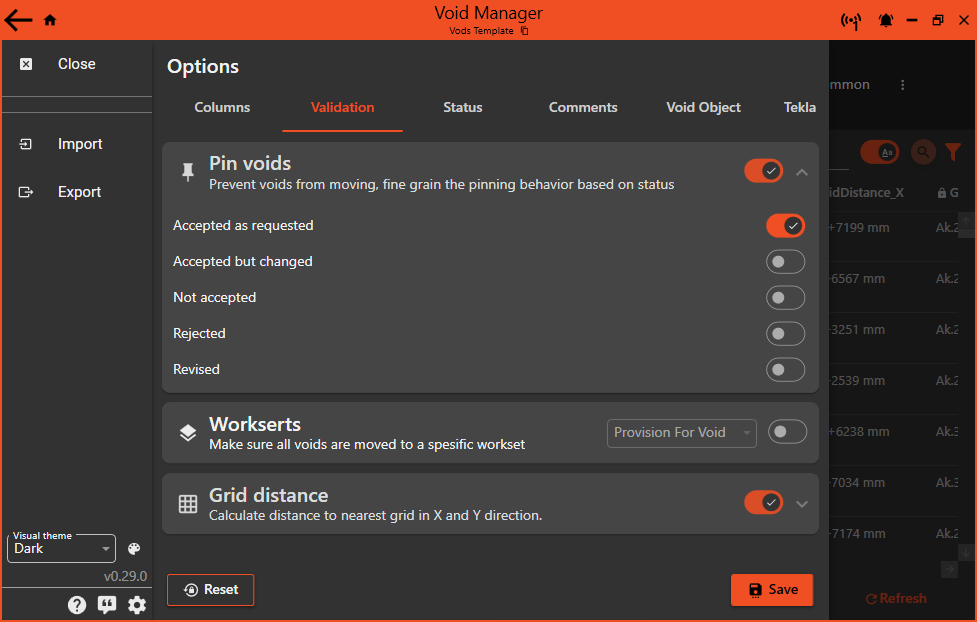
Workset Validation
Void Manager can now check whether voids are placed on the correct workset, and automatically fix them if not. To enable this, open the options from the hamburger menu and turn on Workset validation.
¶ Improvements
-
Simplified Options View
The options view has been redesigned for clarity. Settings are now grouped into clean, expandable cards with clear headings—similar to the style used in Windows 11.
-
Modernized UI
The interface has been updated to follow the Material Design 3 specification. Dark mode colors have been brightened to improve contrast and accessibility.
¶ Space Manager
¶ Improvements
- Modernized UI
The interface has been updated to follow the Material Design 3 specification. Dark mode colors have been brightened to improve contrast and accessibility.
¶ Check & Fix
¶ Improvements
- Modernized UI
The interface has been updated to follow the Material Design 3 specification. Dark mode colors have been brightened to improve contrast and accessibility.