¶ Re-Load Revit Link From Extension Guide
¶ Configuration
- Reload Mode
- From list of links: This option lets you specify which links to reload in a folder.
- From available links: This option let you search for every link in your model and, if found in the folder, reload it from that folder.
- Links
- All the revit links loaded in the active revit model will be displayed here
- Please select the links you wanted to Reload from a new ACC/BIM 360 location
- Reload Option
- Folder ID
- Folder Path
- From 'Files' variable: When 'Files' variable is selected:
- Define a variable named Files and the value should be a comma-seperated list with the full path of the *.rvt file the model guid and model id
Example:
Project/Folder/File.rvt;33ae5b8e-b8d2-4cda-8c11-d0a840f25487;urn:adsk.wipemea:dm.lineage:QFG-TgvNQUGHl790h2swjw
- Define a variable named Files and the value should be a comma-seperated list with the full path of the *.rvt file the model guid and model id
- Folder ID
- Provide the ACC folder Id if it was selected in reload option
- Folder Path
- Provide the folder location in the following format, "Project Files\02_WIP\Electrical Team" if it was selected in reload option
- Unload links
- Unload links after reloading, this will reduce memory usage
- Re-load cloud links
- Also re-load cloud links
¶ Configuration Revit 2021 and older only
For Revit 2021 and older there is no way to get Hub Id and Project Id from the open model
- Hub ID:
- BIM 360 Hub Id
- Required fied if 'Folder Path' is used, only for Revit 2021 or older.
- Example: b.a1eefaf7-effc-433f-873d-16b2cacccff4
- Project ID:
- BIM 360 Project Id
- Required field for Revit 2021 or older.
- Example: b.12f70284-3d6f-4dc0-9cd5-e870479f6430
¶ Combine the extension with loop task
You can re-load every link in your model to an ACC (Autodesk Construction Cloud) Revit Cloud model by using this extension in combination with Loop task for BIM 360/ACC
¶ Template to use within a loop
This template contains the steps defined below. This is the action file that runs for each file to change. See Looping files
- Template per file re_load_links_from.actions
- Template for looping all files re_load_all_links_from.actions
¶ 1. Update list of folders to check
¶ Configure loop task
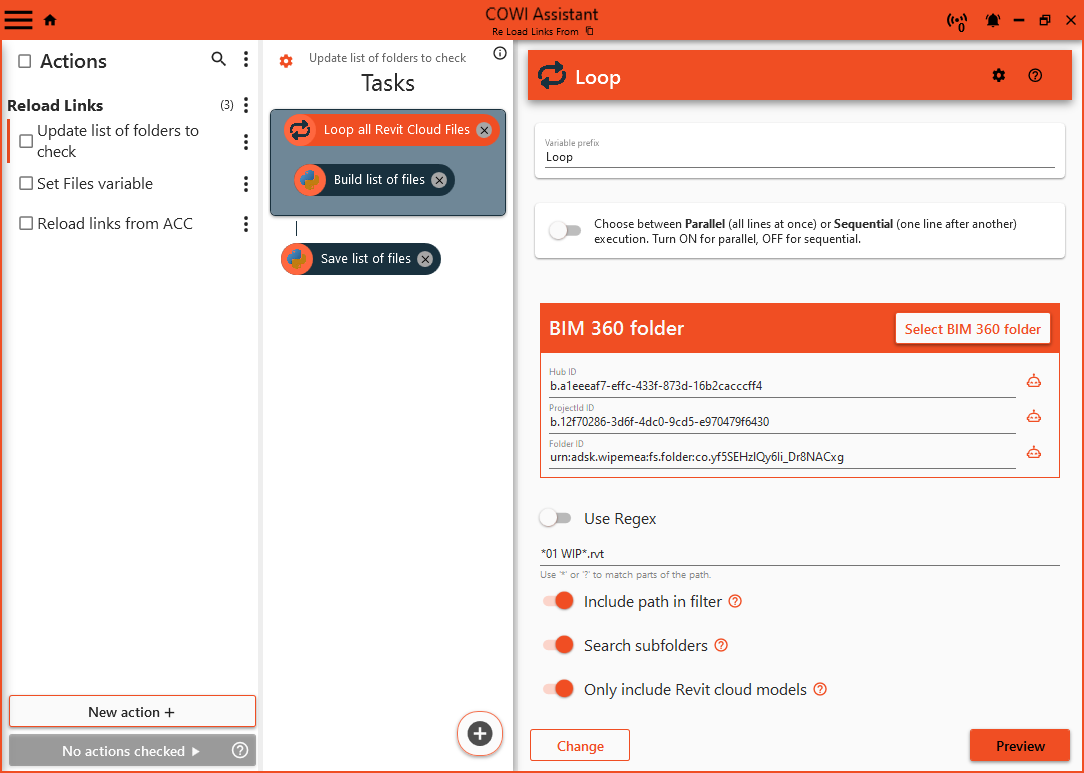
Start by setting up the loop task by selecting desired ACC Hub, project and the root folder for all Cloud models, for details about the loop task, read about it here.
Remember to adjust values in the provided template
Make sure to toogle all the options Include path in filter, Search sub folders and Only include Revit cloud models.
Use a wildcard search to select all desired cloud models the example under finds all Revit Cloud models that has Links in its name or is in a Link folder. Create one that works for your project.
¶ Script to build a list of files
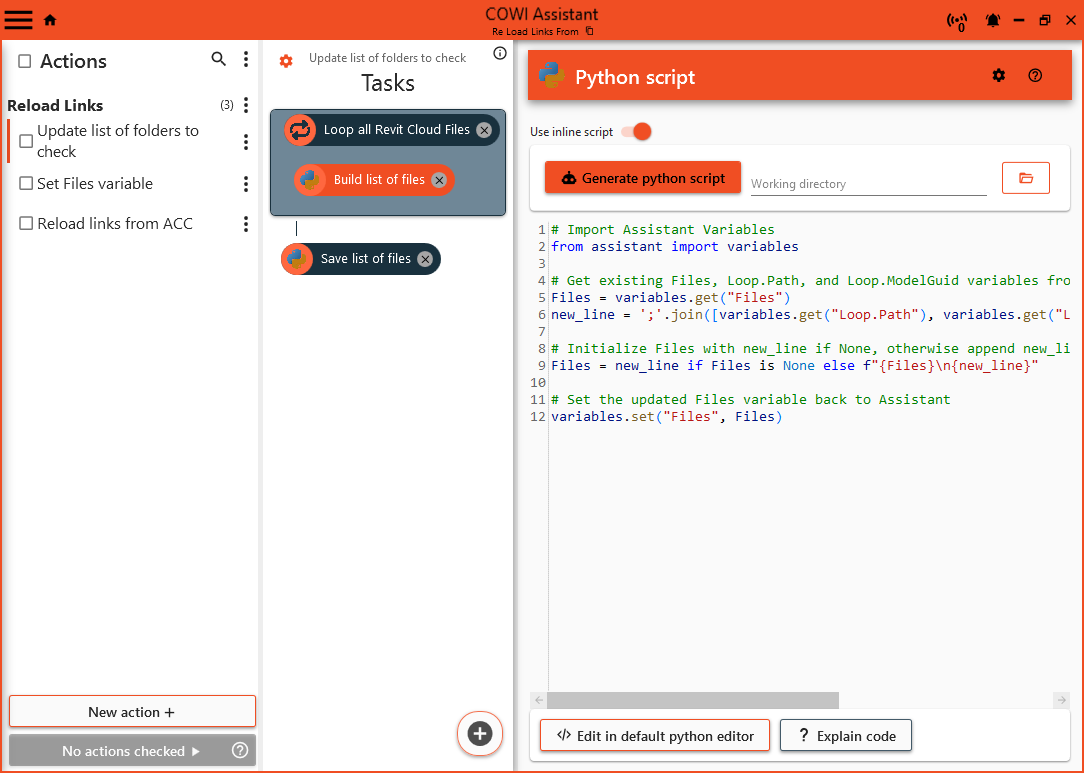
We need to build up a variable to list all the files available for linking. Define a variable named Files and the value should be a comma-seperated list with the full path of the *.rvt file the Model Guid and Model Id (urn)
Example:
Project/Folder/File1.rvt;33ae5b8e-b8d2-4cda-8c11-d0a840f25487;urn:adsk.wipemea:dm.lineage:QFG-TgvNQUGHl790h2swjw
from assistant import variables

# Get existing Files, Loop.Path, and Loop.ModelGuid variables from Assistant
Files = variables.get("Files")
new_line = ';'.join([variables.get("Loop.Path"), variables.get("Loop.ModelGuid"), variables.get("Loop.ItemId")])

# Initialize Files with new_line if None, otherwise append new_line
Files = new_line if Files is None else f"{Files}\n{new_line}"

# Set the updated Files variable back to Assistant
variables.set("Files", Files)
¶ Script to save the Files variable
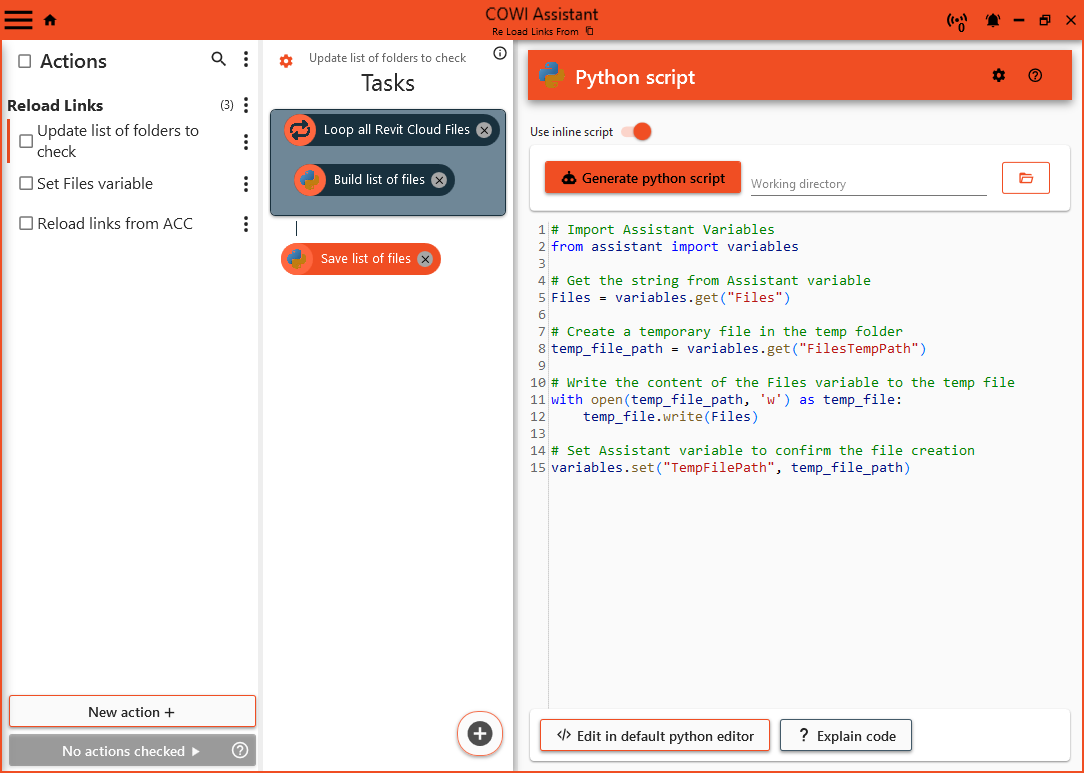
We need to save the list of files to a cache file on disk to pick it up later, so we don't need to get a list of all available files for each file we need to process.
# Import Assistant Variables
from assistant import variables

# Get the string from Assistant variable
Files = variables.get("Files")

# Create a temporary file in the temp folder
temp_file_path = variables.get("FilesTempPath")

# Write the content of the Files variable to the temp file
with open(temp_file_path, 'w') as temp_file:
    temp_file.write(Files)

# Set Assistant variable to confirm the file creation
variables.set("TempFilePath", temp_file_path)
¶ Script to Set Files variable
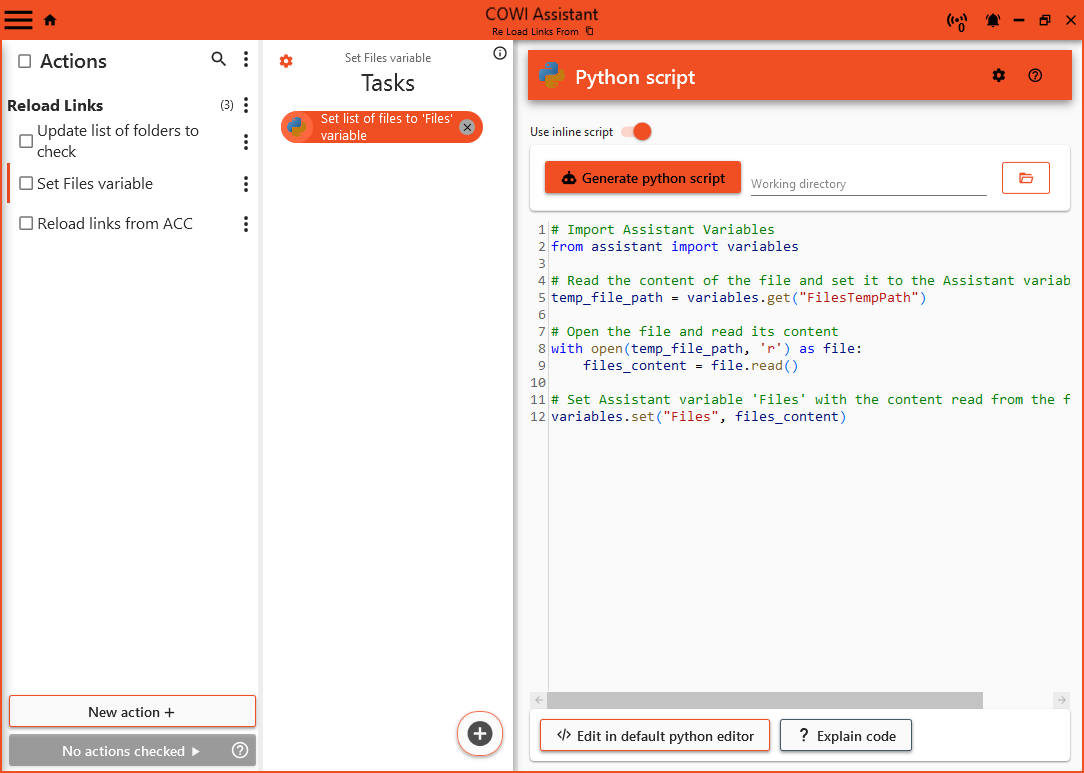
This is a script to read the cached file into a Assistant variable again so that the extension can access the available files to link
# Import Assistant Variables
from assistant import variables

# Read the content of the file and set it to the Assistant variable 'Files'
temp_file_path = variables.get("FilesTempPath")

# Open the file and read its content
with open(temp_file_path, 'r') as file:
    files_content = file.read()

# Set Assistant variable 'Files' with the content read from the file
variables.set("Files", files_content)
¶ Re Load Revit Link From
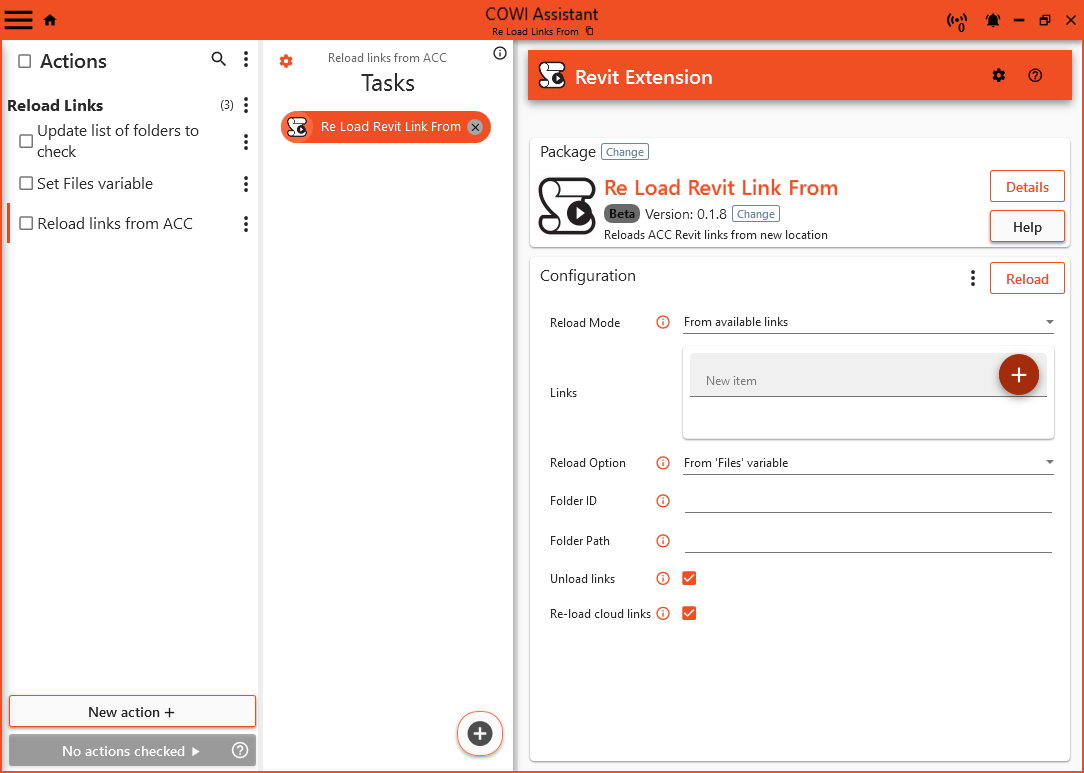
Configure the extension to use:
- Reload Mode: From available links
- Reload Option: From 'Files' variable
- Unload links: Checked
- Re-load cloud links: Checked if you need to move from one cloud to another, not checked if you just vant to change links on local or network locations.
¶ Looping files
The template for one Revit file can alos be combined with a loop task in a new
*.actionsfile. This enables you to update links to a batch of files in ACC.
For more information on the loop task, see loop task
¶ Steps
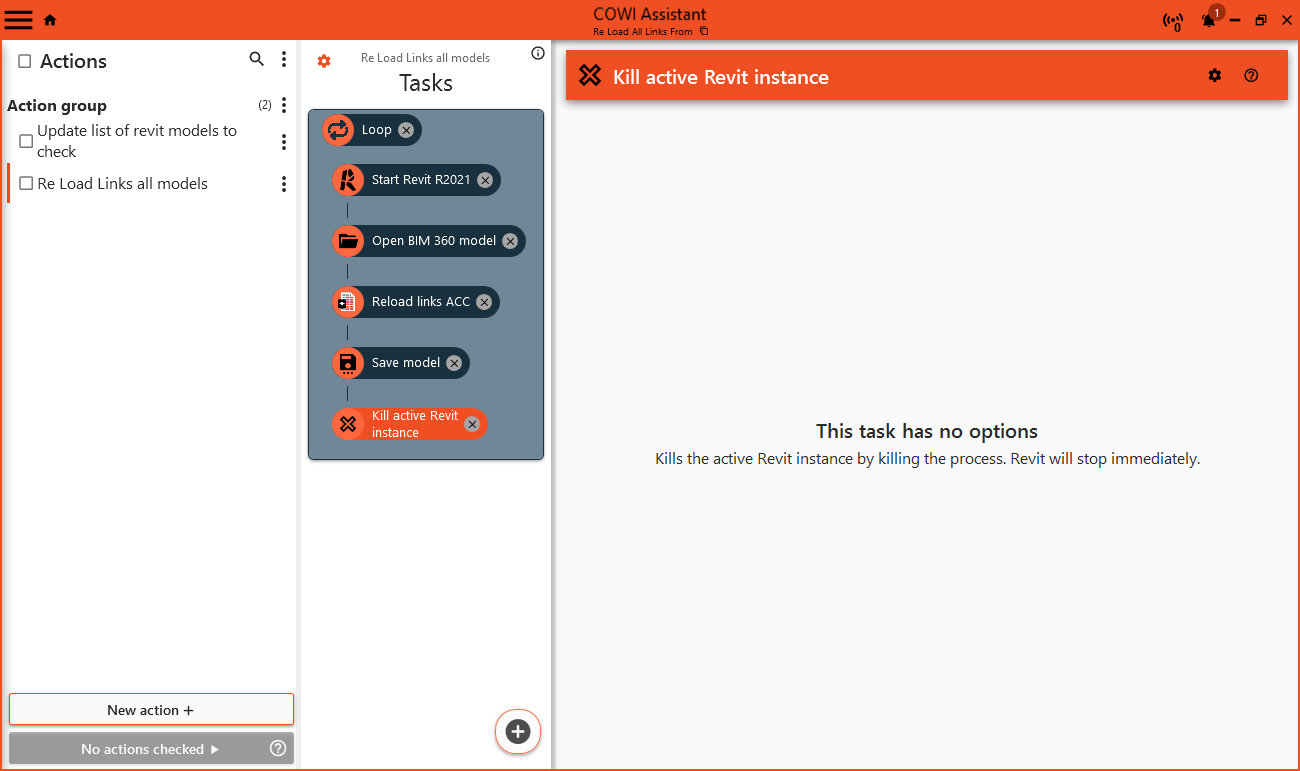
¶ 1. Update list of Revit models
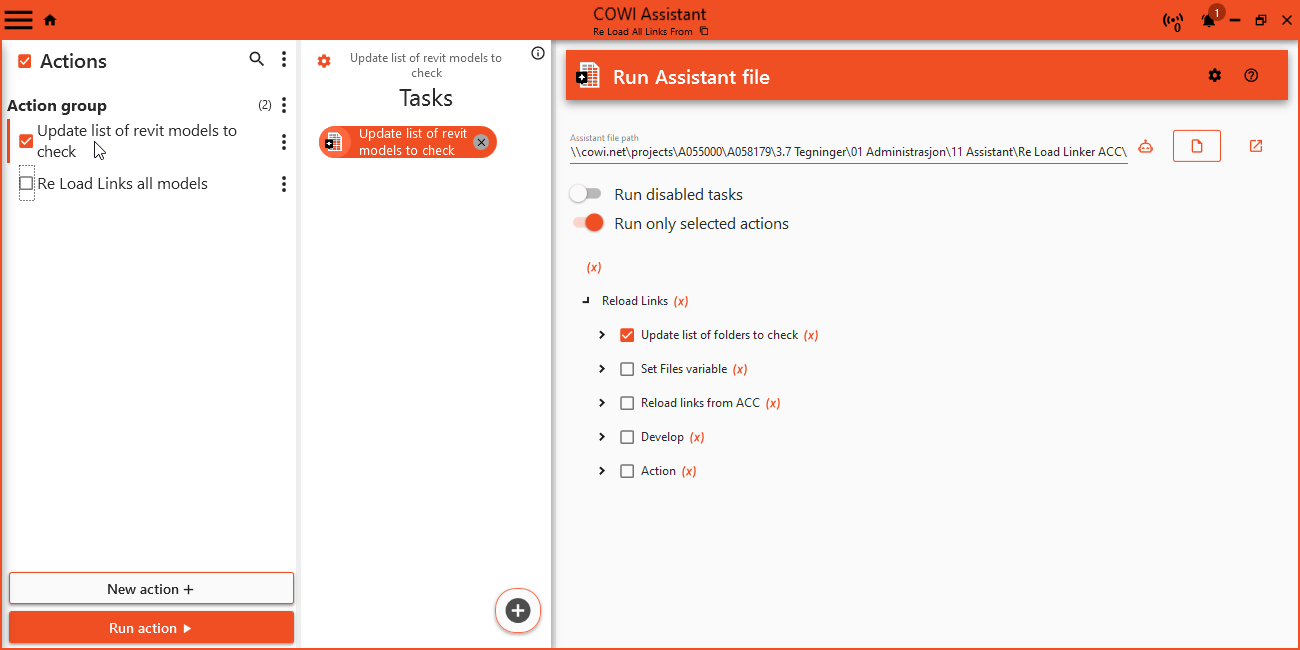
This task is defined in the template file that has the tasks for each Revit model, but it can be nice to have access to it on this action file as well. Here we simply add a Run Assistant File Task and points to our template action file. Make sure to only check Run only selected actions and select the action named Update list of folders to check.
For more infromation about the
Run Assistant File Task, see run-assistant-file
¶ 1. Configure loop task
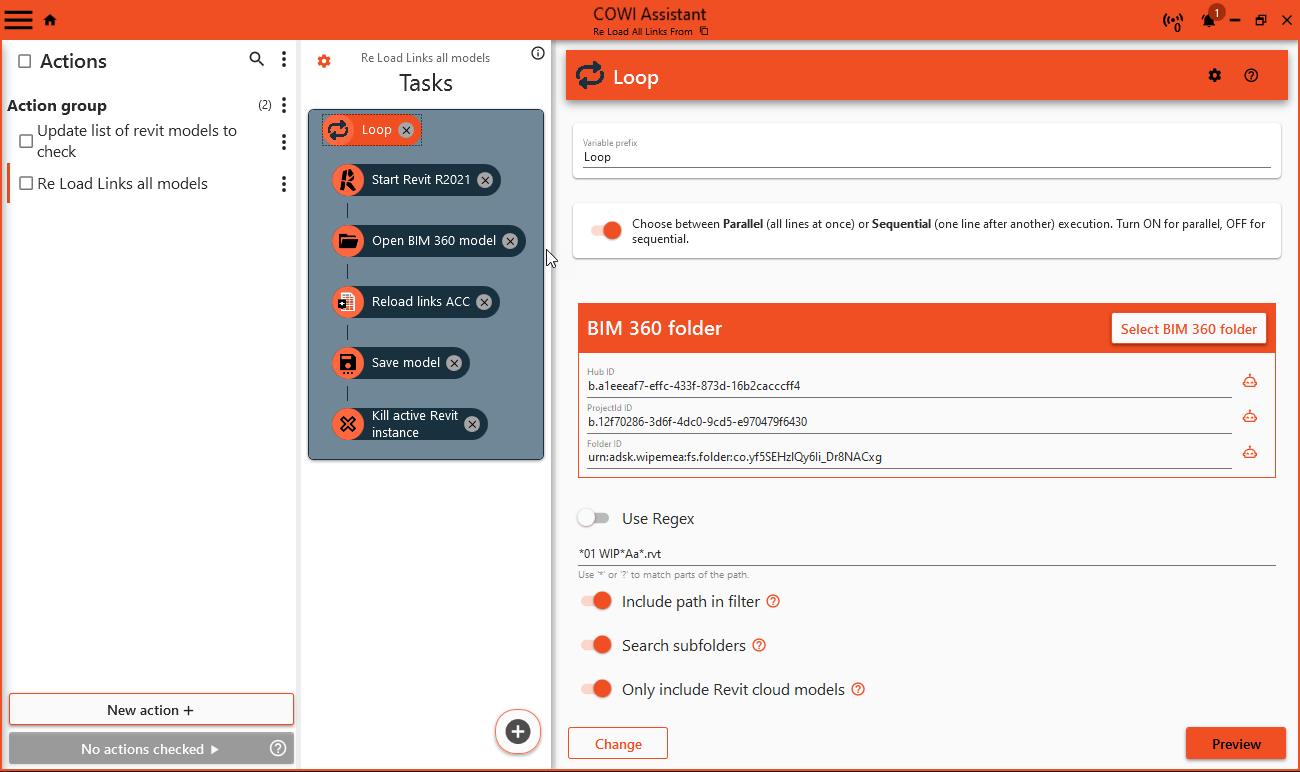
Start by setting up the loop task by selecting desired ACC Hub, project and the root folder for all Cloud models, for details about the loop task, read about it here.
Make sure to toogle all the options Include path in filter, Search sub folders and Only include Revit cloud models.
Use a wildcard search to select all desired cloud models the example under finds all Revit Cloud models that has Links in its name or is in a Link folder. Create one that works for your project.
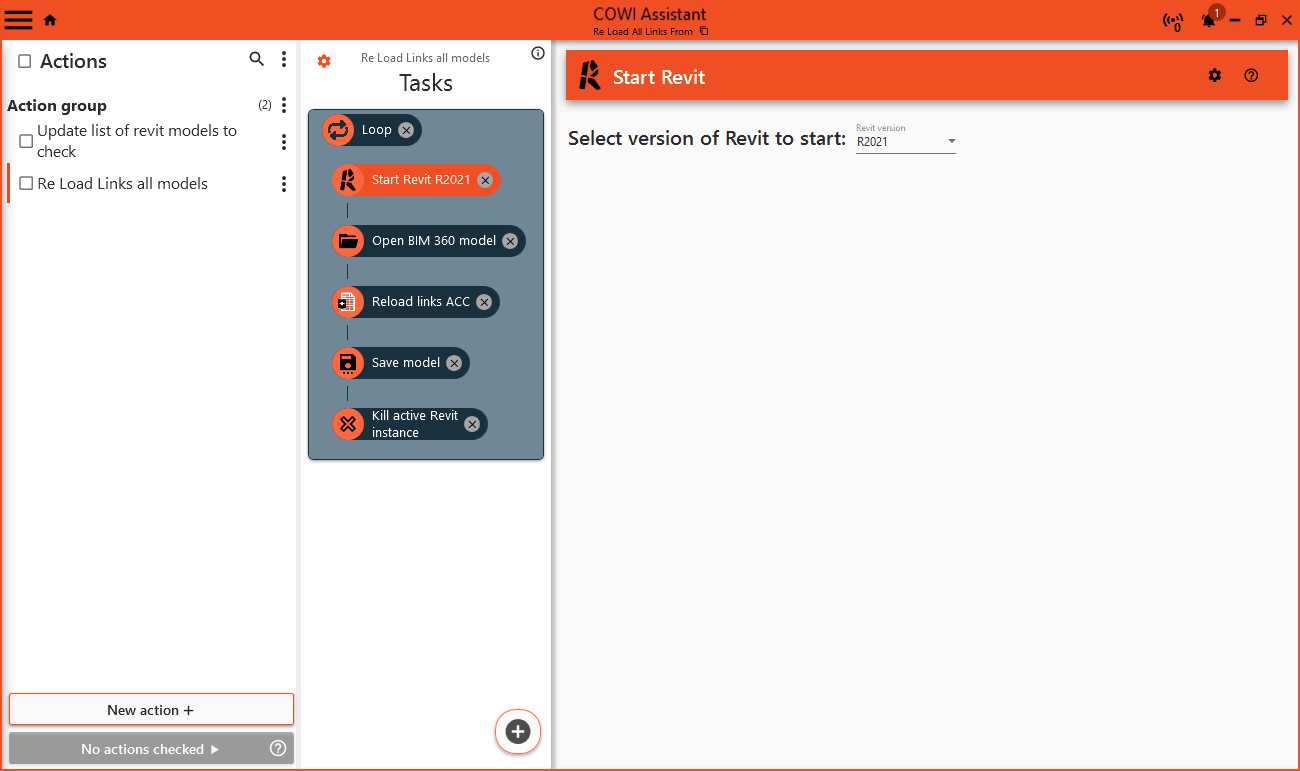
¶ 2. Start Revit
Add a start Revit task and select the desired version
For more infromation about the
Start Revit Task, see start Revit task
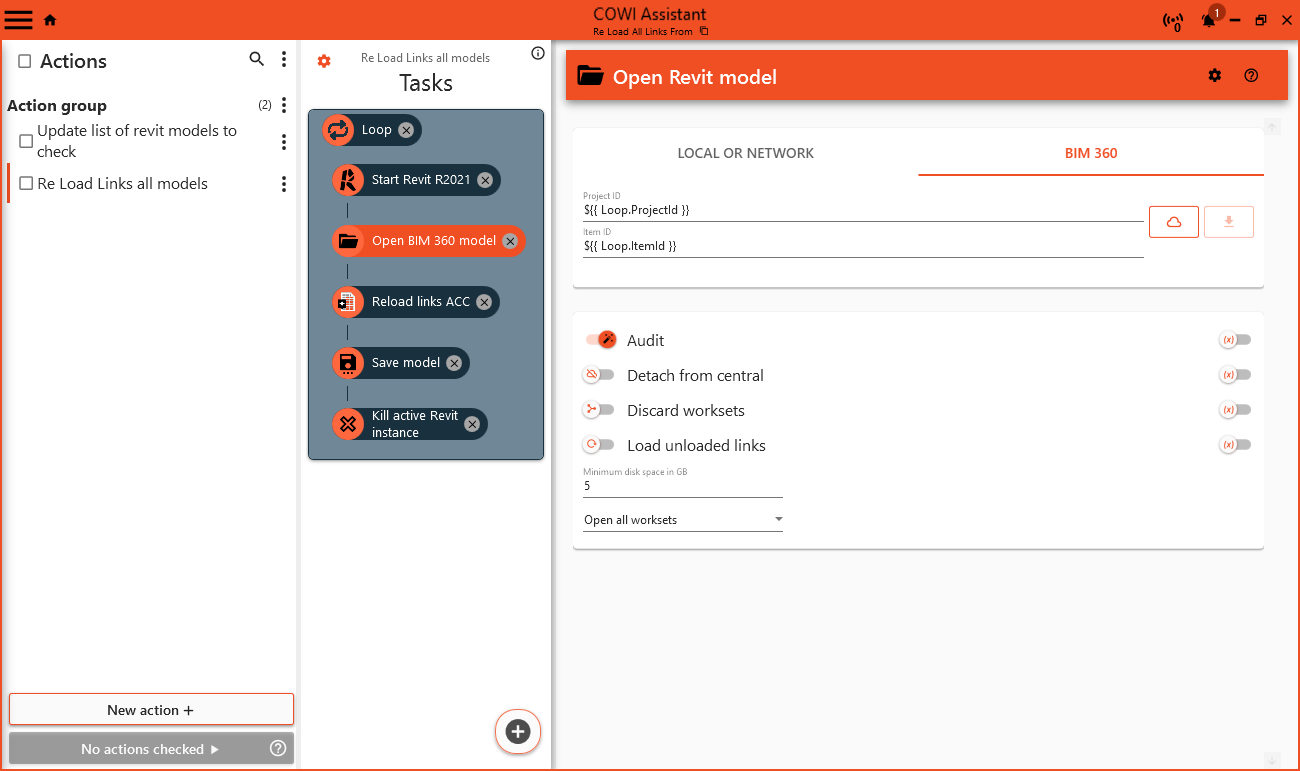
¶ 3. Open Revit model from BIM 360/ACC
Add a open model task and copy the variables from the loop task into the Project Id and Item Id fields
For more infromation about the
Open Model Task, see open model task
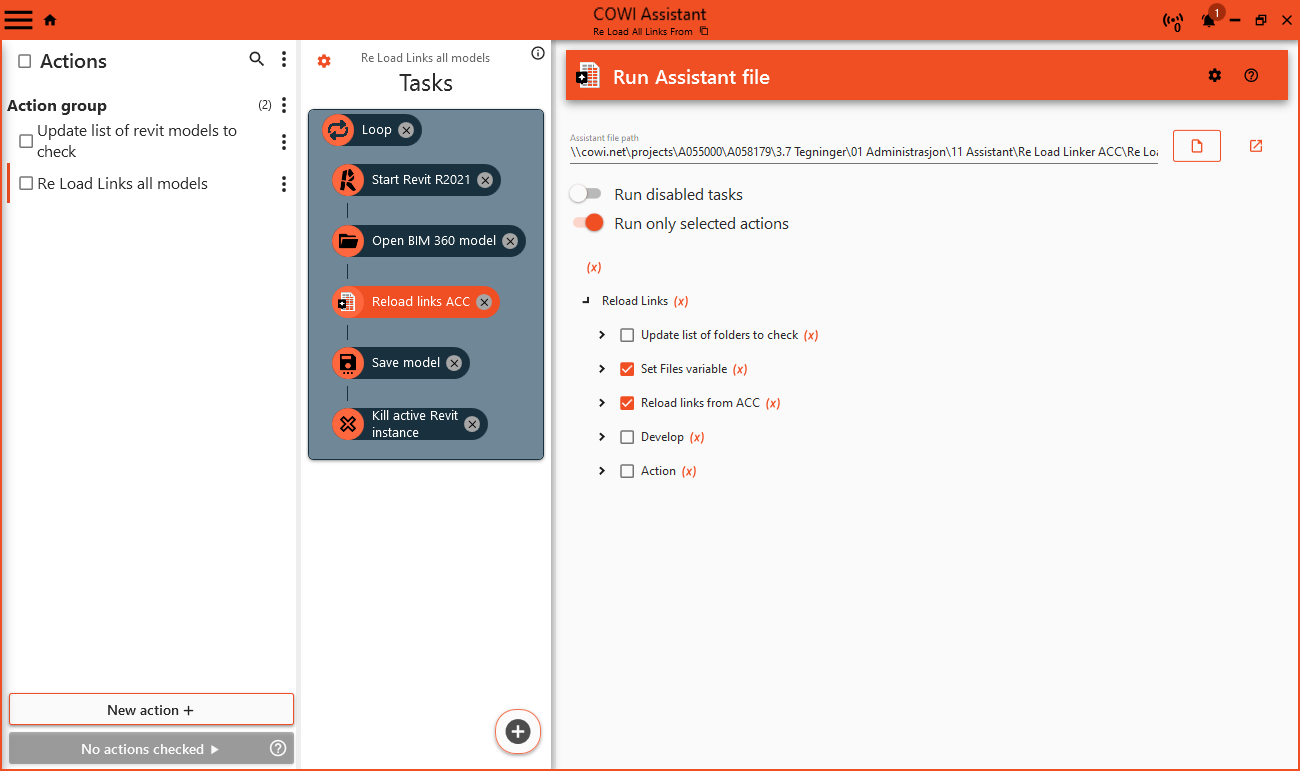
¶ 4. Run Re Load Revit Link From extension
Now its time to run the reload links on the current Revit model in the loop. Add a Run Assistant File Task into the loop, update the path to the template file.
Make sure to only check
Run only selected actionsand select the actions namedSet Files variableandReload links from ACC
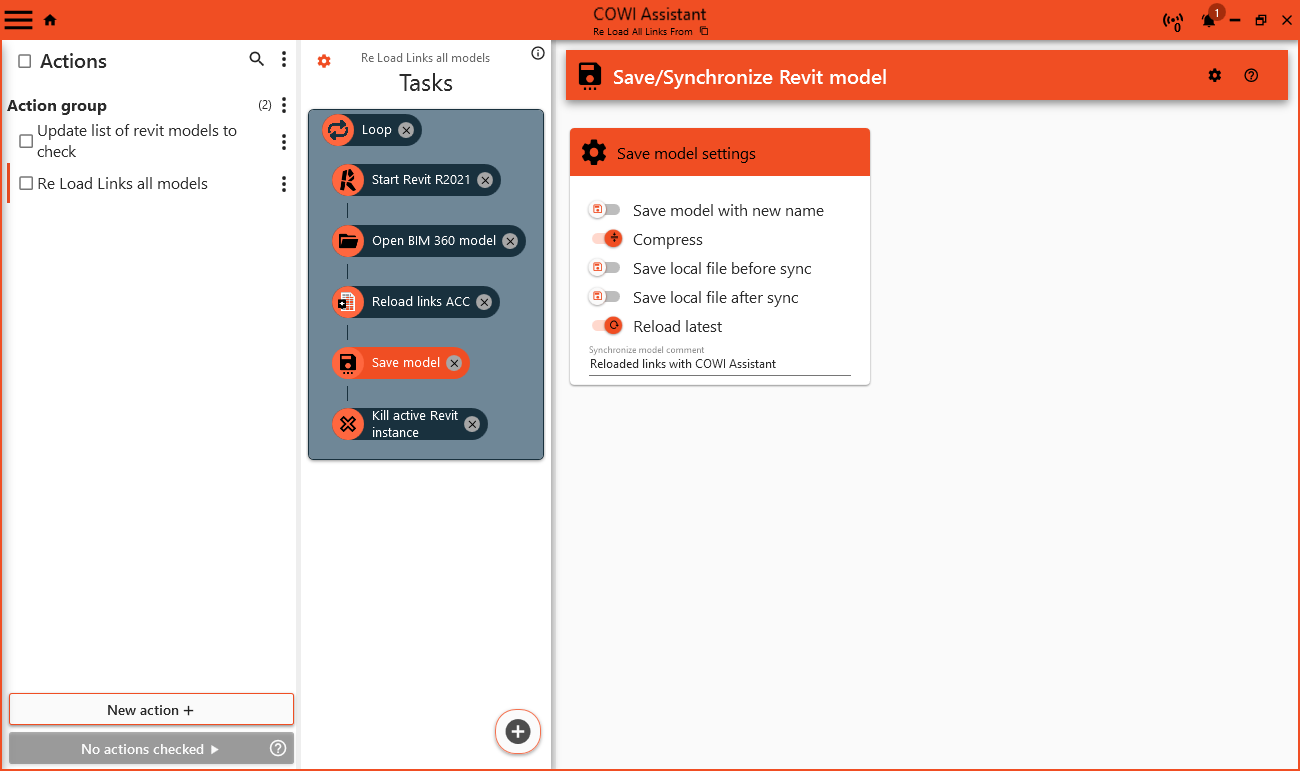
¶ 5. Save Revit model
Add a Save/Synchronice Revit model Task and configure it with the save settings, this could be a nice opertunity to Compress the file as well.
For more infromation about the
Save/Synchronice Revit model Task, see save model task
¶ 6. Close Revit
Add a Kill active Revit instance to close Revit application, this has no configuration.