¶ Loop
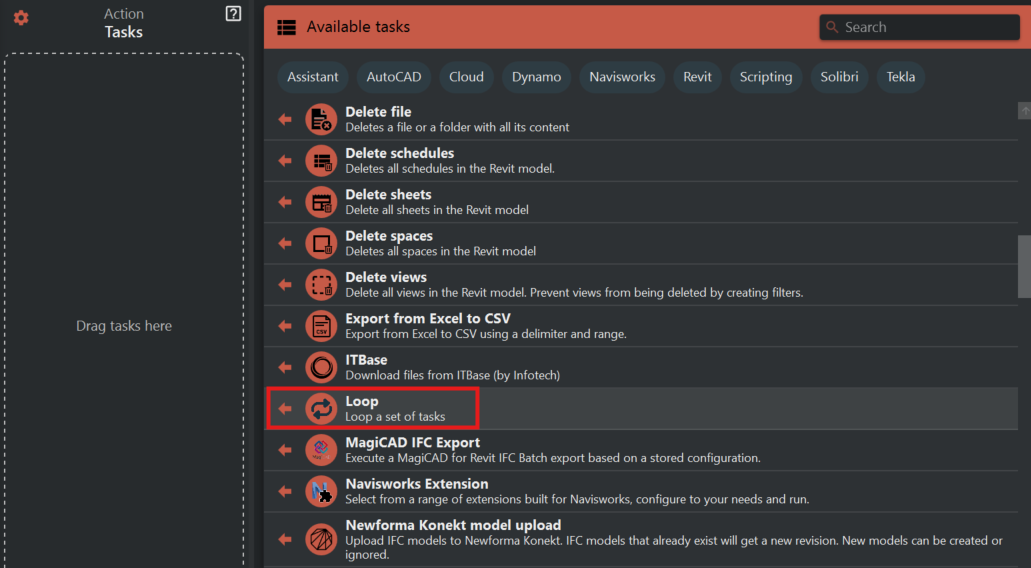
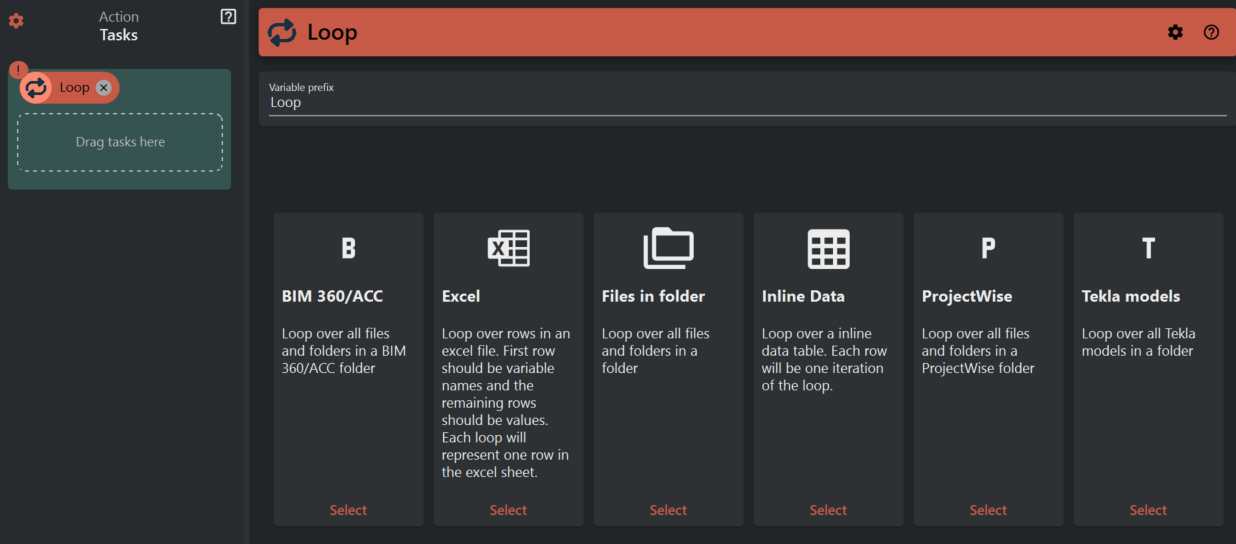
The Loop task in Assistant is designed to simplify the automation of complex routines that require processing multiple files or rows in an Excel table. Unlike traditional methods of automation, where users would need to manually set up routines for each individual file or row, the Loop task uses the table or a folder as input and converts the data into variables that can be accessed inside Assistant. For example, if the Excel table has a column named "Path" and each row in that column has a path to a file, a variable called "Loop.Path" will be available inside the Loop task. This makes it easy to iterate through every row of the table and execute all the tasks inside the Loop task without needing to manually configure each one. So whether you need to process multiple files or iterate over rows in an Excel table, the Loop task in Assistant is a powerful tool that can help you automate your workflows and save valuable time and effort.
¶ Adding tasks to a loop
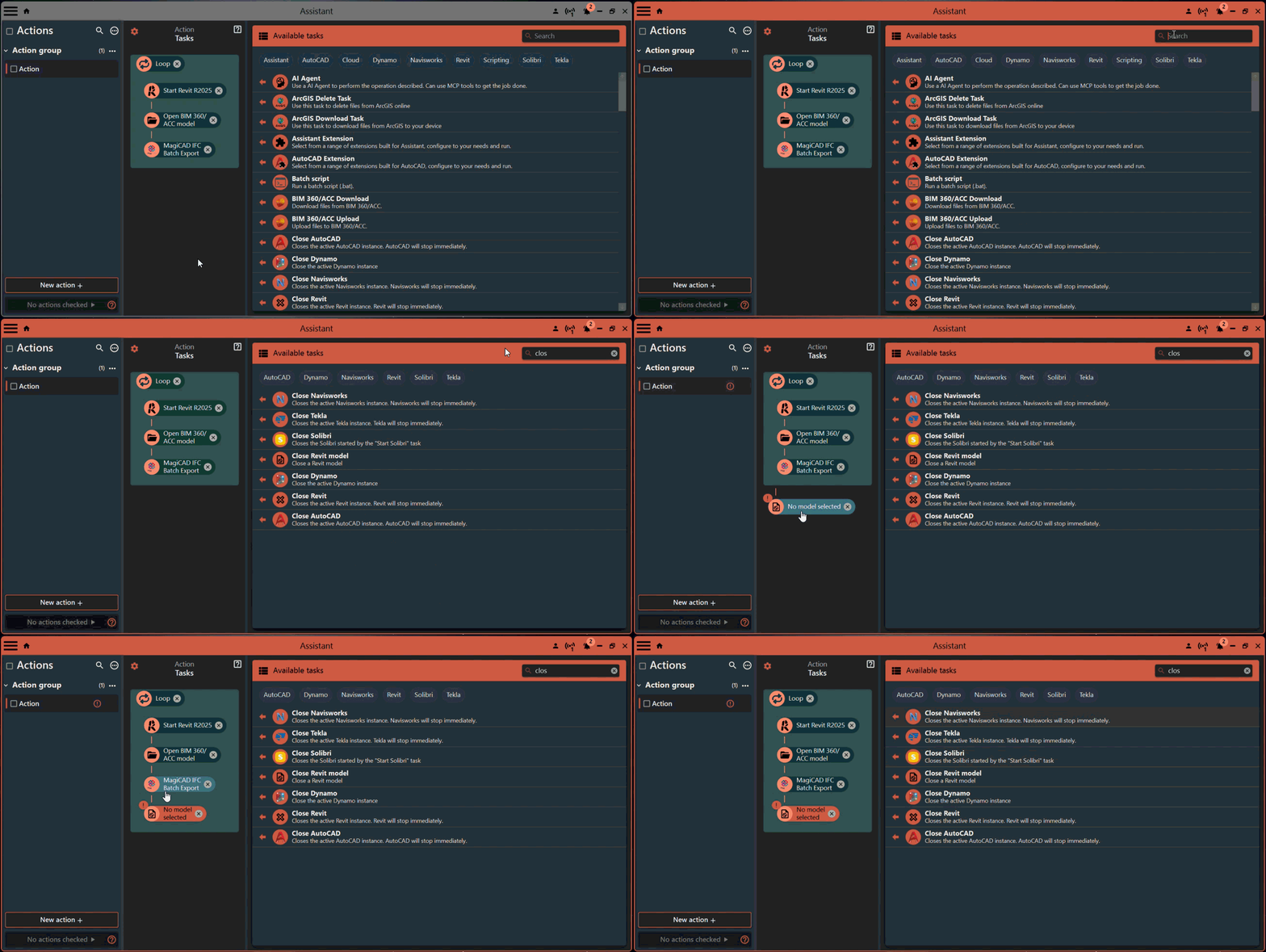
To add tasks to be iterated over inside the Loop Task, users need to first add the task to the action file in Assistant. Once the task is added to the action file, users can simply drag and drop the task inside the Loop Task. The Loop Task will automatically iterate over each file or row in the data source and execute the task for each iteration. This means that users can easily add multiple tasks to the Loop Task, and all of them will be executed for every iteration of the loop.